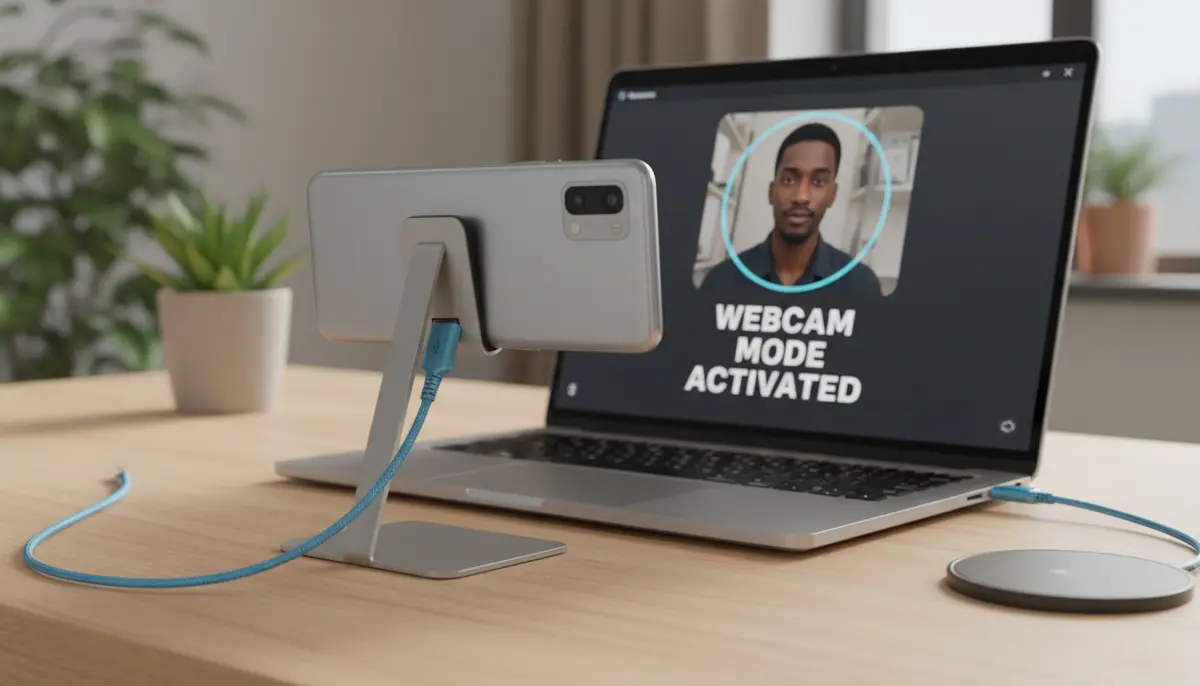
Introduction: Why Turn Your Android Camera into a High-Quality Webcam?
In today’s digital world, a good webcam is essential. You need it for work meetings, online classes, or even connecting with friends and family. However, built-in laptop cameras often fall short. They offer grainy images and poor lighting, making you look less than your best.
What if you could upgrade your video quality without buying expensive new gear? The good news is you can! Your Android smartphone, with its advanced camera system, is a powerful tool waiting to be unleashed. This guide will show you exactly how to turn your android camera as webcam, providing crystal-clear video for all your online needs in 2025.
Using your phone’s camera offers significant advantages. You already own a device with superior optics. Why not put it to work? Let’s dive into making your android camera as webcam the best it can be.
Why Your Android Camera is Superior to Most Webcams
Most dedicated webcams, especially those built into laptops, use small sensors and basic lenses. This results in poor performance in anything but perfect lighting. Your Android phone, on the other hand, boasts sophisticated camera technology. It often includes larger sensors, better lenses, and advanced image processing capabilities.
Think about the photos and videos you capture with your phone. They are sharp, vibrant, and detailed. Imagine bringing that same quality to your video calls. This is the primary benefit of using your android camera as webcam.
- Superior Image Quality: Android phones typically have higher resolution sensors (12MP, 48MP, or even 108MP) compared to standard 720p or 1080p webcams. This means sharper images and more detail.
- Better Low-Light Performance: Larger sensors and advanced software processing on Android devices handle dim environments much better, reducing noise and improving clarity.
- Autofocus and Exposure Control: Your phone’s camera offers more precise autofocus and dynamic exposure adjustments, keeping you perfectly lit and in focus.
- Cost-Effectiveness: You already own the equipment. There’s no need to spend extra money on a standalone webcam when you can repurpose your existing device.
- Lens Versatility: Many Android phones feature multiple lenses (wide-angle, ultrawide, telephoto). Some apps allow you to switch between these for different perspectives during your calls.
Choosing the Right App to Turn Your Android Camera as Webcam
Several excellent applications can bridge the gap between your Android phone and your computer. These apps install a client on your PC (Windows, macOS, or Linux) and an app on your phone. They then communicate, allowing your computer to recognize your phone’s camera as a standard webcam.
The choice of app depends on your operating system, desired features, and budget. Here are some of the most popular and reliable options in 2025:
- DroidCam: This is perhaps the most well-known and widely used app. It supports both USB and Wi-Fi connections. DroidCam offers a free version with basic features and a paid version (DroidCamX) for higher resolutions and additional controls. You can find the DroidCam app on the Play Store, which turns your Android device into a webcam.
- Camo: Camo is a premium option known for its excellent quality and advanced features. It offers extensive control over your camera settings, including exposure, focus, and white balance. Camo supports both Android and iOS devices, providing a professional-grade experience. It’s often recommended for those who need the absolute best quality for streaming or professional calls.
- iVCam: Another popular choice, iVCam offers good performance with both USB and Wi-Fi. It’s user-friendly and provides options for video quality and frame rate adjustments.
- Reincubate Camo: This app is gaining popularity for its robust feature set and clean interface. It allows granular control over your camera and integrates seamlessly with popular video conferencing tools. For a deeper dive into using your phone as a webcam, including insights on Camo, check out this comprehensive guide on using your phone as a webcam.
While many general photography apps like zcamera.me, vsco.co, or picsart.com focus on photo editing and filters, dedicated webcam apps are designed specifically for video streaming. They prioritize low latency and compatibility with video conferencing software. For capturing stunning photos and videos directly, our own Camera ZOOM FX app offers professional controls and creative filters, but for webcam functionality, a dedicated app is key.
Step-by-Step Guide: Setting Up Your Android Camera as Webcam via USB
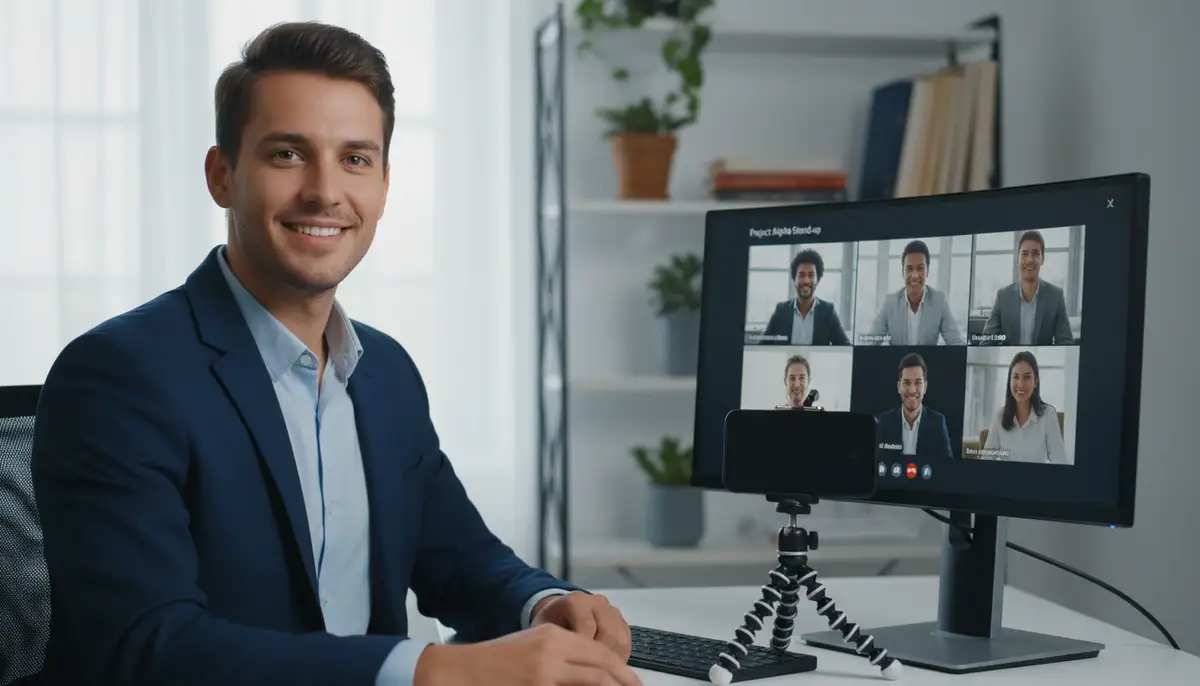
Using a USB connection is often the most reliable method. It provides a stable connection and generally lower latency (less delay) compared to Wi-Fi. Here’s how to get your android camera as webcam set up:
Prerequisites:
- An Android Phone: Running Android 5.0 (Lollipop) or newer.
- A USB Cable: A good quality data cable that connects your phone to your PC.
- A Computer: Windows (7 or newer), macOS, or Linux.
- Chosen Webcam App: Downloaded and installed on both your phone and computer.
Installation and Setup Steps:
- 1. Enable USB Debugging on Your Android Phone: This is crucial for the USB connection to work. Go to ‘Settings’ > ‘About Phone’ and tap ‘Build Number’ seven times to enable Developer Options. Then, go back to ‘Settings’ (or ‘System’ > ‘Developer Options’) and enable ‘USB Debugging’.
- 2. Install the Phone App: Download your chosen webcam app (e.g., DroidCam) from the Google Play Store on your Android device. Follow the on-screen instructions to install it.
- 3. Install the PC Client: Visit the app’s official website on your computer and download the corresponding client software for your operating system. Install it like any other program.
- 4. Connect Your Phone: Plug your Android phone into your PC using the USB cable. If prompted on your phone, allow USB debugging and file transfer.
- 5. Launch the PC Client: Open the webcam app client on your computer. Select the ‘USB’ connection option.
- 6. Select Your Device: The client should detect your phone. Select it from the list. Click ‘Start’ or ‘Connect’.
- 7. Choose in Video Conferencing Software: Open your video conferencing application (Zoom, Google Meet, Teams, etc.). Go to its video settings and select your new virtual webcam (e.g., ‘DroidCam Source 2’ or ‘Camo Camera’). Your phone’s feed should now appear.
If you encounter any issues with image quality, such as blurriness, it might be worth checking out our guide on fixing a blurry Android camera for troubleshooting tips that could also apply to your webcam setup.
Step-by-Step Guide: Setting Up Your Android Camera as Webcam Wirelessly
A wireless setup offers more freedom of movement and a cleaner desk. However, it relies on your Wi-Fi network’s stability. Here’s how to configure your android camera as webcam wirelessly:
Prerequisites:
- Android Phone & PC: Both connected to the same Wi-Fi network.
- Chosen Webcam App: Installed on both devices.
Installation and Setup Steps:
- 1. Install Apps: Ensure the webcam app is installed on both your Android phone and your computer, just like with the USB method.
- 2. Connect to Same Wi-Fi: Make sure both your phone and computer are connected to the exact same Wi-Fi network.
- 3. Open Phone App: Launch the webcam app on your Android phone. It should display an ‘IP Address’ and ‘Port’ number.
- 4. Open PC Client: Launch the webcam app client on your computer. Select the ‘Wi-Fi’ connection option.
- 5. Enter IP Address and Port: Input the IP address and port number displayed on your phone into the corresponding fields in the PC client. Click ‘Start’ or ‘Connect’.
- 6. Select in Video Conferencing Software: As before, open your video conferencing application, go to its video settings, and select your new virtual webcam.
For a visual walkthrough, especially if you’re using Windows 11, you can watch this helpful tutorial:
. This video provides clear instructions on getting your phone’s camera recognized by your system. Additionally, the University of Houston Downtown offers a great guide on connecting DroidCam via USB or Wi-Fi, which can be a valuable resource for setup.
Optimizing Your Setup: Tips for the Best Android Camera as Webcam Experience
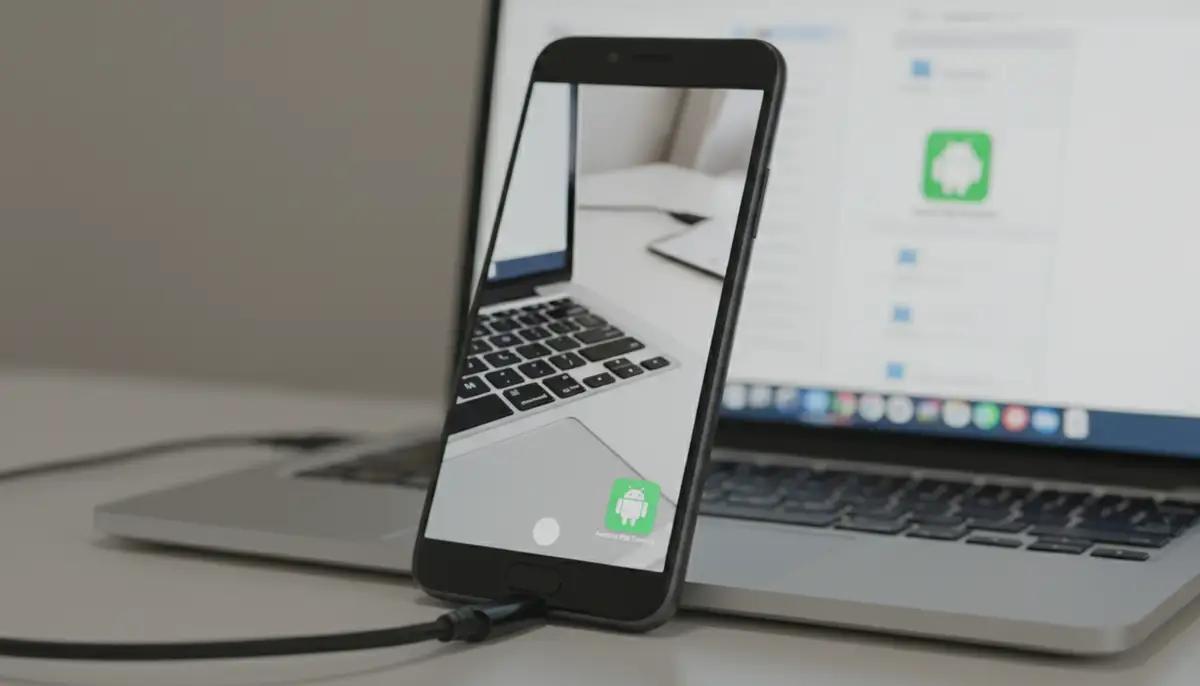
Simply connecting your phone isn’t enough. To truly maximize the potential of your android camera as webcam, you need to optimize your environment and settings. These tips will help you achieve professional-grade video quality.
Lighting is Key
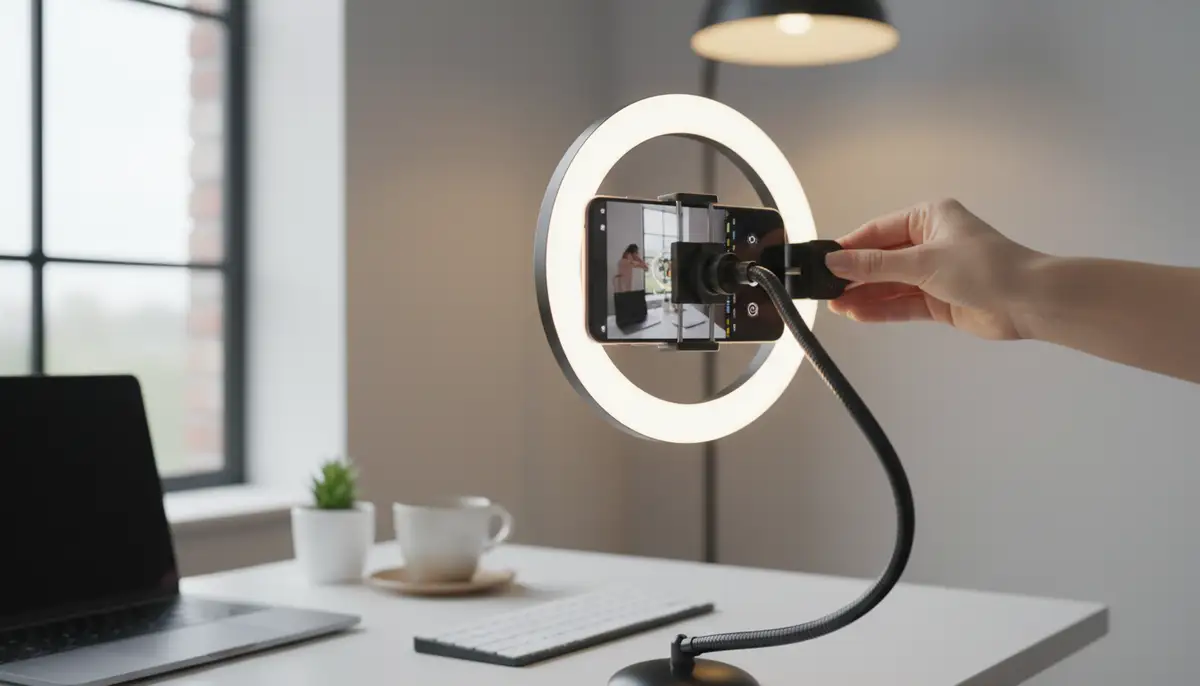
Good lighting transforms any camera. Position yourself facing a window or use a dedicated light source. Avoid backlighting, which makes you appear as a silhouette. A simple ring light can make a huge difference in your video quality.
Stable Mounting
Your phone needs to be perfectly still. A small tripod, a phone clamp, or a flexible arm mount is essential. This prevents shaky video and ensures your frame remains consistent. For truly steady shots, consider investing in a stable shot camera accessory designed to hold your phone firmly in place.
Audio Matters
While your phone’s camera is great, its built-in microphone might not be. Use a dedicated USB microphone, a headset, or even your computer’s microphone if it’s of good quality. Clear audio is just as important as clear video.
Background and Framing
Choose a clean, uncluttered background. Position your phone so your head and shoulders are visible, with a bit of headroom. This creates a professional and engaging presence. Make sure your background isn’t distracting.
Power Management
Using your phone as a webcam drains its battery quickly. Keep your phone plugged into a charger during your calls. This ensures your video feed doesn’t cut out unexpectedly.
Advanced Features and Customization
Beyond basic setup, many webcam apps offer advanced controls to fine-tune your video. These features can elevate your presentation significantly.
- Resolution and Frame Rate: Most apps allow you to choose your desired resolution (e.g., 720p, 1080p) and frame rate (30fps, 60fps). Higher settings offer better quality but require more processing power and bandwidth.
- Manual Camera Controls: Premium apps often provide manual control over ISO, shutter speed, white balance, and exposure compensation. This is similar to what you find in professional photography apps like Camera ZOOM FX, allowing you to achieve the perfect look regardless of lighting conditions.
- Filters and Effects: Some apps include built-in filters, virtual backgrounds, or beauty modes. These can enhance your appearance or make your background more appealing. Experiment with these to find what works best for you.
- Front vs. Rear Camera: You can typically switch between your phone’s front and rear cameras. The rear camera almost always offers superior quality, making it the preferred choice for your android camera as webcam setup.
- Mirroring: Pay attention to mirroring settings. Some apps automatically mirror your video, which can be confusing if you’re trying to show text or specific objects. Adjust this as needed in the app or your conferencing software.
Understanding your Android camera’s full capabilities can help you make the most of this setup. For a comprehensive guide on mastering your Android camera for stunning photos and videos, check out our detailed article. The principles of good photography translate directly to excellent webcam quality.
Common Issues and Troubleshooting Your Android Camera as Webcam
Even with the best setup, you might encounter occasional problems. Don’t worry; most issues with using your android camera as webcam are easily solvable. Here’s a quick troubleshooting guide:
| Problem | Possible Cause | Solution |
|---|---|---|
| No Connection/Camera Not Detected | USB Debugging off, wrong IP/Port, firewall blocking, app not running. | Ensure USB Debugging is on. Double-check IP/Port for Wi-Fi. Temporarily disable firewall. Restart both phone and PC apps. |
| Laggy/Choppy Video | Poor Wi-Fi signal, high resolution/frame rate, outdated drivers, background apps. | Switch to USB if possible. Move closer to router. Lower resolution/frame rate in app settings. Update graphics drivers. Close unnecessary apps on PC and phone. |
| No Audio/Audio Sync Issues | Incorrect microphone selected, phone microphone used, app settings. | Verify your conferencing app uses your preferred microphone (not the phone’s). Check app settings for audio pass-through options. Restart apps. |
| App Crashing/Freezing | App conflict, insufficient phone resources, outdated app version. | Restart phone and PC. Check for app updates. Try a different webcam app. Clear app cache on phone. |
| Poor Image Quality (Pixelated, Dark) | Bad lighting, low app resolution, phone camera issues. | Improve lighting. Increase resolution in app settings. Check your phone’s camera for physical obstructions or damage. |
Always start by restarting both the phone app and the PC client. Often, a simple restart can resolve many temporary glitches when using your android camera as webcam.
Use Cases: Who Benefits from Using an Android Camera as Webcam?
The versatility and quality offered by using your android camera as webcam make it an ideal solution for a wide range of users and scenarios:
- Remote Workers: Elevate your professional image in virtual meetings. A clear, high-quality video feed makes a strong impression.
- Online Educators/Students: Deliver engaging lessons or participate in virtual classes with superior visual clarity. Whiteboards and demonstrations become much clearer.
- Streamers and Content Creators: Improve your live streams on platforms like Twitch or YouTube without investing in expensive DSLR setups. Your phone offers a great starting point.
- Gamers: Enhance your facecam quality during gaming sessions. Show your reactions in crisp detail.
- Budget-Conscious Users: Get top-tier webcam performance for free, using hardware you already own. This is a significant advantage over buying new equipment.
- Travelers: Maintain high video quality on the go. Your phone is always with you, making it a portable webcam solution.
Whether you’re a professional needing to look your best or a casual user wanting clearer calls, the ability to use your android camera as webcam is a game-changer. It offers flexibility and quality that traditional webcams often can’t match.
Future Trends: What’s Next for Android Camera as Webcam Technology?
The technology for using your android camera as webcam is constantly evolving. As phones get more powerful, we can expect even more sophisticated features to emerge in the coming years.
- AI-Powered Enhancements: Expect more advanced AI features like automatic framing, background blur/replacement, and intelligent lighting adjustments to become standard.
- Deeper OS Integration: Operating systems like Windows and macOS are likely to offer more native support for using phones as webcams, reducing the need for third-party apps.
- Specialized Accessories: We’ll see more innovative mounts, lighting solutions, and even lenses designed specifically to optimize your phone for webcam use.
- Multi-Camera Setups: Advanced apps might allow you to use multiple Android phones simultaneously, offering different angles for dynamic presentations or streams.
- Higher Resolutions and HDR: As phone cameras improve, expect support for 4K video streams and High Dynamic Range (HDR) for even more lifelike video quality.
The future looks bright for anyone wanting to leverage the incredible power of their smartphone camera for their desktop video needs. The trend of using your android camera as webcam is only going to grow, driven by innovation and user demand.
Conclusion: Unlock Your Android Camera’s Full Potential
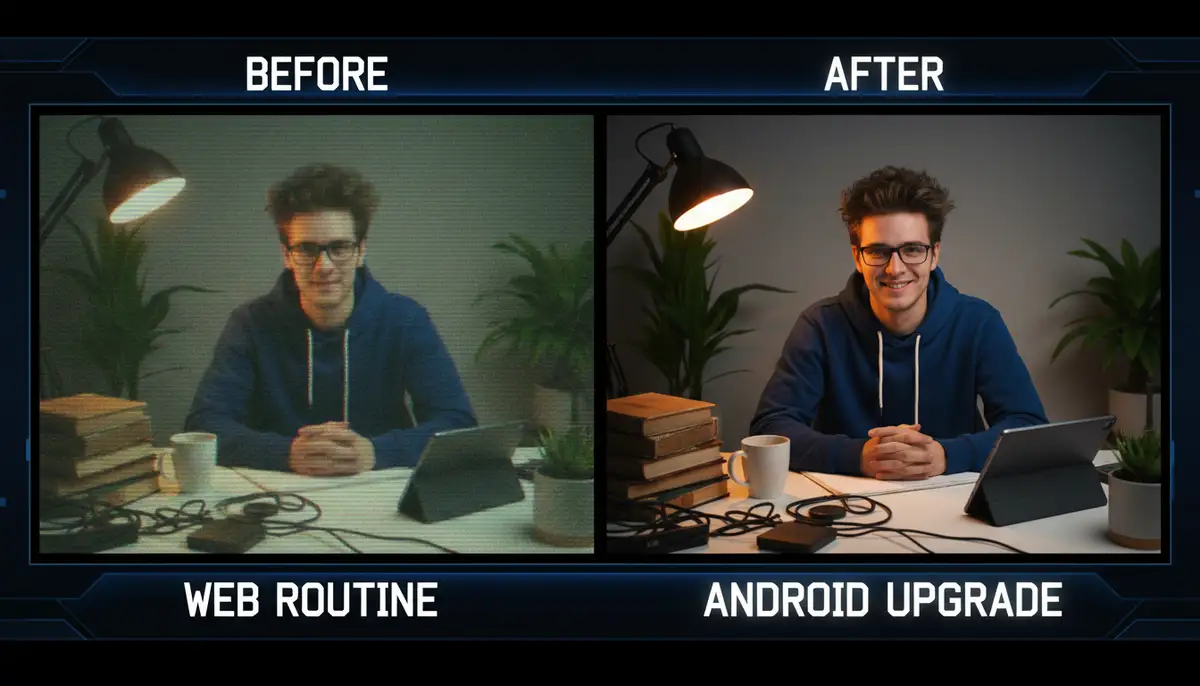
You no longer need to settle for mediocre video quality from your built-in webcam. Your Android smartphone holds the key to stunning, professional-grade video. By following the steps and tips outlined in this guide, you can easily transform your android camera as webcam and elevate your online presence.
Whether you choose a USB or wireless connection, the benefits are clear: superior image quality, better low-light performance, and significant cost savings. Embrace the power of your existing device and make your next video call or stream truly stand out. There’s never been a better time to start using your android camera as webcam.