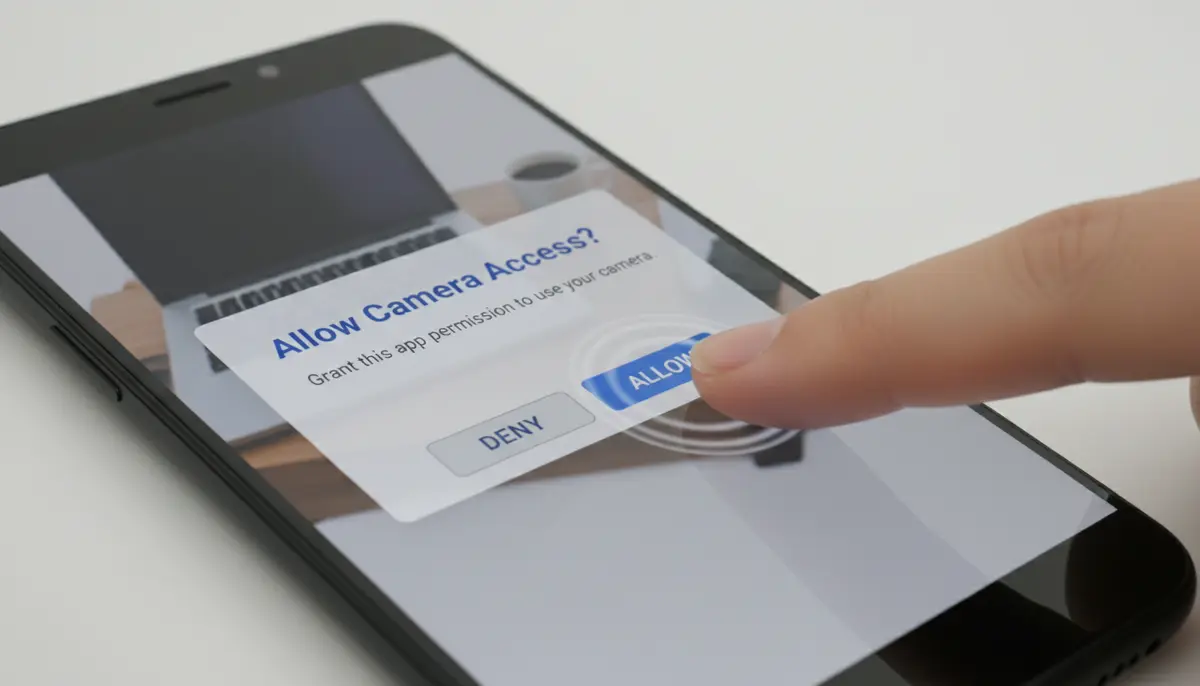
Introduction: Why Your Android Needs Camera Access
In today’s digital world, your Android smartphone’s camera is more than just a tool for taking pictures. It’s essential for video calls, scanning QR codes, augmented reality experiences, and much more. However, for an app to use your camera, you first need to allow camera access Android. This isn’t just a simple click; it’s a critical security feature. Understanding how to manage these permissions is key to a smooth and secure mobile experience.
This comprehensive guide will walk you through everything you need to know about granting and managing camera permissions on your Android device in 2025. We’ll cover step-by-step instructions, common troubleshooting tips, and important privacy considerations. By the end, you’ll be an expert at controlling who can use your camera, ensuring both convenience and security.
Understanding Android Permissions: More Than Just a Pop-Up
Before we dive into the ‘how-to,’ let’s understand the ‘why.’ Android’s permission system is designed to protect your privacy and data. When an app asks to allow camera access Android, it’s requesting a specific capability. This system prevents apps from secretly using your camera without your knowledge.
What Are Permissions?
Permissions are special authorizations that apps need to access sensitive data or hardware features on your device. These include your location, contacts, microphone, and of course, your camera. Android categorizes permissions based on their potential impact on your privacy.
Why Apps Need Camera Access
Many apps genuinely need camera access to function correctly. A social media app needs it to let you post photos or videos. A banking app might use it for check deposits. A video conferencing app requires it for face-to-face communication. Knowing an app’s purpose helps you decide if you should allow camera access Android.
Permission Types: Runtime vs. Install-Time
Android uses different types of permissions. Most critical permissions, like camera access, are ‘runtime permissions.’ This means the app asks for your consent while you’re using it, not just when you install it. This gives you more control. Less sensitive permissions are ‘install-time’ and are granted automatically upon installation.
How to Allow Camera Access Android: Step-by-Step Guide
Granting camera access is usually straightforward. However, there are a few ways to do it, depending on whether you’re setting up a new app or fixing an existing issue. Here’s how to allow camera access Android using the most common methods.
Method 1: Through App Settings
This is the most common way to manage permissions for a specific application. It’s useful if an app isn’t working correctly or if you want to review its access.
- Open your phone’s ‘Settings’ app.
- Scroll down and tap on ‘Apps’ or ‘Apps & notifications’ (names may vary slightly by Android version).
- Find and tap the specific app you want to grant camera access to. You might need to tap ‘See all apps’ first.
- On the App info screen, tap ‘Permissions’.
- Look for ‘Camera’ in the list. If it’s under ‘Denied,’ tap it.
- Select ‘Allow only while using the app’ or ‘Ask every time’ (if available). ‘Allow’ grants continuous access, which is generally not recommended for privacy.
Once you do this, the app should now be able to use your camera. This process is similar for other permissions like microphone or storage.
Method 2: Through Permission Manager
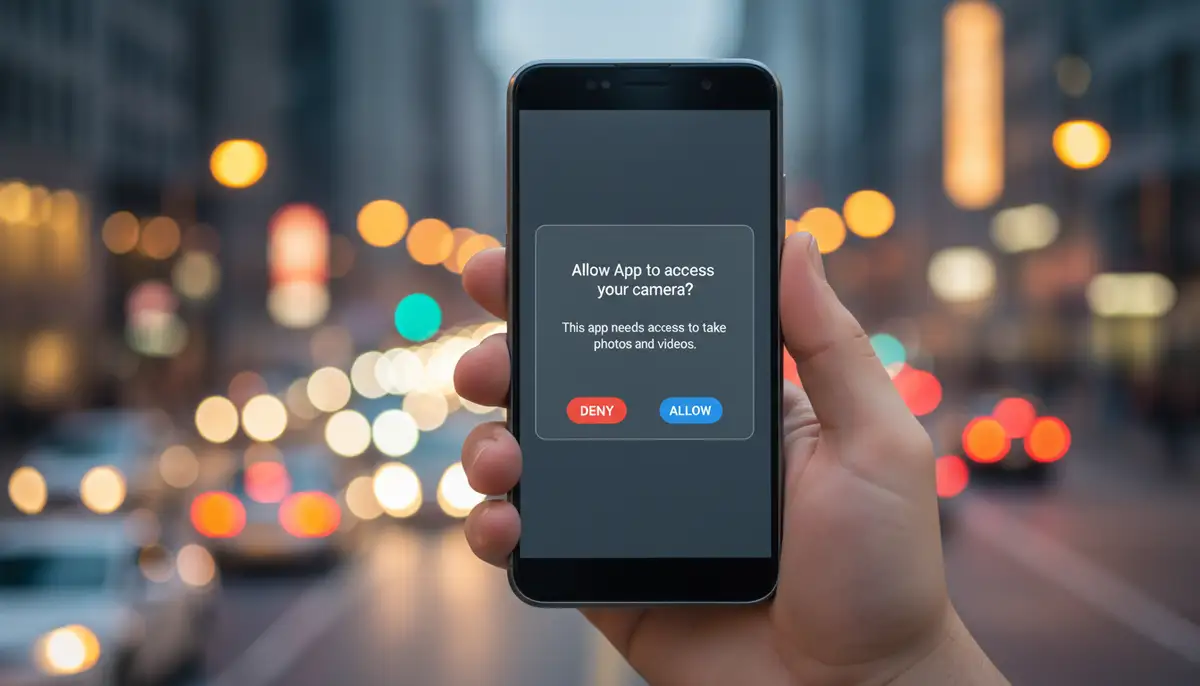
Android’s Permission Manager gives you a centralized view of all permissions. This is great for seeing which apps have access to what. It’s an excellent way to audit your permissions.
- Open your phone’s ‘Settings’ app.
- Tap ‘Security & privacy’ then ‘Privacy’, and then ‘Permission manager’ (the path may differ slightly).
- You will see a list of permission types. Tap ‘Camera’.
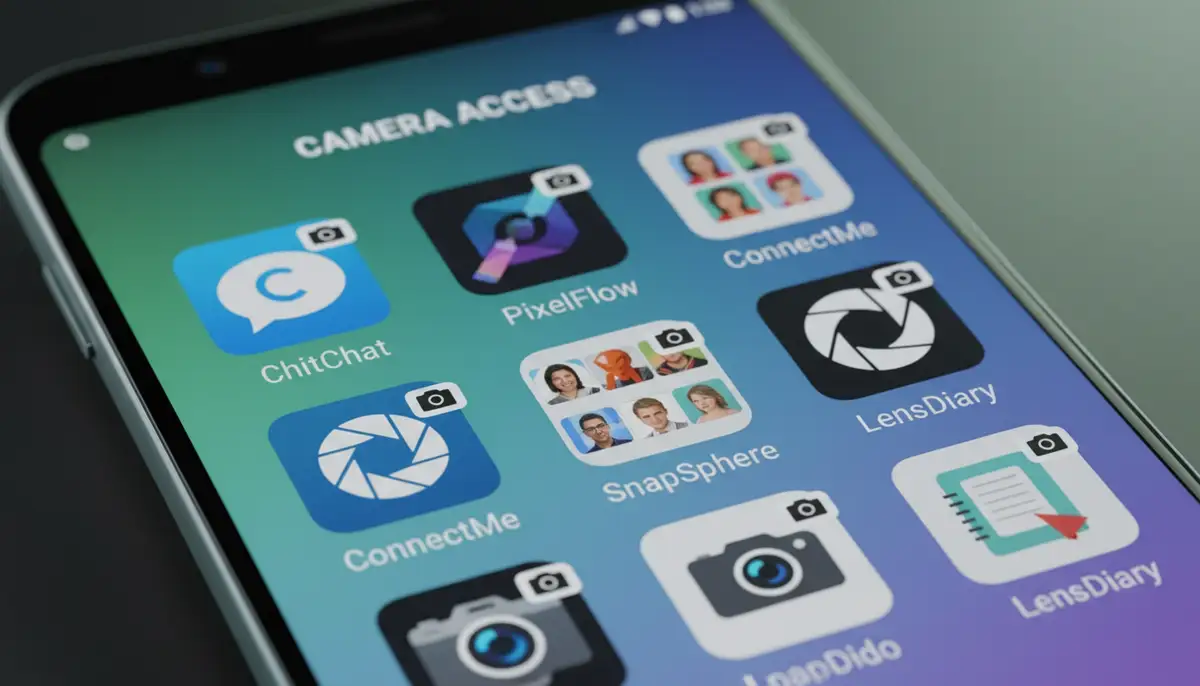
- Here, you’ll see a list of apps categorized by their camera access: ‘Allowed all the time’, ‘Allowed only while in use’, and ‘Not allowed’.
- Tap on any app to change its camera permission setting. For more detailed guidance on managing app permissions on Android, Google’s official support page offers excellent resources.
Using the Permission Manager allows you to quickly see and modify which apps currently have permission to allow camera access Android. This is a powerful tool for maintaining your digital privacy.
Method 3: Granting on First Use
Often, when you open an app that needs camera access for the first time, it will prompt you directly. This is the simplest way to allow camera access Android.
- Launch the app that requires camera access.
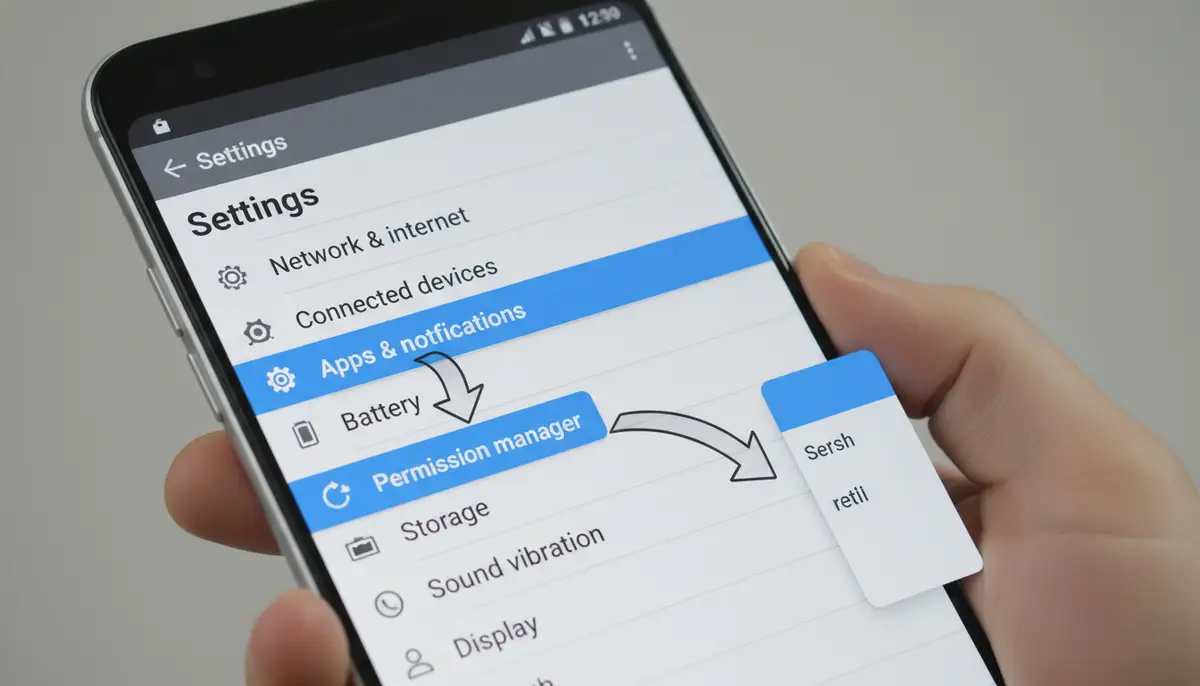
- When the app tries to use the camera (e.g., you tap the camera icon), a pop-up permission request will appear.
- You will typically see options like ‘Allow only while using the app’, ‘Ask every time’, or ‘Don’t allow’.
- Choose ‘Allow only while using the app’ for the best balance of functionality and privacy.
This method is intuitive, but it’s crucial to read the prompt carefully. Always select the option that grants the least amount of access necessary for the app to function.
Troubleshooting Common Camera Access Issues
Sometimes, even after granting permission, your camera might not work. This can be frustrating, but many issues have simple solutions. Here are some common problems and how to fix them when you can’t seem to allow camera access Android.
Camera Not Working After Update
System updates can sometimes reset permissions or introduce bugs. If your camera stops working after an Android update, try these steps:
- Restart your phone. A simple reboot can often resolve temporary glitches.
- Clear the cache and data for the camera app (or the app having issues). Go to Settings > Apps > [App Name] > Storage > Clear cache and Clear data. Be aware that clearing data might reset app settings.
- Re-check permissions using Method 1 or 2 above to ensure camera access is still granted.
App Not Appearing in Permissions List
If an app isn’t showing up in the camera permissions list, it might not have requested camera access yet. Try opening the app and initiating a camera function within it. This should trigger the permission request. If it still doesn’t appear, reinstalling the app might help.
“Camera Failed” Error
This error often indicates a hardware issue or a conflict between apps. First, try restarting your phone. If the problem persists, check if another app is already using the camera in the background. Close all recent apps and try again. If it’s a persistent problem, you might need to visit a service center. For a helpful video guide on enabling your Android camera and fixing common issues, check out this tutorial:
.
Specific App Scenarios for Camera Access
Different apps use your camera in different ways. Understanding these scenarios helps you decide when and how to allow camera access Android for each application.
Social Media Apps
Apps like Instagram, TikTok, and Snapchat are heavily reliant on your camera. They need it to capture photos and videos, apply filters, and record stories. When using these apps, you’ll almost always need to grant camera access. Remember to only allow access while using the app to protect your privacy when it’s closed.
Video Conferencing Apps
Zoom, Google Meet, and Microsoft Teams need both camera and microphone access for video calls. Without these permissions, you won’t be able to participate visually. Ensure you allow camera access Android and microphone access for these apps, especially before an important meeting.
Photography & Editing Apps
Dedicated photography apps are designed to maximize your camera’s potential. Apps like Camera ZOOM FX, for instance, offer professional controls, stunning filters, and fast shooting performance for high-quality results. Competitors like vsco.co, snapseed.online, and zcamera.me also provide robust solutions. For these apps, granting camera access is fundamental. They often require full access to save photos and videos to your device.
Educational & AR Apps
Augmented Reality (AR) apps, often found in educational or gaming contexts, use your camera to overlay digital content onto the real world. For example, an app that lets you explore historical artifacts in your living room through AR will need camera access. Some specialized applications, such as those from MergeEDU, require specific steps to enable camera permission for specialized applications to function correctly.
Advanced Tips for Managing Camera Permissions
Beyond the basic steps to allow camera access Android, there are advanced strategies to maintain tighter control over your device’s security and privacy.
Reviewing Permissions Regularly
It’s a good habit to periodically review which apps have access to your camera. Over time, you might install new apps or stop using old ones that still retain permissions. A quarterly review using the Permission Manager (Method 2) can help you keep things tidy and secure. This ensures you only allow camera access Android to apps you actively trust and use.
Revoking Unused Permissions
If you stop using an app, or if you realize an app has camera access but doesn’t genuinely need it, revoke that permission. Simply go to the app’s permissions settings (Method 1) and change ‘Allow’ to ‘Don’t allow’. You can always re-grant it later if needed.
Understanding “Ask Every Time”
Some Android versions offer an ‘Ask every time’ option for permissions. This is the most secure setting, as it forces the app to request permission each time it tries to use the camera. While it can be slightly less convenient, it provides maximum control and transparency. Consider using this for apps you use infrequently or those you’re less sure about.
Security and Privacy Considerations
The ability to allow camera access Android comes with responsibilities. Protecting your privacy is paramount. Here’s what you need to know.
Why Be Careful?
Your camera can reveal a lot about you and your surroundings. Malicious apps could potentially record you without consent, capture sensitive documents, or monitor your environment. Being mindful of which apps you allow camera access Android to is a vital step in safeguarding your personal space.
Identifying Malicious Apps
Always download apps from trusted sources like the Google Play Store. Read reviews and check the developer’s reputation. Be wary of apps that request excessive permissions unrelated to their core function. For example, a calculator app should not need camera access. If something feels off, don’t install it.
Best Practices for App Permissions
- Grant permissions only when necessary.
- Choose ‘Allow only while using the app’ whenever possible.
- Regularly review and revoke unused permissions.
- Be suspicious of apps requesting irrelevant permissions.
- Keep your Android OS updated to benefit from the latest security features.
Following these practices helps ensure that when you allow camera access Android, you’re doing so safely. For further guidance on enabling camera and microphone for mobile apps and maintaining privacy, refer to expert advice on platforms like support.proof.com.
| Permission Setting | Description | Recommended Use Case |
|---|---|---|
| Allow only while using the app | App can use camera only when actively open and in foreground. | Most apps (social media, video calls, photography) |
| Ask every time | App asks for permission each time it attempts to use the camera. | Apps you use rarely or for sensitive tasks, maximum privacy. |
| Don’t allow | App is completely blocked from using the camera. | Apps that don’t need camera access or for maximum security. |
Enhancing Your Photography Experience
Once you’ve mastered how to allow camera access Android, you can unlock the full potential of your device’s camera. Modern Android phones, combined with powerful apps, can transform your mobile photography.
Beyond Basic Access
Simply allowing access is just the beginning. Many apps offer advanced features that leverage your camera’s hardware. Explore settings within your camera apps for things like manual controls, RAW image capture, and specialized shooting modes. This can significantly improve your photo quality.
Exploring Advanced Camera Features
Don’t limit yourself to the default camera app. Third-party apps often provide more robust features. For example, if you’re interested in smart home security, a comprehensive guide to the Alfred Camera app for Android can show you how to repurpose an old phone. You can also find detailed insights on downloading Alfred Camera for Android to get started with monitoring.
The Role of a Good Camera App
A high-quality photography app can make a huge difference. Apps like Camera ZOOM FX are designed to give you professional-grade controls, allowing you to fine-tune every aspect of your shot. From customizable filters to lightning-fast capture, these apps elevate your mobile photography. When you allow camera access Android to such powerful tools, you’re not just taking pictures; you’re creating art. If you’re looking for advanced stabilization and creative control, check out our stable shot camera solutions.
Conclusion: Master Your Android Camera Access
Managing camera access on your Android device is a fundamental skill for any smartphone user in 2025. By understanding how to allow camera access Android, troubleshooting common issues, and adopting best practices for privacy, you empower yourself. You gain control over your device and ensure your personal space remains secure.
Remember to always be mindful of the permissions you grant. Regularly review your app settings, prioritize ‘Allow only while using the app,’ and stay informed about your device’s security features. With this guide, you’re now equipped to confidently allow camera access Android, making your mobile experience both functional and safe. Embrace the full potential of your Android camera, securely and smartly.