
Introduction: The Challenge of Watermarks
In today’s digital world, images are everywhere. You might find a perfect photo online, only to see it marred by a watermark. This can be frustrating. Many people wonder how to remove a watermark from an image without ruining the photo’s quality. This guide will show you several effective methods for 2025.
Watermarks serve an important purpose. They protect intellectual property and prevent unauthorized use. However, there are legitimate reasons why you might need to remove one. Perhaps you purchased an image and received a watermarked preview. Or maybe you want to clean up your own old photos. This article will explore various tools and techniques to help you achieve a clean image.
Understanding Watermarks and Ethical Considerations
Before diving into the ‘how-to,’ it’s crucial to understand what watermarks are. They are transparent overlays, text, or logos embedded into an image. Their main goal is to identify the creator or copyright holder. They discourage theft and unauthorized distribution.
Watermarks can vary greatly. Some are subtle, placed in a corner. Others are large, tiled across the entire image. The complexity of the watermark often dictates how difficult it will be to remove. Knowing the type helps you choose the right method.
When is it Okay to Remove a Watermark?
Ethical considerations are paramount when you consider how to remove a watermark from an image. Removing a watermark without permission from the copyright holder is generally illegal. It violates intellectual property rights. Always ensure you have the right to modify the image.
- You own the copyright to the image.
- You have purchased a license for the image that permits watermark removal.
- You are removing a watermark from your own personal photos, perhaps from an old stock photo service you used.
- The image is in the public domain and free to use.
Never remove a watermark to claim someone else’s work as your own. This guide focuses on legitimate scenarios. We aim to provide you with the knowledge to handle your images responsibly.
Method 1: AI-Powered Online Tools for Watermark Removal
In 2025, AI technology has revolutionized image editing. Removing watermarks, once a tedious manual task, can now be done in seconds. AI-powered online tools are often the easiest way to remove a watermark from an image. They use advanced algorithms to detect and erase watermarks automatically. These tools predict and fill in the missing pixels, making the process incredibly efficient.
Many of these tools are free or offer free trials. They require no software installation, making them accessible to everyone. You simply upload your image, and the AI does the heavy lifting. This is a great option for quick jobs or for those without advanced editing skills.
How to Remove a Watermark From an Image Using AI Tools
Let’s walk through the general steps for using an AI watermark remover:
- Choose an AI Tool: Start by selecting a reputable online AI watermark remover. Options like Watermark Remover – Remove Watermark from Images with AI are highly effective. You can also explore a Free Online AI Image Watermark Remover for quick solutions. For those seeking a Free AI watermark remover from images, logo (no signup), there are excellent choices available.
- Upload Your Image: Click the ‘Upload Image’ or ‘Browse’ button. Select the image from your computer or device that contains the watermark.
- Automatic Detection: Most AI tools automatically detect the watermark. They highlight it for you. Some might ask you to manually select the watermarked area with a brush tool.
- Process the Image: Click ‘Remove’ or ‘Process.’ The AI will then work its magic. This usually takes just a few seconds.
- Download Your Clean Image: Once the process is complete, preview the result. If you are satisfied, download your watermark-free image. Most tools offer various download formats.
These tools are constantly improving. They can handle complex watermarks with surprising accuracy. However, very intricate or transparent watermarks might still pose a challenge. Always check the final image carefully for any artifacts or blurred areas.
Pros and Cons of AI Watermark Removers
- Pros: Easy to use, fast results, no software installation, often free or low cost, good for beginners.
- Cons: May struggle with complex watermarks, potential for minor artifacts, requires internet connection, sometimes reduces image quality slightly.

Method 2: Adobe Photoshop – The Professional Approach
Adobe Photoshop remains the industry standard for professional image editing. It offers powerful tools to remove watermarks with precision. If you need high-quality results and have access to the software, Photoshop is an excellent choice. It gives you complete control over the editing process. This makes it ideal for challenging watermarks.
Photoshop provides several tools for this task. The most common are Content-Aware Fill, the Spot Healing Brush, and the Clone Stamp Tool. Each tool has its strengths. You might use them individually or combine them for the best outcome.
How to Remove a Watermark From an Image Using Photoshop
Here’s a step-by-step guide using Photoshop’s popular features:
- Open Your Image: Launch Photoshop and open the image containing the watermark.
- Duplicate the Layer: Always work on a duplicate layer. Go to ‘Layer > Duplicate Layer’ or press Ctrl+J (Cmd+J on Mac). This preserves your original image.
Using Content-Aware Fill:
- Select the Watermark: Use the Lasso Tool (L) or Quick Selection Tool (W) to carefully select the entire watermark. Make sure to include a small margin of the surrounding area.
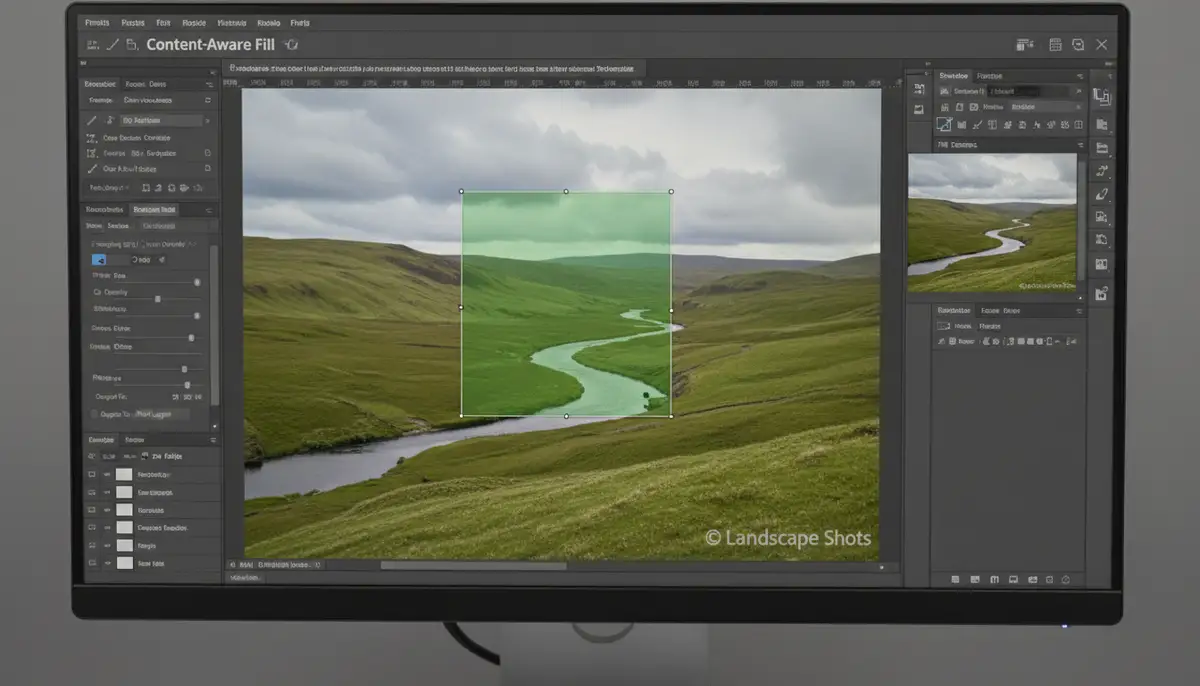
- Access Content-Aware Fill: Go to ‘Edit > Content-Aware Fill.’ Photoshop will analyze the surrounding pixels. It will then intelligently fill the selected area.
- Adjust and Apply: In the Content-Aware Fill workspace, you can refine the sampling area if needed. Once satisfied, click ‘OK’ to apply. Deselect (Ctrl+D or Cmd+D). This is often the quickest way to remove a watermark from an image if it’s on a uniform background.
Using the Spot Healing Brush Tool:
This tool works best for smaller, less complex watermarks or for refining areas after Content-Aware Fill.
- Select the Tool: Choose the Spot Healing Brush Tool (J) from the toolbar.
- Brush Over Watermark: Adjust your brush size to be slightly larger than the watermark. Click and drag over the watermark. Photoshop automatically samples surrounding pixels to blend the area.
Using the Clone Stamp Tool:
The Clone Stamp Tool (S) offers manual control. It’s excellent for intricate watermarks or areas with complex textures. You manually sample a clean area and paint over the watermark.
- Select the Tool: Choose the Clone Stamp Tool.
- Set Source Point: Hold Alt (Option on Mac) and click on a clean area near the watermark. This sets your source point.
- Paint Over Watermark: Release Alt/Option and paint over the watermark. Photoshop will copy pixels from your source point. Regularly reset your source point as you move to ensure natural blending.
For a visual demonstration of these techniques, watch this helpful tutorial:
. It provides clear steps to help you master these tools.
Pros and Cons of Photoshop Watermark Removal
- Pros: Unparalleled precision and control, professional-grade results, handles complex watermarks, versatile tools.
- Cons: Steep learning curve, subscription-based software, time-consuming for multiple images, requires powerful computer.
Method 3: GIMP – The Free Open-Source Alternative
If you don’t have access to Photoshop, GIMP (GNU Image Manipulation Program) is a fantastic free and open-source alternative. It offers many similar features to Photoshop. You can effectively remove a watermark from an image using GIMP’s powerful tools. It’s a great choice for budget-conscious users or those who prefer open-source software.
GIMP includes tools like the Heal Selection tool and the Clone Tool. These function very similarly to Photoshop’s Healing Brush and Clone Stamp tools. With a little practice, you can achieve impressive results. GIMP is available for Windows, macOS, and Linux.
How to Remove a Watermark From an Image Using GIMP
Here’s a guide to using GIMP for watermark removal:
- Open Your Image: Launch GIMP and open your watermarked image.
- Duplicate the Layer: Right-click on the image layer in the Layers dialog and select ‘Duplicate Layer.’ This protects your original.
Using the Heal Selection Tool (Resynthesizer Plugin):
For GIMP users, the ‘Resynthesizer’ plugin (often bundled with GIMP or easily installed) offers a ‘Heal Selection’ feature similar to Photoshop’s Content-Aware Fill. It’s an excellent way to remove a watermark from an image quickly.
- Install Resynthesizer (if needed): If you don’t have it, search online for ‘GIMP Resynthesizer plugin’ and follow installation instructions.
- Select Watermark: Use the Free Select Tool (F) or Rectangle Select Tool (R) to carefully outline the watermark.
- Heal Selection: Go to ‘Filters > Enhance > Heal Selection.’ Adjust settings as desired (e.g., ‘Fill selection by surrounding’). Click ‘OK.’ GIMP will attempt to intelligently remove the watermark.
Using the Clone Tool:
The Clone Tool in GIMP works much like Photoshop’s Clone Stamp. It allows for precise manual removal.
- Select the Tool: Choose the Clone Tool (C) from the toolbox.
- Set Source Point: Hold Ctrl and click on a clean area of the image near the watermark. This samples the source pixels.
- Paint Over Watermark: Release Ctrl and paint over the watermark. The sampled pixels will be copied to cover the watermark. Continuously reset your source point for seamless blending.
Pros and Cons of GIMP Watermark Removal
- Pros: Completely free and open-source, powerful editing capabilities, available on multiple operating systems, good for learning advanced techniques.
- Cons: Steeper learning curve than AI tools, not as intuitive as Photoshop for beginners, requires plugin installation for some features.
Method 4: Mobile Apps for On-the-Go Watermark Removal
With smartphones being our primary cameras, mobile editing apps have become incredibly popular. Many apps now offer features to remove a watermark from an image directly on your phone or tablet. These apps are convenient for quick edits and social media sharing. They are perfect for users who need a fast solution without a desktop computer.
Apps like PicsArt, Afterlight, and even some features within Canva offer tools for object removal. While not always as precise as desktop software, they are surprisingly effective for simple watermarks. Our ultimate Android photography app also focuses on powerful tools and stunning filters, allowing for high-quality results that you might want to protect with your own branding.
How to Remove a Watermark From an Image Using Mobile Apps
The process varies slightly between apps, but here’s a general workflow:
- Download a Photo Editing App: Search your app store for ‘watermark remover’ or ‘photo editor.’ Popular choices include PicsArt, Afterlight, or similar apps with object removal features. Even Canva.com offers some editing capabilities.
- Import Your Image: Open the app and import the image with the watermark from your gallery.
- Locate Removal Tool: Look for tools like ‘Remove Object,’ ‘Heal,’ ‘Retouch,’ or ‘Clone.’ In some apps, you might find this under ‘Tools’ or ‘Effects.’ Our app also offers advanced live effects & filters, which can sometimes help blend elements, though direct watermark removal is a specialized function.
- Select and Erase: Use your finger to paint over the watermark. The app’s AI will then attempt to fill the area. For more control, some apps offer a ‘clone’ brush where you can manually sample and paint.
- Refine and Save: Review the result. If necessary, zoom in and make small adjustments. Once satisfied, save your edited image. For photographers, features like ultra fast capture, available in advanced apps, ensure you get the perfect shot before any editing is even needed. Similarly, a burst mode camera, can help capture a series of images, increasing the chances of having a clean background to clone from if a watermark is present in other shots.
Pros and Cons of Mobile App Watermark Removal

- Pros: Convenient for on-the-go editing, easy to use, often free or low cost, quick results for simple watermarks.
- Cons: Less precision than desktop software, may struggle with complex watermarks, can reduce image quality on occasion, limited features compared to professional tools.
Advanced Techniques and Tips for Flawless Removal
Sometimes, a simple click or brush stroke isn’t enough. For stubborn watermarks, you might need to combine methods or employ advanced tactics. Mastering how to remove a watermark from an image perfectly takes practice.
Dealing with Complex Watermarks:
- Layer Duplication: Always work on a duplicate layer. This is critical. It allows you to revert if you make a mistake.
- Multiple Tools: Don’t rely on just one tool. Use Content-Aware Fill for large areas, then refine with the Healing Brush and Clone Stamp for details.
- Frequency Separation: For highly textured images, consider frequency separation. This technique allows you to edit color and texture separately. It helps preserve fine details while removing the watermark.
- Masking: Use layer masks to precisely control where your edits appear. This gives you non-destructive editing capabilities.
Preserving Image Quality:
The goal is to remove the watermark without degrading the image. Here’s how to ensure high quality:
- Work on High-Resolution Images: The more pixels you have, the more data the tools have to work with. This leads to better results.
- Zoom In: Zoom in closely while editing. This allows for precise selections and brush strokes. It helps you catch subtle imperfections.
- Feather Selections: When making selections, feather the edges slightly. This creates a softer transition between the edited and unedited areas. It prevents harsh lines.
- Adjust Opacity: For the Clone Stamp or Healing Brush, sometimes reducing the tool’s opacity can help blend edits more naturally.
Comparison of Watermark Removal Methods
Here’s a quick overview to help you decide which method is best for you when considering how to remove a watermark from an image:
| Method | Skill Level | Cost | Speed | Quality | Best For |
|---|---|---|---|---|---|
| AI Online Tools | Beginner | Free/Low | Fast | Good | Simple watermarks, quick edits |
| Adobe Photoshop | Advanced | Subscription | Medium | Excellent | Complex watermarks, professional work |
| GIMP | Intermediate | Free | Medium | Very Good | Advanced users, budget-conscious |
| Mobile Apps | Beginner | Free/Low | Fast | Fair/Good | On-the-go edits, social media |
Choosing the Right Method for You
The best way to remove a watermark from an image depends on several factors. Consider your skill level, budget, and the complexity of the watermark. Also, think about the desired quality of the final image. There’s no single ‘best’ method for everyone.
For quick, easy tasks with simple watermarks, AI online tools are your go-to. They are efficient and require minimal effort. If you need professional-grade results and have the time to learn, Photoshop offers unmatched control. GIMP provides a powerful, free alternative to Photoshop. Mobile apps are perfect for casual users needing on-the-go edits.
Preventing Watermarks on Your Own Images
While knowing how to remove a watermark from an image is useful, it’s equally important to protect your own creations. If you’re a photographer or content creator, watermarking your images is a simple yet effective way to deter theft. You can add your logo, name, or copyright notice. This ensures proper attribution and protects your work.
Many photo editing software and apps offer built-in watermarking features. Our ultimate Android photography app, for example, provides professional controls and powerful tools. These features help you capture stunning, high-quality images. You can then easily add your own watermarks to protect your unique visual content.
Conclusion: Empowering Your Image Editing Skills
Knowing how to remove a watermark from an image is a valuable skill in the digital age. Whether you’re a professional photographer or a casual user, having these techniques at your disposal is empowering. Remember to always prioritize ethical considerations. Ensure you have the right to modify any image you work on.

From the lightning-fast efficiency of AI tools to the precise control of Photoshop and GIMP, you have many options. Mobile apps offer convenience for quick edits. By understanding these methods, you can confidently approach any watermarked image. You can restore it to its clean, original state. Keep practicing, and you’ll master the art of seamless watermark removal.