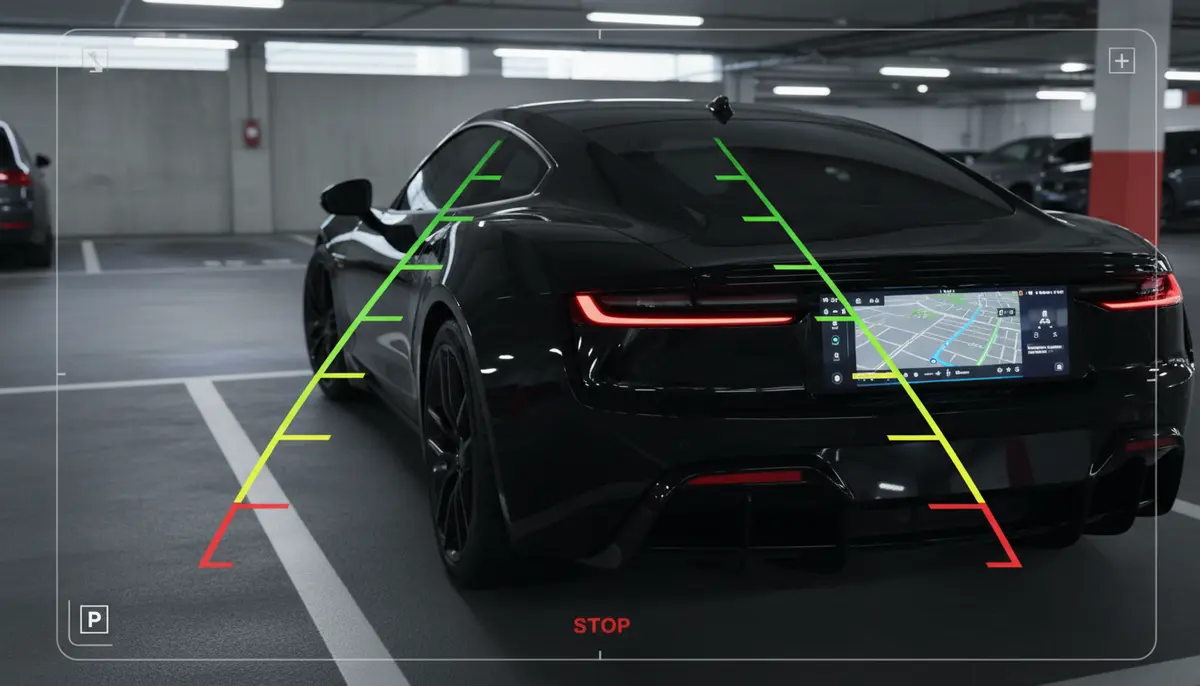
Introduction: Navigating Your World with Android 13 Reverse Camera Settings
In 2025, modern vehicles rely heavily on technology for safety and convenience. Your reverse camera is a crucial part of this system. It helps you park, avoid obstacles, and keep everyone safe. Understanding your Android 13 reverse camera settings is key to getting the most out of this important feature. Whether you have a factory-installed system or an aftermarket head unit, proper configuration makes a huge difference. This guide will walk you through everything you need to know.
Android 13 brought many improvements to system integration and user experience. These updates also impact how your vehicle’s camera systems perform. We will explore how to fine-tune your Android 13 reverse camera settings for optimal clarity and reliability. Get ready to enhance your driving experience.
Why Your Reverse Camera Settings Matter
A well-configured reverse camera is more than just a convenience. It is a vital safety tool. Poor settings can lead to distorted images or unreliable performance. This can increase the risk of accidents. Proper Android 13 reverse camera settings ensure you have a clear, accurate view of what’s behind you. This helps you prevent costly damage and ensures pedestrian safety.
Imagine trying to parallel park with a blurry, dark camera feed. It would be frustrating and dangerous. Adjusting your Android 13 reverse camera settings can transform this experience. You can achieve a crystal-clear, wide-angle view. This makes parking and reversing much easier and safer for everyone.
Accessing Your Android 13 Reverse Camera Settings
Finding the right settings can sometimes be tricky. The location often depends on your specific vehicle and head unit. Most Android 13 systems offer a dedicated section for vehicle-related camera controls. Let’s look at the common paths.
Through Your Car’s Infotainment System
For many factory-installed systems, you access reverse camera settings directly through your car’s main display. Start by engaging reverse gear. This usually activates the camera feed. Look for an on-screen gear icon or a ‘Settings’ button. Tapping this will open a menu. Here you can adjust various Android 13 reverse camera settings.
If you don’t see an immediate settings option, navigate to your car’s main ‘Settings’ menu. Look for categories like ‘Vehicle Settings,’ ‘Camera,’ or ‘Driver Assistance.’ These sections typically house options for your reverse camera. Each car manufacturer might label these slightly differently. However, the core functionalities remain similar across Android 13 platforms.
Via Your Android Head Unit’s System Settings
If you have an aftermarket Android 13 head unit, the process is usually more straightforward. These units run a version of Android similar to your phone. Access the main ‘Settings’ app from your head unit’s home screen. Then, scroll down to find ‘Car Settings,’ ‘Vehicle,’ or ‘Camera Settings.’ This is where you’ll find your Android 13 reverse camera settings.
Some aftermarket units also have a dedicated ‘Car Settings’ app. This app often provides a centralized hub for all vehicle-specific configurations. This includes your reverse camera. Familiarize yourself with your head unit’s interface. This will help you quickly locate and modify your Android 13 reverse camera settings.
Key Android 13 Reverse Camera Settings to Adjust
Once you’ve found the settings menu, you’ll encounter several options. Each plays a role in optimizing your reverse camera’s performance. Let’s break down the most common and impactful Android 13 reverse camera settings.
Gridlines: Static vs. Dynamic
Gridlines are visual overlays on your camera feed. They help you judge distance and trajectory. You usually have two main types:
- Static Gridlines: These lines remain fixed on the screen. They don’t move as you turn the steering wheel. They are useful for consistent reference points.
- Dynamic Gridlines: These lines bend and move with your steering input. They show your predicted path as you reverse. Dynamic gridlines are incredibly helpful for precise parking.
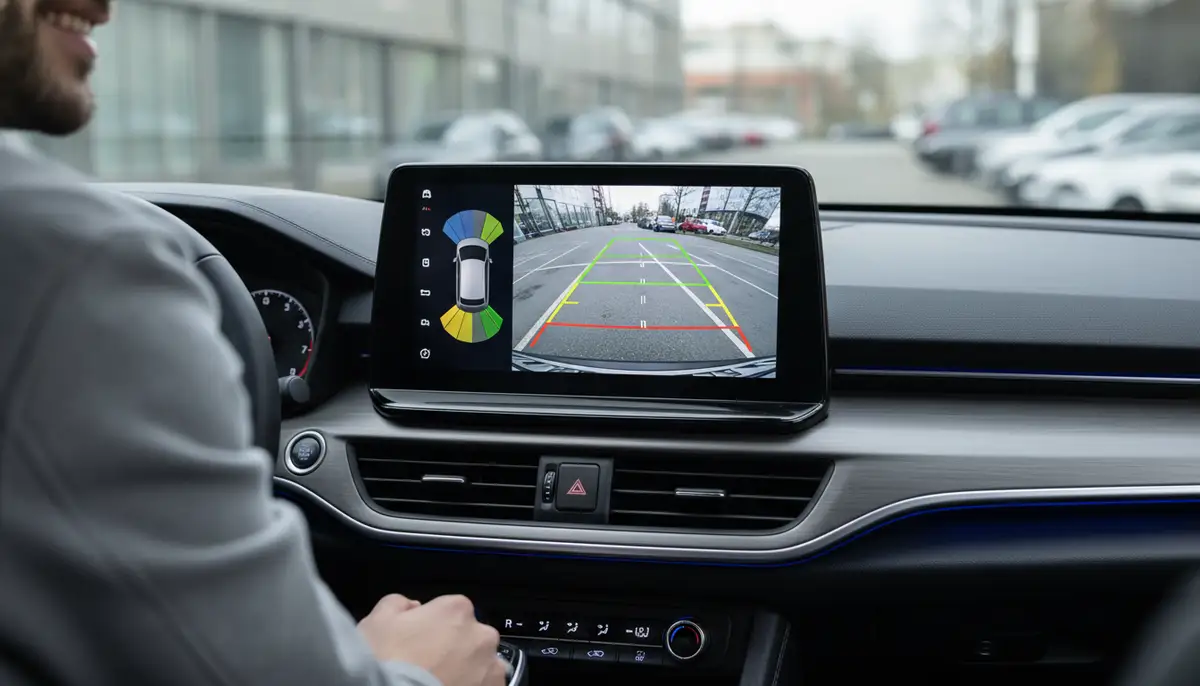
Most Android 13 reverse camera settings will allow you to enable or disable gridlines. Some advanced systems let you choose between static and dynamic. Always enable dynamic gridlines if your system supports them. They provide superior guidance. Adjust their visibility or color for better contrast against your surroundings.
Image Orientation and Mirroring
Sometimes, the camera feed might appear flipped or upside down. This is common with aftermarket installations. The ‘Mirror Image’ or ‘Flip Horizontal/Vertical’ setting corrects this. This ensures the image on your screen matches what you’d see in your rearview mirror. Always check this setting first if your view seems disoriented. Correcting this is a critical part of your Android 13 reverse camera settings setup.
Brightness, Contrast, and Color Saturation
Environmental conditions vary greatly. Bright sunlight, dim garages, or nighttime driving all affect camera visibility. Your Android 13 reverse camera settings usually include controls for brightness, contrast, and color. Adjust these to ensure a clear image in all conditions. Increase brightness for dark areas. Boost contrast to make objects stand out. Be careful not to overdo it, as this can wash out details. Finding the right balance is key for optimal visibility.
Video Quality and Resolution
The resolution of your camera feed impacts clarity. Higher resolution means more detail. Some systems allow you to choose the video quality. Options might include HD 720p, HD 1080p, or even 4K for very high-end cameras. While higher resolution is generally better, it can sometimes cause lag on older head units. You can learn more about specific video quality options, such as setting video quality to 4k DCI, 4k UHD, HD 1080p (default), HD 720p, SD 480p, VGA, CIF, or QVGA, by exploring detailed guides on Android 13 rear camera video settings.
Experiment with these Android 13 reverse camera settings to find the best balance between clarity and performance. Most modern Android 13 head units handle 1080p without issues. If you experience choppiness, try a slightly lower resolution. This can significantly improve the smoothness of your video feed.
Delay Settings and Activation
Some advanced Android 13 systems offer a ‘delay’ setting. This keeps the camera feed active for a few seconds after you shift out of reverse. This is useful for quick gear changes or when maneuvering in tight spots. Check if your unit offers this convenience feature within its Android 13 reverse camera settings. It can make a big difference in stop-and-go parking situations.
Advanced Configuration for Aftermarket Android 13 Head Units
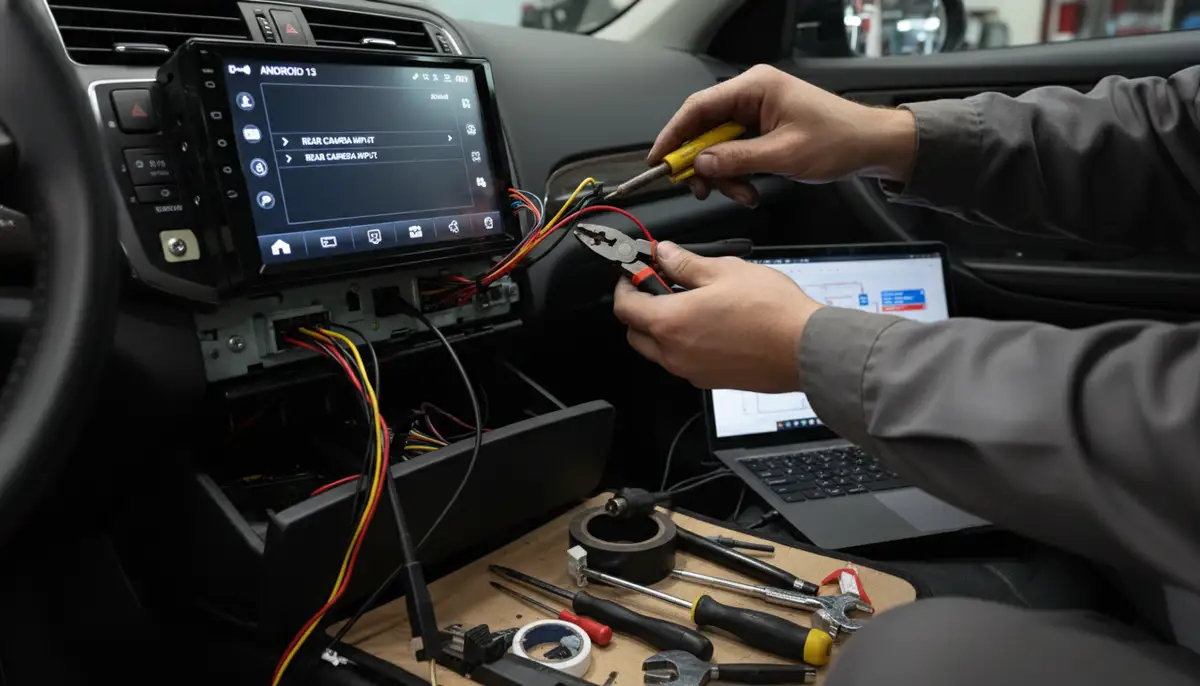
Installing an aftermarket Android 13 head unit opens up a world of customization. However, it also introduces specific configuration challenges. Connecting your factory backup camera to an aftermarket Android 13 head unit requires careful attention. You might need specific adapters or wiring harnesses. If you’re struggling with how to retain factory backup camera on an aftermarket Android 13 head unit, resources like Tacomaworld discussions can offer valuable insights and community support.
Wiring and Input Selection
Aftermarket units typically have multiple video input options. Ensure your reverse camera is connected to the correct ‘CAM-IN’ or ‘R-CAM’ input. You also need to connect the reverse trigger wire. This wire tells the head unit when to switch to the camera view. Incorrect wiring is a common reason for camera issues. Always consult your head unit’s manual for specific wiring diagrams. Proper wiring is foundational for reliable Android 13 reverse camera settings.
Software-Based Camera Settings
Many aftermarket Android 13 head units include a dedicated app for camera settings. This app might be labeled ‘Camera,’ ‘Car Settings,’ or ‘AV-IN.’ Within this app, you can often find advanced Android 13 reverse camera settings. These include options for camera type (CVBS, AHD), parking line adjustments, and even camera calibration tools. Take time to explore these software options.
| Setting Category | Common Options | Impact on View |
|---|---|---|
| Camera Type | CVBS, AHD 720p, AHD 1080p | Determines video signal compatibility and quality. |
| Parking Line Adjust | Width, Position, Angle | Fine-tunes gridline accuracy for your specific vehicle. |
| Mirror Mode | On/Off | Corrects horizontal image flip. |
| Boot Delay | 0-10 seconds | Keeps camera active after shifting out of reverse. |
These settings are crucial for optimal performance. They are especially important when using a camera not originally designed for your specific head unit. Understanding these Android 13 reverse camera settings can save you a lot of troubleshooting time.
Troubleshooting Common Android 13 Reverse Camera Issues
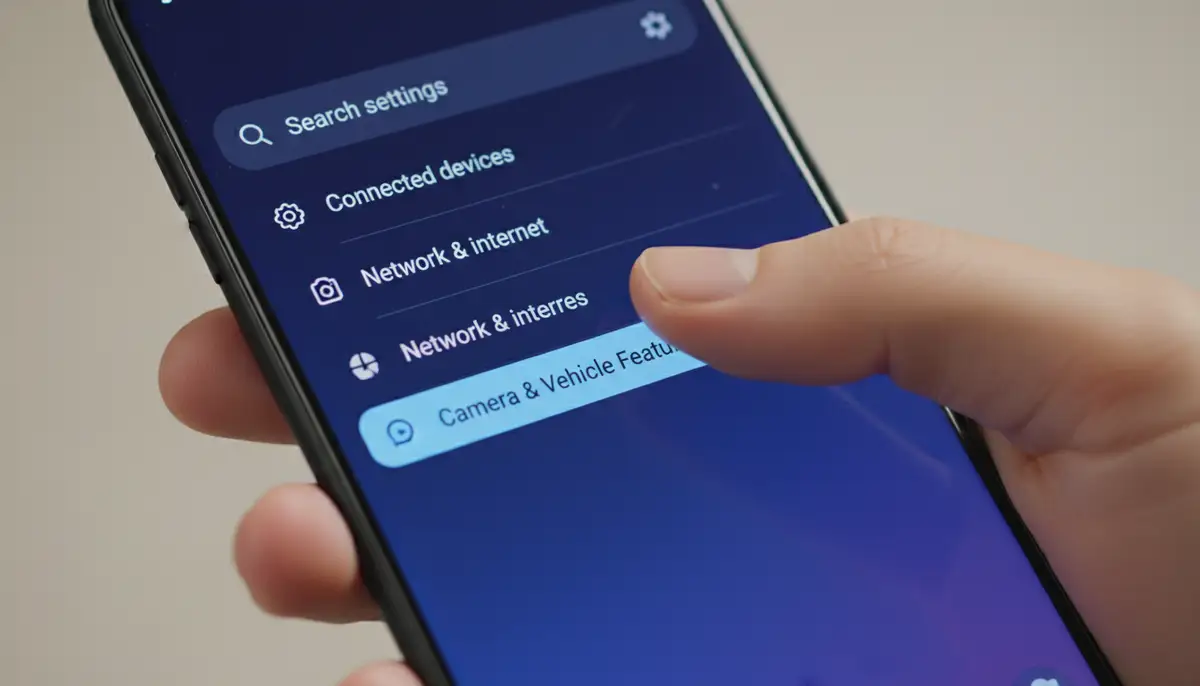
Even with perfect Android 13 reverse camera settings, issues can arise. Here are some common problems and how to fix them.
No Camera Signal / Black Screen
- Check Wiring: Ensure all connections (power, ground, video, trigger) are secure and correct. Loose wires are a frequent culprit.
- Input Selection: Verify your head unit is set to the correct video input for the reverse camera. Sometimes it defaults to another AV input.
- Camera Power: Confirm the camera itself is receiving power. Check fuses or power connections.
- Head Unit Reset: A soft reset of your Android 13 head unit can sometimes resolve temporary glitches.
If you’re experiencing issues with your Android Auto reverse camera settings, a good place to start troubleshooting is the Android Auto support forum. Many users share similar problems and solutions there. It’s a valuable resource for diagnosing and fixing connectivity or display issues.
Flickering or Distorted Image
This often points to a power issue or interference. Ensure your camera has a stable power supply. Consider installing a power filter if you’re experiencing electrical noise. Also, check the video cable for damage or poor shielding. Sometimes, simply rerouting the video cable away from other electrical wires can help. Adjusting your Android 13 reverse camera settings for resolution might also alleviate some distortion.
Incorrect Gridlines or No Gridlines
If gridlines are missing, check your Android 13 reverse camera settings to ensure they are enabled. If they are incorrect, you might need to recalibrate them through your head unit’s specific camera app. Some cameras have their own physical wires to cut for gridline removal. Make sure these are not accidentally cut if you want gridlines.
Optimizing for Clarity and Safety Beyond Settings
While Android 13 reverse camera settings are crucial, external factors also impact performance. Don’t overlook these simple steps to ensure maximum visibility and safety.
Keep Your Camera Lens Clean
This might seem obvious, but a dirty lens is the most common cause of a blurry image. Dust, mud, rain, and road grime can quickly obscure your camera’s view. Regularly wipe your camera lens with a soft, clean cloth. Use a mild glass cleaner if necessary. A clean lens ensures your Android 13 reverse camera settings can deliver the best possible image.
Adjust Camera Angle (If Possible)
Some aftermarket cameras allow for slight angle adjustments. Experiment with tilting the camera up or down. This can help you get a better view of your bumper and the ground behind you. A slight adjustment can dramatically improve your field of vision. This makes your Android 13 reverse camera settings even more effective.
Utilize Additional Camera Features
Beyond just reversing, your Android 13 system can often integrate with other camera functionalities. For instance, if you’re interested in general photography or advanced camera controls on your Android device, you might want to explore the comprehensive guide to Android Camera Bluetooth. This can open up new possibilities for how you interact with all your camera-enabled devices. For those who enjoy photography, apps like Camera ZOOM FX offer professional controls and stunning filters. They help you achieve high-quality results from your phone’s camera. While not directly for reverse cameras, understanding your device’s overall camera capabilities enhances your tech experience.
Integrating with Android Auto: Seamless Reverse Camera Experience
Android Auto provides a streamlined interface for your car’s infotainment system. Your reverse camera integrates seamlessly with it. When you shift into reverse, Android Auto typically pauses. It displays the camera feed. Once you shift out of reverse, Android Auto resumes. This integration ensures a smooth user experience.
If you’re having issues with your reverse camera displaying correctly within Android Auto, first check your head unit’s dedicated Android 13 reverse camera settings. Then, ensure Android Auto itself is updated to the latest version. Sometimes, compatibility issues can arise between software versions. For a deeper dive into optimizing this integration, check out our ultimate guide to Android Auto with Reverse Camera. It covers everything from setup to advanced tips.
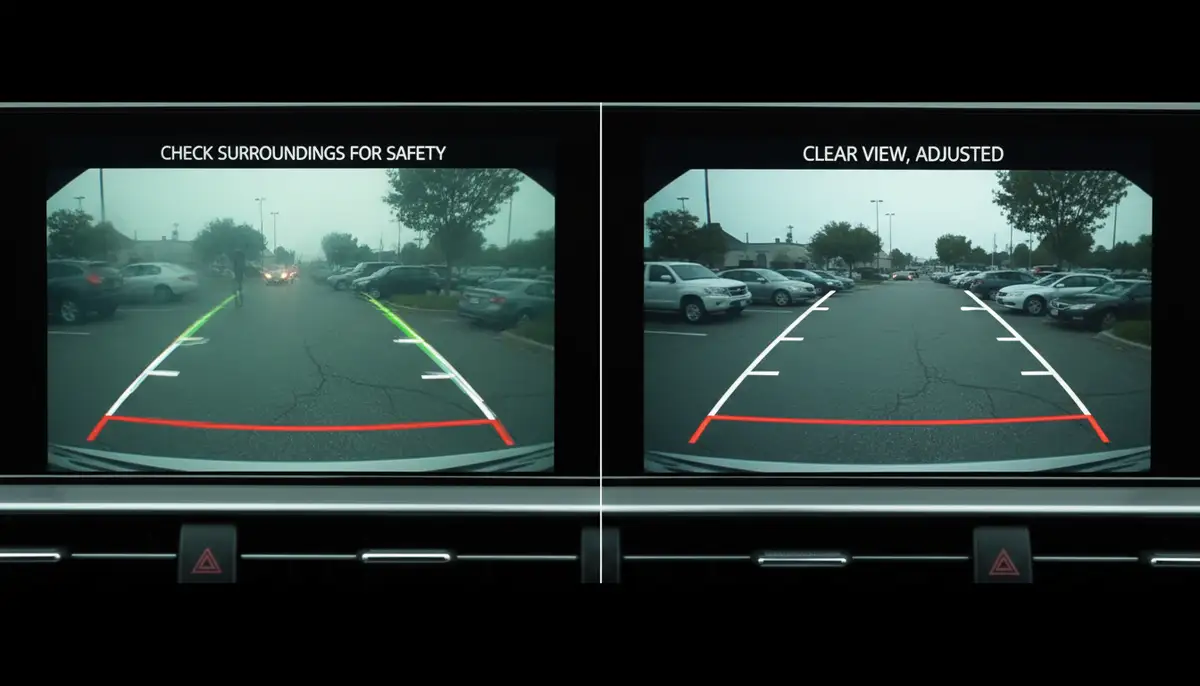
The goal is always a reliable and clear display. This helps you navigate safely. Whether you are using Google Maps or listening to music, the reverse camera should always take priority when needed. Proper Android 13 reverse camera settings ensure this happens every time.
Future Trends in Android Reverse Camera Technology
The world of automotive technology is constantly evolving. What can we expect next for Android 13 reverse camera settings and beyond?
Enhanced AI and Object Recognition
Future Android systems will likely integrate more advanced AI. This will provide even smarter object recognition. Imagine a system that not only shows you an obstacle but also identifies it. It could tell you if it’s a pedestrian, a pet, or another vehicle. This level of intelligence will make reversing even safer. These features will likely be part of future Android 13 reverse camera settings updates.
360-Degree View and Augmented Reality
Many luxury cars already offer 360-degree camera views. This technology will become more common in Android-powered vehicles. Augmented reality overlays could also project virtual lines or objects onto your live camera feed. This could guide you into tight parking spots with incredible precision. These advanced features will be accessible through sophisticated Android 13 reverse camera settings menus.
Seamless Integration with Vehicle Sensors
Expect even tighter integration with parking sensors, radar, and lidar systems. The camera feed will work in concert with these sensors. This will provide a comprehensive safety net. This holistic approach to driver assistance will be a hallmark of future Android versions. This will further refine Android 13 reverse camera settings and their capabilities.
Maintaining Optimal Performance and Updates
To ensure your Android 13 reverse camera settings remain effective, ongoing maintenance is crucial. Software updates, both for your Android head unit and potentially your vehicle’s firmware, often include bug fixes and performance enhancements. Always keep your system updated. This helps prevent compatibility issues and ensures you have the latest features.
Software Updates for Your Head Unit
Regularly check for system updates on your Android 13 head unit. These updates can improve camera performance, add new features, and fix security vulnerabilities. A well-maintained system ensures your Android 13 reverse camera settings function optimally. Neglecting updates can lead to glitches or reduced functionality over time.
You can usually find update options within the ‘About Device’ or ‘System Updates’ section of your head unit’s settings. Ensure you have a stable Wi-Fi connection before starting any updates. This prevents data corruption. Keeping your software current is a proactive step towards maintaining perfect Android 13 reverse camera settings.
Hardware Checks and Longevity
Beyond software, occasionally inspect the physical camera and its wiring. Look for any signs of wear, corrosion, or damage. Extreme weather conditions can sometimes affect camera components. Addressing minor issues early can prevent major malfunctions. This ensures the longevity of your reverse camera system. Proper care helps preserve your carefully configured Android 13 reverse camera settings.
For those who appreciate high-quality imaging, remember that the underlying technology powering these cameras is constantly advancing. Companies like camera360.com, snapseed.online, and vsco.co lead the way in mobile photography. While they focus on creative tools, their advancements in image processing and sensor technology often trickle down. This benefits all camera applications, including your vehicle’s reverse camera. This constant innovation improves the potential of your Android 13 reverse camera settings.
Watch This: How to Change Backup Camera Settings in Android 13
Sometimes, seeing is believing. For a visual guide on adjusting your settings, check out this helpful video:
. This video provides a quick and easy walkthrough. It shows you how to customize your backup camera settings in an Android 13 head unit. It’s a great resource for hands-on learners. This visual aid complements our discussion of Android 13 reverse camera settings.
Conclusion: Drive Safer with Optimized Android 13 Reverse Camera Settings
Mastering your Android 13 reverse camera settings is an essential step for any modern driver. It enhances safety, boosts convenience, and gives you greater confidence behind the wheel. From adjusting gridlines to fine-tuning image quality, every setting plays a part in your overall driving experience. Remember to keep your camera clean and your software updated for consistent performance. By following this guide, you can ensure your reverse camera system is always operating at its peak.
Take the time to explore your options and troubleshoot any issues. A well-configured reverse camera is a powerful tool. It helps you navigate the world around you with ease and security. Drive smart, drive safe, and make the most of your Android 13 reverse camera settings. For those interested in advanced photography and stable imaging solutions, explore our stable shot camera for professional-grade results.