
Unlocking Your Creative Potential with the 365 Video App in 2025
In today’s fast-paced digital world, video content reigns supreme. Whether you are a business owner, an educator, a passionate content creator, or simply someone who loves sharing life’s moments, high-quality video is essential. By 2025, the tools available for video creation have evolved dramatically, making professional-grade editing accessible to everyone. This is where the 365 video app steps in, offering a comprehensive suite of features designed to empower your storytelling.
Gone are the days of needing expensive software and specialized skills. The 365 video app brings powerful editing, AI-driven enhancements, and seamless collaboration right to your fingertips. This guide will explore everything you need to know about harnessing the full potential of this innovative platform. You will learn how to transform raw footage into captivating narratives, streamline your workflow, and produce videos that truly stand out.
What Exactly is the 365 Video App?
When we talk about the ‘365 video app’ in 2025, we’re primarily referring to the robust video editing capabilities integrated within the Microsoft 365 ecosystem. This isn’t just one standalone application, but rather a powerful collection of tools and services designed to make video creation and management effortless. At its core, it leverages applications like Clipchamp, which Microsoft acquired to enhance its video offerings for individuals and businesses alike.
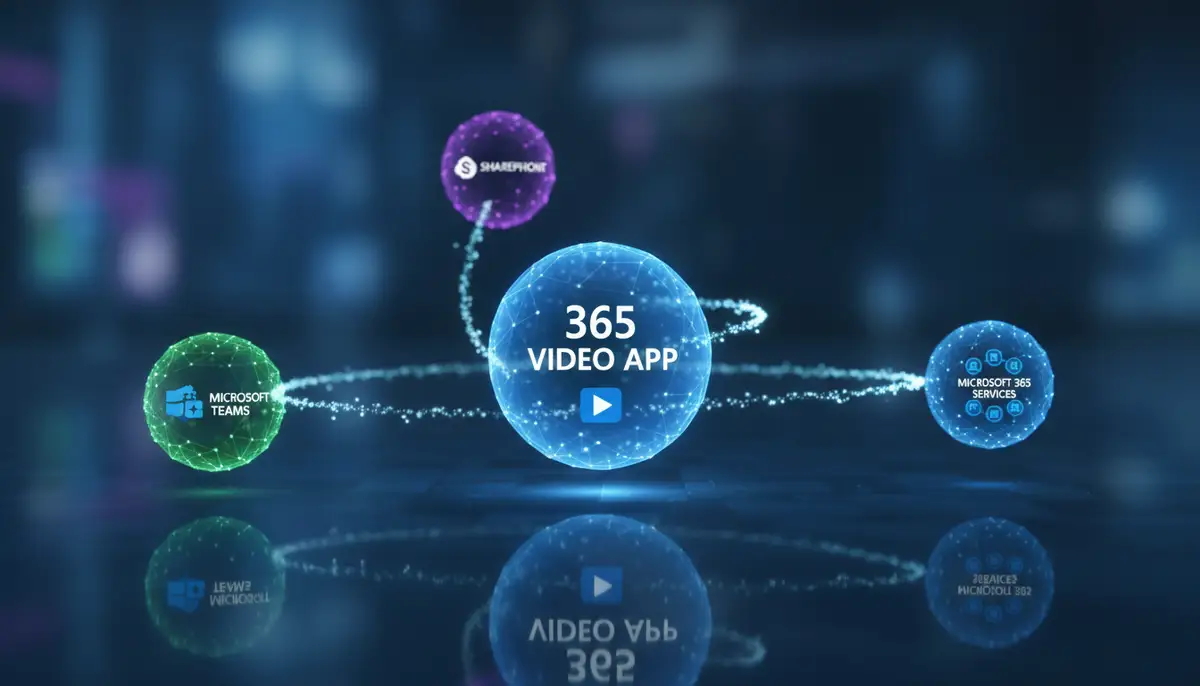
The 365 video app is more than just an editor; it’s a complete video solution. It allows you to record, edit, enhance, and share videos directly from your Microsoft 365 environment. Think of it as your all-in-one hub for visual communication. It integrates smoothly with other Microsoft services, making it a natural extension of your existing productivity tools. This integration means you can easily pull assets from OneDrive, collaborate in Teams, and share through SharePoint, all within the same familiar ecosystem.
This seamless experience helps you focus on your creative vision rather than wrestling with complex software. The goal of the 365 video app is to democratize video production, making it simple for anyone to create impactful visual content. You’ll find it incredibly intuitive, even if you’re new to video editing.
Key Features and Benefits of the 365 Video App
The 365 video app comes packed with features designed to simplify and elevate your video projects. Let’s dive into some of the most impactful functionalities you’ll find.
Intuitive Editing Interface
The user interface of the 365 video app is remarkably clean and easy to navigate. You don’t need to be a professional editor to understand its functions. Drag-and-drop functionality makes adding media, transitions, and effects straightforward. You can trim clips, split segments, and rearrange your timeline with just a few clicks. This ease of use is a major advantage for creators of all skill levels.
For those looking to simplify video editing, tools like Clipchamp within the Microsoft 365 suite offer powerful yet accessible features. It’s designed to help you create high-quality videos without a steep learning curve.
AI-Powered Enhancements and Automation
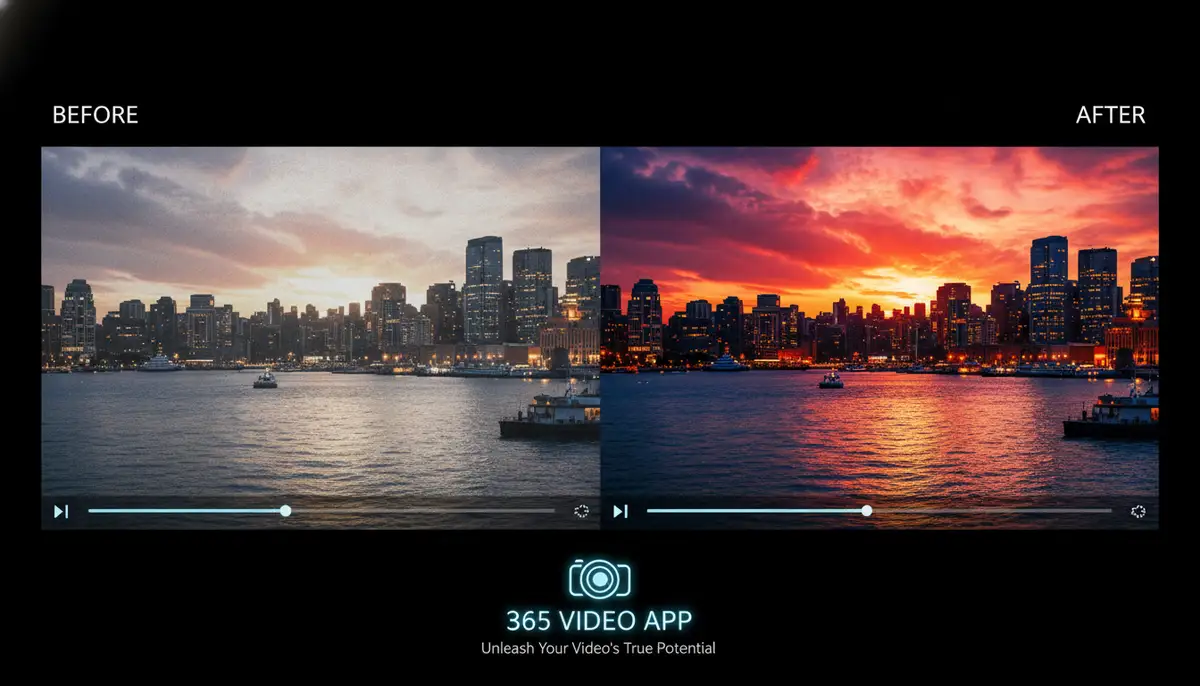
One of the standout features of the 365 video app in 2025 is its integration of artificial intelligence. AI can automatically stabilize shaky footage, enhance colors, and even suggest ideal music tracks based on your video’s mood. You can also leverage AI to generate captions, translate audio, and even create short highlight reels from longer videos. This automation saves you countless hours of manual work.
Imagine uploading a raw video and having the app suggest the best cuts and transitions. That’s the power of AI at work. This technology truly transforms the video creation process, making it faster and more efficient for everyone. It’s like having a professional editor as your co-pilot.
Seamless Collaboration Tools
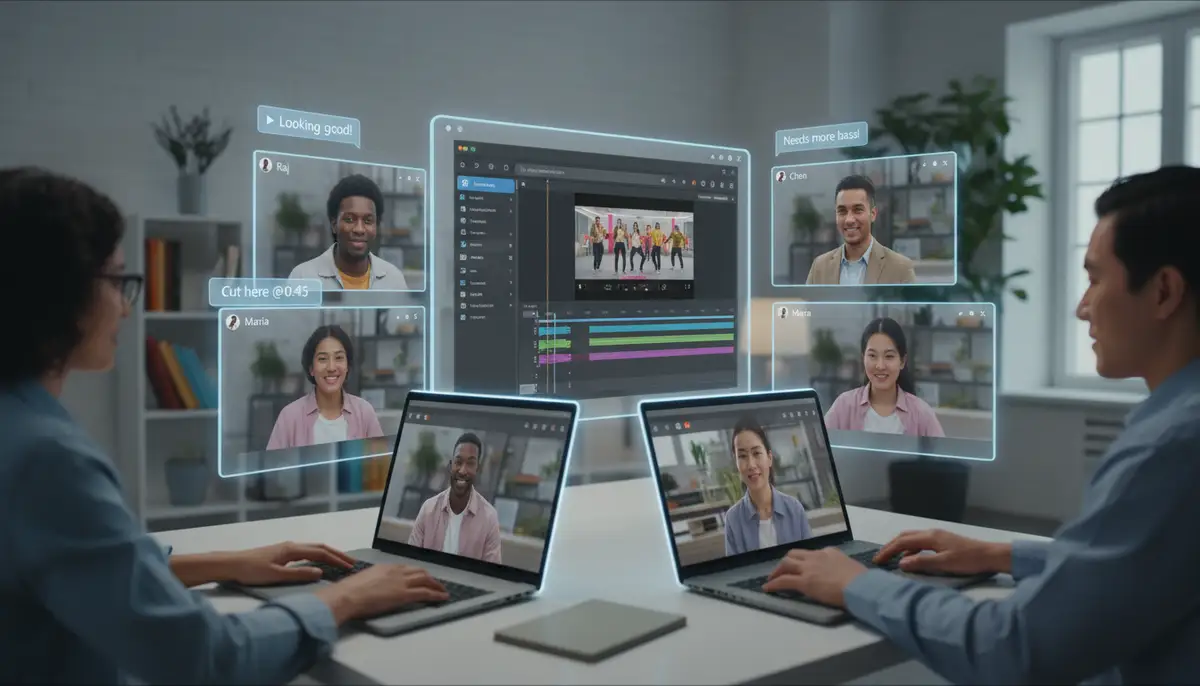
Collaboration is key in many projects, and the 365 video app excels here. You can share video projects with team members, allowing multiple people to contribute and provide feedback in real-time. Comments can be left directly on the timeline, pointing to specific moments that need attention. This feature is invaluable for teams working remotely or on complex projects.
The app’s integration with Microsoft Teams means you can discuss edits, share files, and even conduct virtual meetings about your video project without ever leaving the Microsoft 365 environment. This streamlines communication and ensures everyone is on the same page. Effective collaboration is a cornerstone of modern content production.
Extensive Stock Media Library
Don’t have the perfect shot? The 365 video app provides access to a vast library of stock videos, images, and audio tracks. This means you can easily find supplementary content to enrich your narrative. Whether you need background music, B-roll footage, or compelling graphics, the library has you covered. This resource is a game-changer for creators on a budget or with limited filming capabilities.
Having a rich stock library at your disposal means you can elevate your video’s production value without additional costs or licensing hassles. It allows for greater creative freedom and flexibility. You can quickly experiment with different visual styles and soundscapes.
Integration with the Microsoft 365 Ecosystem

The true power of the 365 video app lies in its deep integration with the broader Microsoft 365 suite. This means your video projects are seamlessly connected to your documents, presentations, and communication channels. You can easily embed videos into PowerPoint, share them in Outlook, or store them securely in SharePoint or OneDrive. This interconnectedness creates a powerful workflow.
This level of integration ensures consistency across all your digital assets. It also simplifies asset management and accessibility. For example, if you’re working on a presentation, you can quickly create and insert a video explainer using the 365 video app without ever leaving the Microsoft 365 environment. This efficiency is a huge time-saver.
Who Benefits from Using the 365 Video App?
The versatility of the 365 video app makes it an invaluable tool for a wide range of users. Let’s explore how different groups can leverage its capabilities.
Businesses and Marketers
For businesses, video marketing is no longer optional; it’s a necessity. The 365 video app allows companies to create engaging promotional content, product demos, and internal training videos with ease. You can quickly produce high-quality videos for social media campaigns, website content, and email marketing. This helps you connect with your audience more effectively.
From small startups to large enterprises, the ability to rapidly produce professional video content can significantly boost brand visibility and customer engagement. The collaboration features are particularly useful for marketing teams working on tight deadlines. You can maintain brand consistency across all your video assets.
Educators and Students
In education, video is a powerful tool for learning. Educators can use the 365 video app to create engaging lesson plans, record lectures, and provide visual explanations of complex topics. Students can also use it to produce presentations, documentaries, and creative projects, fostering deeper understanding and digital literacy. It makes learning more interactive and dynamic.
The ease of use means less time spent on technical hurdles and more time focused on content. It empowers both teachers and students to express ideas visually. Imagine creating an interactive video explaining a historical event or a scientific concept; the 365 video app makes it possible.
Content Creators and Influencers
For content creators, the 365 video app offers a streamlined workflow for producing videos for platforms like YouTube, TikTok, and Instagram. Its intuitive editing, AI enhancements, and stock media library can help you maintain a consistent content schedule and produce polished videos that attract and retain viewers. You can focus on your message and less on the technical details.
The ability to quickly edit and export in various formats is crucial for staying relevant in the fast-paced world of online content. If you’re looking to create engaging visual stories, this app is a powerful ally. It helps you stand out in a crowded digital landscape.
Everyday Users and Families
You don’t need to be a professional to enjoy the benefits of the 365 video app. It’s perfect for creating personal videos, family memories, travel vlogs, or special occasion montages. You can easily combine photos and videos, add music, and apply effects to create heartfelt keepsakes. Sharing these moments with loved ones becomes even more special.
The simplicity of the interface means anyone can jump in and start creating. You can transform your raw phone footage into cinematic memories. This makes the 365 video app a truly versatile tool for all aspects of your life.
Getting Started with Your 365 Video App
Ready to dive into video creation? Here’s a quick guide to help you get started with the 365 video app.
Accessing the App
If you have a Microsoft 365 subscription, you likely already have access to the core functionalities of the 365 video app. You can usually find Clipchamp directly within your Microsoft 365 portal or by searching for it on your Windows device. For mobile users, dedicated apps might be available, offering similar features on the go. Ensure your subscription is active to get the full experience.
Your First Project: A Step-by-Step Walkthrough
- 1. Launch the 365 Video App: Open Clipchamp or the integrated video tool within your Microsoft 365 suite.
- 2. Start a New Project: Click on ‘Create a new video’ or a similar option.
- 3. Import Your Media: Drag and drop your video clips and photos into the media library. You can also import from cloud storage like OneDrive.
- 4. Arrange on the Timeline: Drag your media from the library to the timeline at the bottom of the screen. Arrange them in the desired order.
- 5. Basic Edits: Use the trim and split tools to cut out unwanted sections. Adjust clip durations as needed.
- 6. Add Transitions: Enhance flow by adding transitions between clips. Explore options like fades, wipes, or dissolves.
- 7. Add Text and Graphics: Insert titles, captions, or lower thirds to convey information. Customize fonts, colors, and animations.
- 8. Incorporate Audio: Add background music from the stock library or import your own. Adjust volume levels and fade in/out.
- 9. Preview and Refine: Play back your video to ensure everything looks and sounds perfect. Make any necessary adjustments.
- 10. Export Your Video: Once satisfied, export your video in your desired resolution and format. The 365 video app offers various export options for different platforms.
Advanced Tips & Tricks for the 365 Video App
To truly master the 365 video app, consider these advanced strategies that can elevate your video projects.
Leveraging AI for Efficiency
Don’t just use AI for basic enhancements. Explore its potential for content generation. For instance, the new Create app for Microsoft 365 Copilot, as shown in this
video, allows you to generate images and videos from text prompts. This can be a huge time-saver for generating B-roll or conceptual visuals. Experiment with different prompts to see what you can create.
Utilize AI for automatic transcription and translation services within the 365 video app. This makes your content more accessible and expands your audience reach. AI can also help with smart cropping and object removal, making your videos look more professional with minimal effort. This technology is continually evolving, so keep an eye on new updates.
Mastering Templates and Brand Kits
The 365 video app offers a range of professional templates for various purposes, from social media ads to corporate presentations. Using templates provides a strong starting point and ensures a polished look. Even better, create your own brand kit within the app. This includes your logo, brand colors, fonts, and intro/outro animations. Consistent branding makes your videos instantly recognizable and professional.
By saving your brand assets, you can apply them to every new project with a single click. This ensures all your video content aligns with your brand identity. It’s a simple yet powerful way to maintain a cohesive visual presence. This consistency builds trust and recognition with your audience.
Optimizing for Different Platforms
Remember that different platforms have different requirements for video aspect ratios and lengths. The 365 video app allows you to easily adjust your video for Instagram Stories (9:16), YouTube (16:9), or LinkedIn (1:1). Always export in the optimal format for your target platform to maximize engagement and avoid awkward cropping. This attention to detail makes a big difference in how your content is received.
Enhancing Visuals with External Tools
While the 365 video app offers robust editing, you might sometimes want to enhance your raw footage before importing it. For example, a powerful photography app like Camera ZOOM FX can help you capture stunning photos and videos with professional controls and filters, giving you higher quality source material to work with. You can then import these enhanced assets into the 365 video app for further editing.
Similarly, you might want to apply photo effects to stills before incorporating them into your video. Combining specialized tools for capture and pre-processing with the comprehensive editing capabilities of the 365 video app creates a powerful workflow. This allows you to achieve truly exceptional visual results.
Comparing the 365 Video App to Other Solutions
The video editing landscape is diverse, with many powerful tools available. While the 365 video app offers a compelling package, it’s helpful to understand how it stacks up against other popular solutions like Picsart, Canva, and VSCO.
365 Video App vs. Dedicated Editors (e.g., Adobe Premiere Pro)
The 365 video app is designed for accessibility and integration. It excels at quick, efficient video creation within a business or educational context. Dedicated professional editors like Adobe Premiere Pro offer unparalleled depth and complexity for high-end film production, advanced color grading, and motion graphics. However, they come with a steeper learning curve and higher cost. The 365 video app strikes a balance between power and ease of use, perfect for most everyday and professional needs.
365 Video App vs. Creative Design Platforms (e.g., Canva, Picsart)
Platforms like Canva and Picsart are renowned for their graphic design capabilities and have increasingly incorporated video editing features. They are excellent for creating social media content, quick animations, and combining graphics with short video clips. The 365 video app, on the other hand, focuses more on comprehensive video editing, storytelling, and deep integration with productivity tools. While Canva and Picsart are great for visual assets, the 365 video app is built for more robust video projects, especially those requiring collaboration and AI enhancements within an enterprise framework. It offers a more dedicated video-first approach.
365 Video App vs. Mobile-First Editors (e.g., VSCO, CapCut)
Mobile-first editors like VSCO excel at quick, stylistic edits directly on your smartphone, often with a focus on filters and effects. They are perfect for on-the-go content creation. The 365 video app, while offering mobile accessibility, provides a more comprehensive desktop experience with advanced features suitable for longer projects and team collaboration. While a mobile app might be great for a quick edit, the 365 video app offers a more powerful and integrated solution for serious video production. It handles more complex timelines and larger files with greater ease.
| Feature | 365 Video App | Canva/Picsart | VSCO/CapCut |
|---|---|---|---|
| Primary Focus | Comprehensive video editing & M365 integration | Graphic design & quick social media video | Mobile-first stylistic video editing |
| AI Capabilities | Advanced (Copilot, auto-edit, transcription) | Basic (background removal, text-to-image) | Limited (auto-cut, basic effects) |
| Collaboration | Real-time, deep M365 integration | Limited real-time, asset sharing | Mostly individual, shareable projects |
| Stock Media | Extensive (videos, images, audio) | Extensive (images, templates, some video) | Curated (filters, effects, limited stock) |
| Learning Curve | Low to Moderate | Low | Very Low |
The Future of Video Creation with the 365 Video App
The landscape of video creation is constantly evolving, and the 365 video app is at the forefront of these changes. Looking ahead to 2025 and beyond, we can expect even more sophisticated AI integration, enhanced collaborative features, and deeper connections with emerging technologies.
Hyper-Personalization and AI Storytelling
Expect the 365 video app to offer even more advanced AI capabilities for personalized video content. Imagine an AI that can analyze your audience data and suggest specific edits or narrative structures that resonate most effectively. This hyper-personalization will allow you to create highly targeted videos that achieve maximum impact. AI will move beyond just editing assistance to actual storytelling guidance.
Immersive Experiences and Spatial Computing
As spatial computing and augmented reality (AR) become more prevalent, the 365 video app will likely integrate features for creating immersive video experiences. This could include tools for producing 360-degree videos, AR overlays, or content designed for holographic displays. The way we consume and interact with video is changing, and the 365 video app will adapt to these new formats. This opens up exciting new possibilities for creators.
Beyond Basic Editing: Specialized 365 Video Apps
While the core 365 video app focuses on comprehensive editing within the Microsoft ecosystem, it’s important to recognize that ‘365 video app’ can also refer to other innovative video tools that integrate with daily life. For instance, some apps focus specifically on enhancing personal appearance in videos, which is a growing trend.
One such example is the Perfect365 Video app, which offers virtual makeup editing for your videos. This allows users to instantly retouch their appearance with full makeup looks and custom tools, perfect for social media content. It’s a testament to how specialized video apps are catering to niche demands.
These specialized video tools complement the broader capabilities of the Microsoft 365 video app. They allow you to add unique touches and personal flair to your content before or after the main editing process. For more information and community support, you can explore the Perfect365 Video community to learn tips and share your creations. This shows the diverse ecosystem of video applications.
Troubleshooting Common Issues with the 365 Video App
Even with intuitive software, you might encounter occasional hiccups. Here are some common issues and their solutions when using the 365 video app.
Video Export Problems
If your video isn’t exporting correctly, try reducing the resolution or file size. Check your internet connection if you’re exporting to cloud storage. Ensure you have enough storage space on your device. Sometimes, simply restarting the 365 video app and your computer can resolve minor glitches. Also, verify that your video doesn’t contain any corrupted files.
Performance Lags
For slow performance, close other demanding applications running in the background. Clear your browser cache if you’re using the web version of the 365 video app. Ensure your graphics drivers are up to date. Working with lower-resolution proxies during editing can also significantly improve playback speed, especially on older hardware. This makes the editing process smoother.
Audio Sync Issues
If your audio and video are out of sync, try detaching the audio track and re-syncing it manually. Check if your source footage has variable frame rates, which can cause sync problems. Converting your source files to a constant frame rate before importing them into the 365 video app can often fix this issue. Always preview your video thoroughly before exporting to catch these problems early.
Collaboration Access Problems
If team members can’t access a shared project, verify their permissions within Microsoft 365. Ensure the project is saved in a shared location like SharePoint or a shared OneDrive folder. Confirm that everyone has the necessary Microsoft 365 subscription level for collaborative features. Communication is key; double-check with your teammates about their access status. For more insights on seamless digital communication, you might find our guide on mastering the 1v1 video call app in 2025 useful.
Lost Project Files
Always save your projects regularly, preferably to a cloud service like OneDrive, which offers version history. If a project seems lost, check your cloud storage’s recycle bin or previous versions. The 365 video app usually has an auto-save feature, but manual saves are always a good backup. Regular backups prevent significant data loss. Reflecting on past interactive technologies like the Amazon Glow app can remind us how crucial reliable file management is for digital experiences.
Final Thoughts on the 365 Video App
The 365 video app is more than just a tool; it’s a gateway to powerful visual storytelling in 2025. Its blend of intuitive design, AI-driven intelligence, and deep integration with Microsoft 365 makes it an indispensable asset for anyone looking to create compelling video content. From quick social media clips to in-depth business presentations, the 365 video app empowers you to bring your ideas to life.
Embrace the future of video creation by exploring all that the 365 video app has to offer. You’ll find that producing high-quality, engaging videos is not only achievable but also incredibly rewarding. Start creating your next masterpiece today and share your unique vision with the world. The possibilities are truly endless with this powerful platform.