Is Your Android Camera Blurry? Let’s Fix It!
It’s frustrating when you try to capture a perfect moment, only to find your Android camera blurry. You line up the shot, press the shutter, and boom – a fuzzy mess. In 2025, with smartphone cameras being so advanced, a blurry picture feels like a step backward. This comprehensive guide will help you understand why your Android camera might be blurry and, more importantly, how to fix it. We’ll cover everything from simple tweaks to more advanced troubleshooting, ensuring you get back to taking crisp, clear photos.
Many users experience this issue. It can stem from various sources, both software and hardware related. Don’t worry, most blurry camera problems are solvable. Let’s dive into the common culprits behind an Android camera blurry problem.
Why Is Your Android Camera Blurry? Common Causes
Before we jump into solutions, it’s helpful to know what might be causing your Android camera to be blurry. Understanding the root cause can save you time and effort. Here are the most frequent reasons your photos might lack sharpness.
1. Dirty or Damaged Camera Lens
This is often the simplest and most overlooked reason for an Android camera blurry issue. Your phone lives in your pocket, bag, or hand. It picks up fingerprints, dust, and grime. A smudged lens acts like a filter, making everything look hazy. Even a tiny speck of dirt can significantly impact image clarity. Sometimes, the lens might even be scratched, causing permanent blur in specific areas.
2. Focus Issues: The Android Camera Blurry Culprit
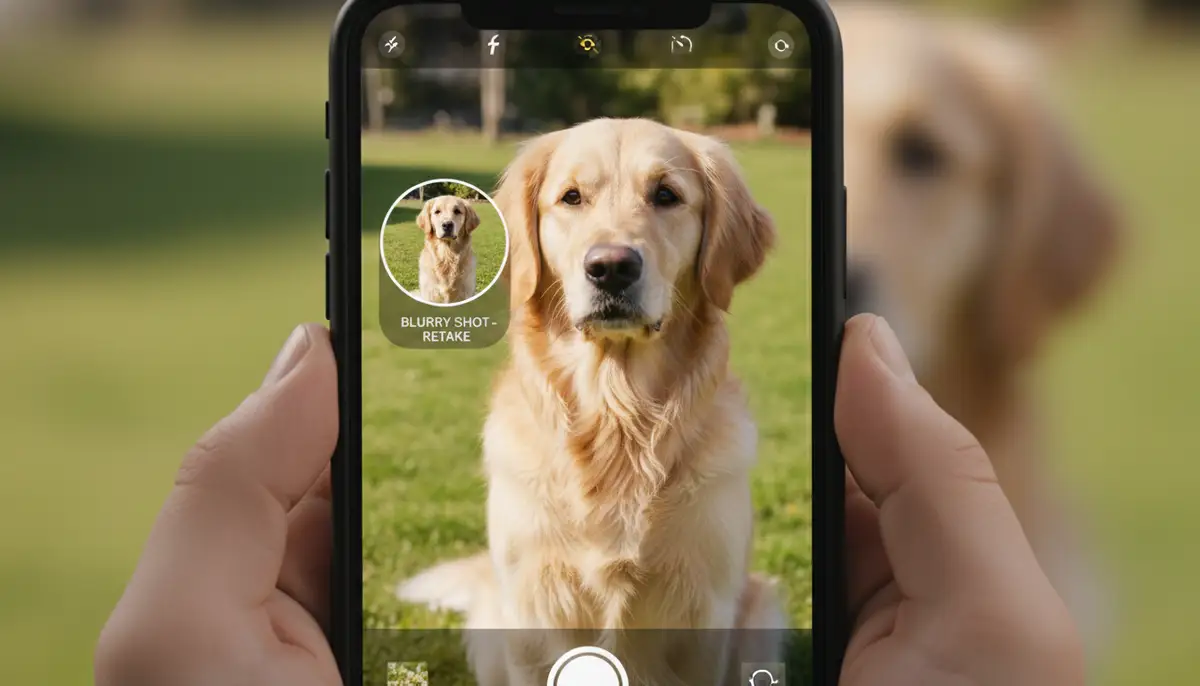
Modern Android cameras use autofocus to lock onto your subject. If this system isn’t working correctly, your pictures will appear out of focus. This can happen if you’re too close to the subject, the lighting is poor, or the autofocus mechanism itself is faulty. Sometimes, the camera struggles to find a clear point of focus, resulting in a general blur. This is a classic reason for an Android camera blurry complaint.
Many users encounter issues where the camera simply refuses to focus. This can be particularly frustrating when trying to capture fast-moving objects or detailed close-ups. Proper focus is key to sharp images. If your phone camera doesn’t focus on the subject, it’s worth checking out what to do if your Galaxy phone camera does not focus for specific guidance.
3. Software Glitches and App Conflicts
Software can be a fickle beast. A temporary bug in your camera app, an outdated operating system, or a conflict with another app can make your Android camera blurry. These glitches often manifest as inconsistent focusing, slow performance, or a completely blurred viewfinder. Sometimes, a simple restart can clear up these software hiccups. Other times, you might need to dig a little deeper into your phone’s settings. An issue with your camera app might also be a symptom of a larger problem, like an android camera app missing.
4. Hardware Damage to the Camera Module
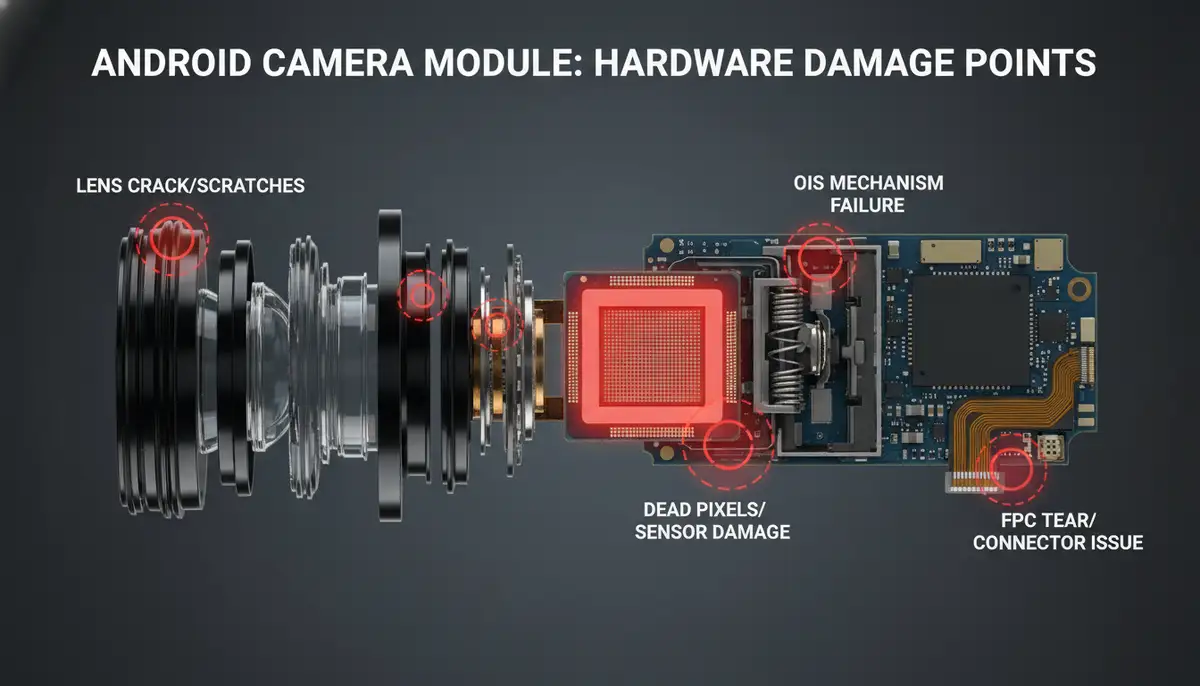
Unfortunately, sometimes the problem is physical. A drop or impact can damage the internal components of your camera module. This could be the lens itself, the autofocus motor, or the image sensor. If you’ve recently dropped your phone and now your Android camera is blurry, hardware damage is a strong possibility. This type of damage usually requires professional repair. You can often tell it’s a hardware issue if the blur is constant and affects all camera modes and apps.
5. Protective Cases or Screen Protectors
While essential for protecting your device, some cases or screen protectors can interfere with the camera. If a case isn’t properly aligned, it might partially obstruct the lens. Similarly, a poorly applied screen protector could cover the front camera or sensors, leading to a blurry selfie camera. Always ensure your accessories provide a clear path for your camera lens.
Step-by-Step Solutions to Fix Your Android Camera Blurry Issue
Now that we know the common causes, let’s get to fixing your Android camera blurry problem. Start with the simplest solutions and work your way up. You might be surprised how often a quick fix does the trick.
Solution 1: Clean Your Camera Lens Thoroughly
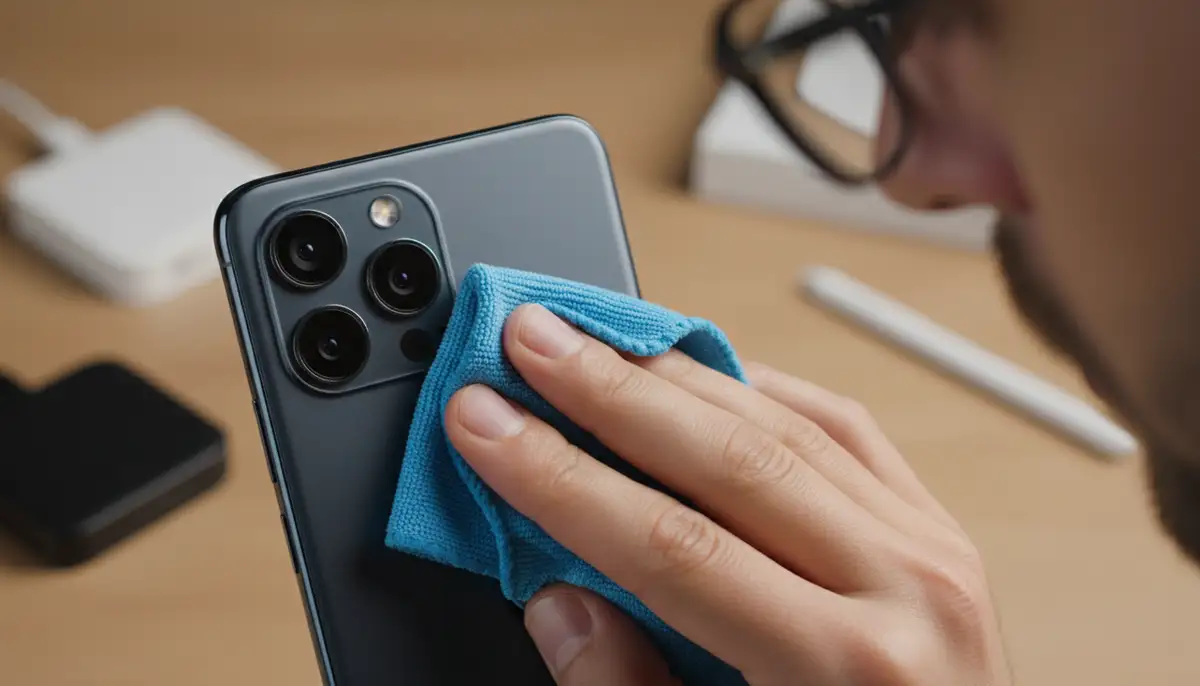
This is your first line of defense. Grab a soft, lint-free microfiber cloth. Gently wipe both the front and rear camera lenses. Avoid using harsh chemicals or abrasive materials, as these can scratch the lens. Breathe lightly on the lens to create some condensation, then wipe it clean. This often removes smudges and dust that cause an Android camera blurry appearance. Make sure to check for any foreign objects around the lens as well. You can find more tips on cleaning your camera lens to prevent your phone camera from not focusing or being blurry by visiting iGenius Phone Repair.
Solution 2: Restart Your Android Device
The classic IT solution, and for good reason! A simple restart can clear temporary software glitches and refresh your phone’s systems. This often resolves minor bugs that might be causing your Android camera to be blurry. Power off your phone completely, wait a few seconds, then power it back on. Test the camera again.
Solution 3: Clear the Camera App Cache and Data
Over time, camera apps accumulate cache files and data. These can sometimes become corrupted, leading to performance issues like an Android camera blurry display. Clearing them can often resolve the problem without deleting your photos.
- Go to Settings > Apps (or Apps & Notifications).
- Find your Camera app in the list.
- Tap on ‘Storage & Cache’.
- Tap ‘Clear Cache’.
- If the problem persists, also tap ‘Clear Data’ (be aware this resets camera settings to default, but won’t delete photos).
- Restart your phone and test the camera.
Many users on forums have found success with this method. For example, a discussion on Android Central forums suggests clearing the cache as a primary step when your rear camera is extremely blurry.
Solution 4: Update Your Android OS and Camera App
Outdated software can lead to all sorts of problems, including an Android camera blurry appearance. Manufacturers regularly release updates that include bug fixes, performance improvements, and camera enhancements. Make sure your operating system is up to date.
- For OS updates: Go to Settings > System > System update.
- For app updates: Open the Google Play Store, tap your profile icon, then ‘Manage apps & device’. Check for updates for your Camera app and other related apps.
Keeping your system and apps updated is crucial for optimal performance. If you’re having trouble with your camera app, it might also be worth checking out how to resolve issues if your Android camera app is missing.
Solution 5: Check Camera Settings and Modes
Sometimes, an incorrect setting can make your Android camera blurry. You might have accidentally enabled a specific mode or setting that causes blur. Check these common culprits:
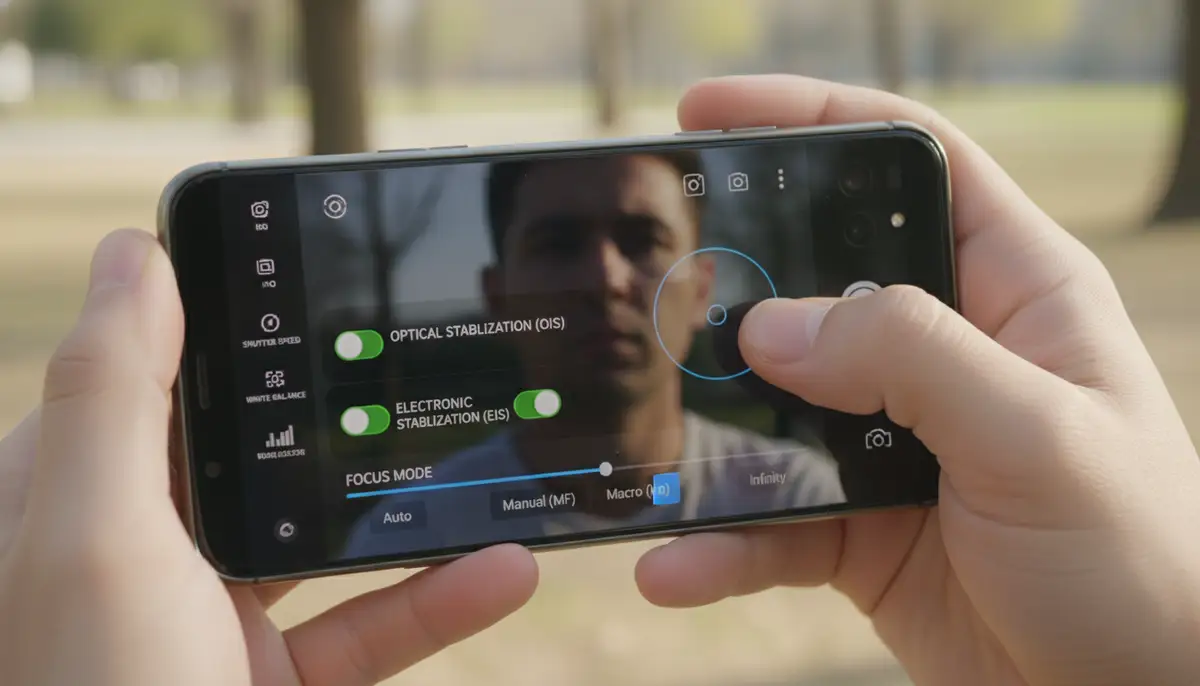
- Macro Mode: If enabled, this focuses only on very close objects, blurring everything else.
- Portrait Mode: This intentionally blurs the background (bokeh effect). Ensure it’s not mistakenly activated for regular shots.
- Manual Focus: If you’re in manual mode, ensure the focus is set correctly. Tap on your subject to autofocus.
- Resolution/Quality: While less likely to cause blur, very low-resolution settings can make images appear less sharp.
- Image Stabilization: Sometimes, a glitch in optical image stabilization (OIS) can cause issues. Try disabling it temporarily if your phone allows.
Resetting your camera settings to default can often fix configuration-related blur. Look for a ‘Reset settings’ option within your camera app’s settings menu.
Solution 6: Test in Safe Mode
Safe Mode temporarily disables all third-party apps. If your Android camera is blurry due to an app conflict, Safe Mode can help you identify it. If the camera works perfectly in Safe Mode, a recently installed app is likely the culprit.
- To enter Safe Mode: Press and hold the Power button. When the ‘Power off’ option appears, tap and hold it until ‘Reboot to Safe Mode’ appears. Tap ‘OK’.
- Test the camera: If it’s clear, a third-party app is causing the problem. Restart your phone to exit Safe Mode.
- Identify the culprit: Uninstall recently installed apps one by one until the issue is resolved.
Solution 7: Check for Physical Obstructions or Damage
Carefully inspect your phone’s camera module. Is there any visible damage to the lens, like cracks or deep scratches? Is your phone case or screen protector blocking the camera? Remove any accessories and test the camera again. Sometimes, a poorly fitted case can put pressure on the camera module, causing an Android camera blurry effect.
You might also want to watch this helpful video if your camera is super blurry:
. It provides a visual guide to checking physical aspects of your camera.
Solution 8: Try a Third-Party Camera App
If your stock camera app continues to produce an Android camera blurry image, try downloading a different camera app from the Google Play Store. Apps like Camera ZOOM FX offer advanced controls and features that might bypass issues with your phone’s default camera software. Other popular options include solutions from companies like snapseed.online, camera360.com, and picsart.com, which provide various editing and shooting capabilities.
Testing with a different app can help determine if the problem lies with the stock camera app or the camera hardware itself. If a third-party app works perfectly, you know the issue is software-related to your default camera app.
Solution 9: Factory Reset (Last Resort)
A factory reset wipes your phone clean, returning it to its original state. This is a drastic step, but it often resolves deep-seated software issues that cause an Android camera blurry problem. Always back up your data before performing a factory reset!
- Go to Settings > System > Reset options.
- Select ‘Erase all data (factory reset)’.
- Confirm your choice and let your phone restart.
- Set up your phone again and test the camera before restoring any backups.
When to Seek Professional Repair for Your Android Camera Blurry Issue
If you’ve tried all the software fixes and your Android camera is still blurry, it’s likely a hardware problem. This means the camera module itself might be damaged. Here are signs it’s time to visit a professional:
- Constant Blur: The blur is present in all camera apps and modes, regardless of lighting or focus attempts.
- Physical Damage: You can see cracks on the lens or feel loose components inside the phone.
- No Focus: The camera simply refuses to focus on anything, or the autofocus motor makes strange noises.
- Error Messages: The camera app consistently displays error messages.
A professional technician can diagnose and replace faulty camera modules. This is often more cost-effective than buying a new phone, especially if your device is otherwise in good condition.
Preventing Your Android Camera from Getting Blurry
Prevention is always better than cure. Here are some best practices to keep your Android camera performing at its best and avoid future blurry photos:
| Best Practice | Description |
|---|---|
| Keep Lens Clean | Regularly wipe your camera lens with a microfiber cloth. |
| Use a Protective Case | A good case protects against drops and impacts that can damage the camera. |
| Avoid Extreme Temperatures | High or low temperatures can affect camera performance. |
| Update Software Regularly | Stay current with Android OS and app updates for bug fixes. |
| Handle with Care | Avoid dropping your phone or exposing it to dust and water. |
| Check Settings | Periodically review your camera settings to ensure they are optimal. |
By following these simple steps, you can significantly reduce the chances of your Android camera becoming blurry again. Additionally, exploring features like android camera bluetooth can enhance your overall photography experience, allowing for remote captures and more stable shots.
Conclusion: Say Goodbye to Your Android Camera Blurry Woes
Dealing with an Android camera blurry issue can be incredibly frustrating, but as you’ve seen, there are many effective solutions. From a simple lens wipe to a full factory reset, most problems can be resolved with a bit of troubleshooting. Remember to start with the easiest fixes first and work your way up.
Don’t let blurry photos ruin your memories. With the tips in this guide, you’re well-equipped to diagnose and fix the problem, ensuring your Android camera captures every moment in stunning clarity. If you’re looking for advanced photography tools to further enhance your mobile photography, consider exploring a stable shot camera app like Camera ZOOM FX. It offers professional controls and features to help you achieve the best possible results, making sure your Android camera blurry days are behind you.