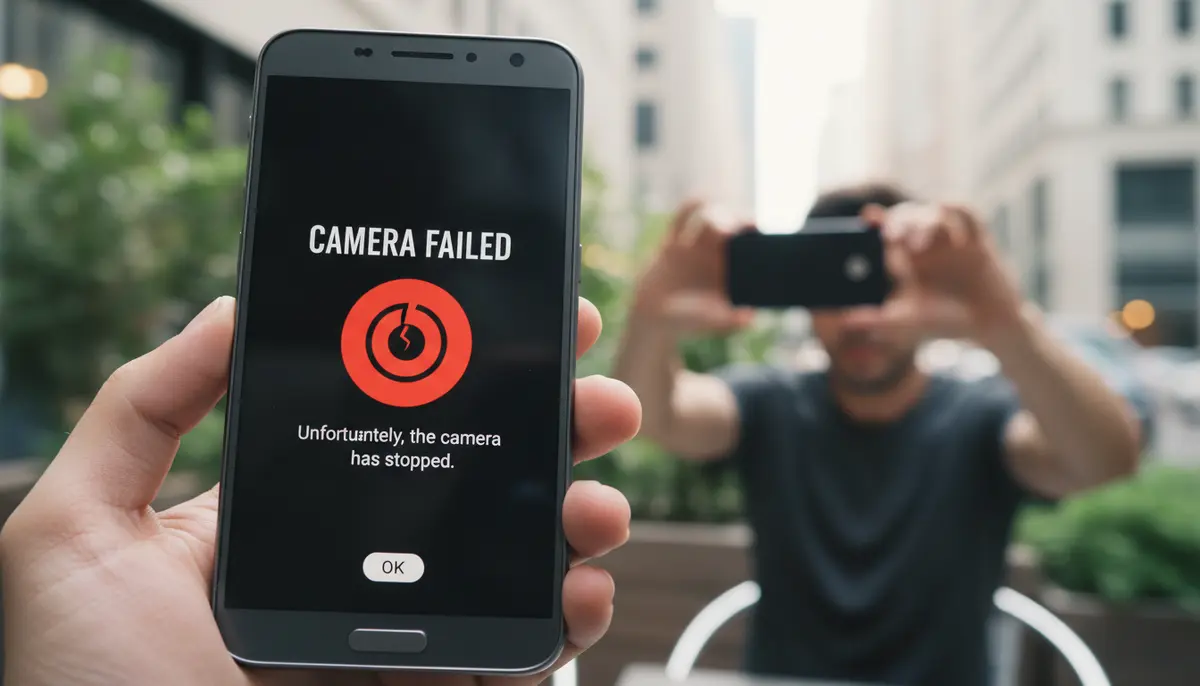
Introduction: Don’t Let ‘Android Camera Failed’ Ruin Your Moment
Imagine this: you’re at a breathtaking event, ready to capture a perfect photo. You open your camera app, and suddenly, a frustrating message pops up: ‘android camera failed’. Your heart sinks. This common issue can strike at the worst times, leaving you unable to snap those precious memories. But don’t worry. You are not alone, and there are many effective solutions available in 2025.
This comprehensive guide will walk you through every step. We will cover everything from simple restarts to more advanced troubleshooting. Our goal is to help you fix the ‘android camera failed’ error quickly. You’ll learn how to diagnose the problem and get your camera working again. Let’s dive in and transform your frustration into successful photo captures.
Why Your Android Camera Failed: Understanding the Root Causes
Before we jump into fixes, it helps to understand why your android camera failed. Knowing the cause can lead you to the right solution faster. Several factors can contribute to this annoying error message. Most often, they fall into software, app, or hardware categories.
Software Glitches and Bugs
Sometimes, your phone’s operating system (OS) or the camera app itself can experience temporary glitches. These small software hiccups can prevent the camera from launching correctly. An outdated OS or a recent software update might also introduce bugs. These bugs can cause the ‘android camera failed’ error. You might also find your android camera blurry due to software issues.
App Conflicts and Permissions
Other apps on your phone can interfere with the camera. For example, a third-party camera app or a video calling app might be hogging camera access. Incorrect app permissions can also block the camera. If an app doesn’t have permission to use the camera, it simply won’t work. This is a common reason why your android camera failed.
Storage Issues
Your phone needs free storage space to save photos and videos. If your device is critically low on space, the camera app might struggle to function. It might even refuse to open, displaying the ‘android camera failed’ message. Always keep some free space available.
Hardware Problems
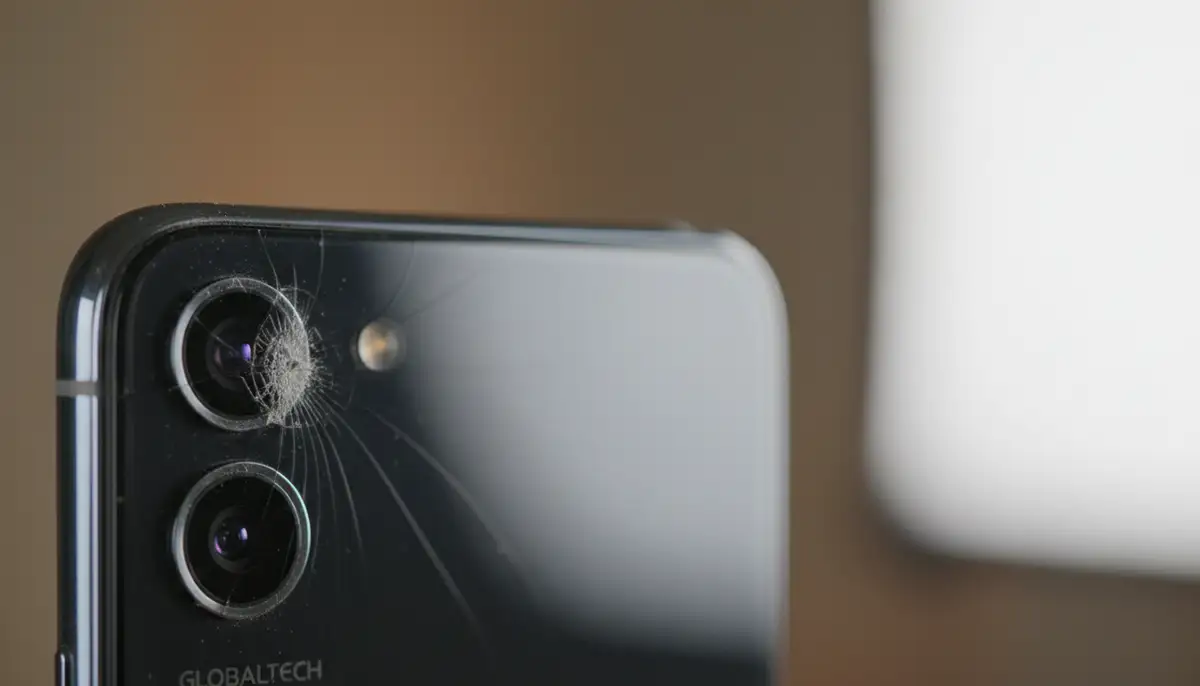
In more serious cases, the problem could be physical. A damaged camera lens, a loose internal connection, or water damage can cause your android camera failed. If you recently dropped your phone, hardware damage is a strong possibility. This type of issue usually requires professional repair.
Immediate Fixes for ‘Android Camera Failed’: Quick Solutions
When your android camera failed, try these simple steps first. They often resolve the issue without needing complex troubleshooting. These are your first line of defense against camera malfunctions. Many users find success with these initial actions.
1. Restart Your Android Phone
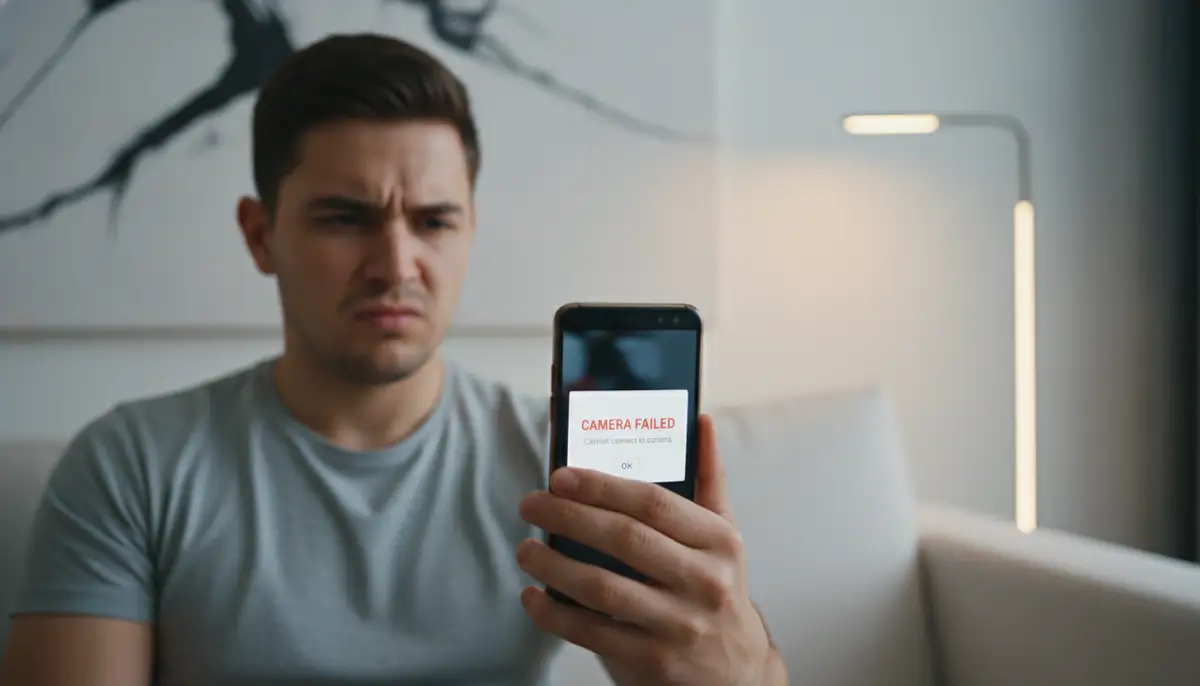
It sounds too simple, but restarting your phone can fix many temporary glitches. A restart clears out temporary memory and resets background processes. This often resolves software conflicts that cause the ‘android camera failed’ error. Power off your device completely, wait a few seconds, then turn it back on. This is a common and effective solution for many Android problems, as highlighted by Asurion’s tech tips on fixing a non-working Android camera.
2. Clear Camera App Cache and Data
Over time, apps accumulate cached data. This data can become corrupted and cause problems. Clearing the cache removes temporary files. Clearing data resets the app to its default state. This action often resolves persistent ‘android camera failed’ messages. You can find detailed instructions on clearing app cache and data for Samsung phones on Quora.
- Go to Settings.
- Tap on ‘Apps’ or ‘Applications’.
- Find ‘Camera’ in the list and tap on it.
- Tap on ‘Storage’.
- Select ‘Clear Cache’ first, then ‘Clear Data’.
- Restart your phone and try the camera again.
3. Force Stop the Camera App
If the camera app is stuck in a loop or misbehaving, force stopping it can help. This action completely shuts down the app and its background processes. It gives the app a fresh start when you reopen it. This simple step can often fix an ‘android camera failed’ message.
- Go to Settings.
- Tap on ‘Apps’ or ‘Applications’.
- Find ‘Camera’ and tap on it.
- Tap on ‘Force Stop’. Confirm if prompted.
- Try opening the camera app again.
4. Check App Permissions
Sometimes, an app might lose its necessary permissions after an update. Ensure your camera app has permission to access the camera. Without this, your android camera failed message will persist. It’s a quick check that can save you a lot of hassle.
- Go to Settings.
- Tap on ‘Apps’ or ‘Applications’.
- Find ‘Camera’ and tap on it.
- Tap on ‘Permissions’.
- Ensure ‘Camera’ permission is toggled On.
- Check other relevant permissions like ‘Storage’ if available.
Deeper Troubleshooting Steps: When Simple Fixes Aren’t Enough
If the quick fixes didn’t work, don’t despair. We have more advanced strategies. These steps address deeper software or app-related issues. They can often resolve a stubborn ‘android camera failed’ error. Follow them carefully to avoid further problems.
1. Update Your Android OS and Camera App
Outdated software can lead to compatibility issues and bugs. Manufacturers regularly release updates to fix these problems. Make sure your Android operating system is up to date. Also, check for updates for your specific camera app in the Google Play Store. A simple update might be all it takes to fix your android camera failed problem.
- For OS updates: Go to Settings > System > System update (or Software update).
For camera app updates: Open Google Play Store, search for your camera app (e.g., ‘Samsung Camera’ or ‘Google Camera’), and tap ‘Update’ if available.

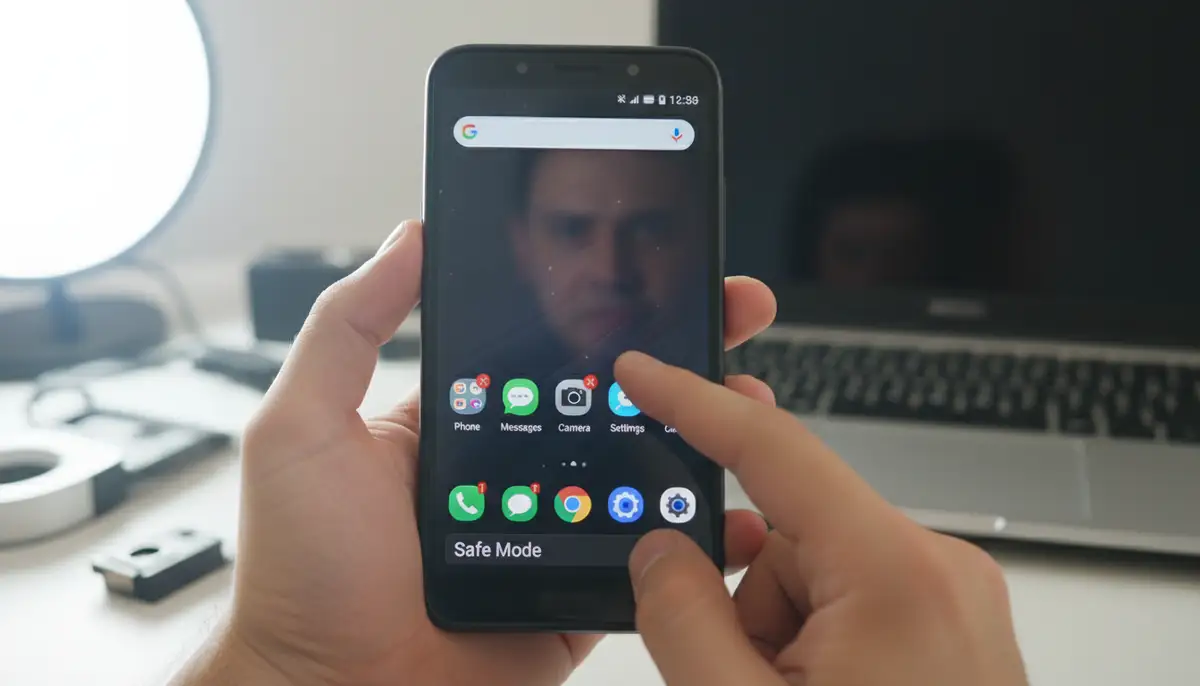
2. Boot into Safe Mode
Safe Mode helps you determine if a third-party app is causing the ‘android camera failed’ error. In Safe Mode, only essential system apps run. If your camera works perfectly in Safe Mode, a recently installed app is likely the culprit. You will then need to identify and uninstall the problematic app. This is a powerful diagnostic tool.
- Press and hold the Power button until the power options appear.
- Tap and hold ‘Power off’ until the ‘Reboot to Safe Mode’ prompt appears.
- Tap ‘OK’ to restart in Safe Mode.
- Once in Safe Mode, try opening your camera.
- If it works, restart your phone normally and start uninstalling recently installed apps one by one until the issue is resolved.
3. Uninstall Recently Installed or Suspicious Apps
If Safe Mode pointed to a third-party app, you need to remove it. Think about any apps you installed just before your android camera failed. Malicious or poorly coded apps can severely impact your phone’s functions. Removing them can restore your camera’s functionality. This is a critical step in isolating the problem.
4. Perform a Factory Reset (Last Resort)
A factory reset wipes all data from your phone. It returns the device to its original factory settings. This is a drastic step, but it often fixes deep-seated software issues. If your android camera failed due to a software problem, a factory reset will likely resolve it. Always back up your data before doing this! You can find specific instructions for a factory reset on Samsung’s support page if you have a Samsung device.
- Back up all your important data (photos, contacts, apps, etc.).
- Go to Settings > System > Reset options > Erase all data (factory reset).
Confirm your decision and let the phone reset. After it restarts, set it up again. Test the camera before restoring your backup. This helps confirm if the reset fixed the ‘android camera failed’ issue.
Advanced Scenarios and Solutions: Beyond Basic Fixes
Sometimes, the ‘android camera failed’ message indicates a more specific problem. Let’s explore some advanced scenarios. We will look at how to tackle them effectively. These solutions go beyond the common troubleshooting steps.
Consider Third-Party Camera Apps
If your stock camera app continues to fail, try a third-party camera app. Apps like Camera ZOOM FX offer robust features and often bypass issues with the default camera software. Camera ZOOM FX is a powerful Android photography app. It provides professional controls, stunning filters, and fast shooting performance for high-quality results. Other popular options include camera360.com, zcamera.me, and vsco.co. If these apps work, your issue is likely with the default camera app itself, not the hardware. This workaround can get you back to taking pictures quickly.
Addressing Specific Manufacturer Issues
Certain Android phone brands might have unique troubleshooting steps. For example, Samsung users frequently encounter the ‘android camera failed’ error. Samsung provides specific guidance. Their support pages offer tailored solutions. Always check your device manufacturer’s website for model-specific advice. You can also watch this helpful video for Samsung users:
.
When ‘Android Camera Failed’ Means Hardware Damage
If you’ve tried all software fixes and your android camera failed persists, it might be a hardware problem. This is especially true if you dropped your phone recently or exposed it to water. Signs of hardware damage include a physically cracked lens, a black screen, or strange noises from the camera module. In these cases, software troubleshooting won’t help. You need professional assistance. Do not try to open your phone yourself unless you are an expert. You could cause more damage.
| Symptom | Likely Cause | Recommended Action |
|---|---|---|
| Camera app crashes instantly | Software glitch, app conflict | Clear cache/data, Safe Mode |
| Black screen, no error message | Permissions, minor software bug | Check permissions, restart |
| ‘Android Camera Failed’ message | Various (software, storage, minor hardware) | Follow all troubleshooting steps |
| Camera works in Safe Mode | Third-party app interference | Uninstall recent apps |
| Distorted images, physical damage | Hardware failure | Professional repair |
Preventive Measures: Avoiding Future ‘Android Camera Failed’ Errors
Prevention is always better than cure. By taking a few proactive steps, you can significantly reduce the chances of encountering the ‘android camera failed’ message again. These habits will help maintain your phone’s health. They will also ensure your camera is always ready.
Regular Software Updates
Keep your Android OS and all your apps updated. Updates often include bug fixes and performance improvements. These can prevent issues that lead to your android camera failed. Make it a habit to check for updates weekly.
Manage Your Storage Space
Don’t let your phone’s storage get too full. Regularly delete old photos, videos, and unused apps. Move media to cloud storage or an external drive. Having ample free space prevents many performance issues, including camera failures. Low storage can easily make your android camera failed.
Be Mindful of App Installations
Only download apps from trusted sources like the Google Play Store. Be cautious with apps that request excessive permissions. Review app reviews before installing. Some apps can conflict with system functions. This can cause your android camera failed. If you’re using features like android camera bluetooth, ensure all related apps are from reputable developers.
Protect Your Device
Use a protective case and screen protector. Avoid exposing your phone to extreme temperatures or moisture. Physical damage is a common cause of hardware failure. Taking good care of your phone extends its lifespan. It also helps prevent your android camera failed.
When to Seek Professional Help
If you’ve exhausted all troubleshooting steps and your android camera failed still appears, it’s time for professional help. This is especially true if you suspect hardware damage. Trying to fix complex hardware issues yourself can void your warranty or cause more harm. Contact your phone’s manufacturer or a certified repair center. They have the specialized tools and expertise to diagnose and fix hardware problems. Always choose a reputable service provider to ensure quality repair.
Conclusion: Reclaiming Your Android Camera’s Potential
Dealing with the ‘android camera failed’ error can be incredibly frustrating. However, with the right knowledge and a systematic approach, most issues are fixable. We’ve covered a wide range of solutions, from simple restarts and app cache clearing to factory resets and hardware diagnostics. By following these steps, you empower yourself to resolve common camera malfunctions.
Remember to keep your software updated, manage your storage, and protect your device. These preventive measures are key to a smooth camera experience. If all else fails, don’t hesitate to seek professional assistance. Your Android camera is a powerful tool for capturing life’s moments. Don’t let a temporary setback keep you from using it. Get back to capturing stunning photos and videos with confidence. For even better results and advanced features, consider exploring the capabilities of a stable shot camera app like Camera ZOOM FX.