Is Your Android Camera App Missing? Don’t Panic! (2025 Guide)
Imagine this: you spot the perfect moment, reach for your Android phone, and… your camera app is gone. The icon has vanished from your home screen and app drawer. It’s a frustrating experience many Android users face. If your android camera app missing, it can feel like a critical part of your phone has disappeared. But don’t worry, you’re not alone, and there are proven solutions. This comprehensive guide will walk you through every step to recover your camera app, ensuring you don’t miss another photo opportunity in 2025.
We’ll cover everything from simple checks to advanced troubleshooting. Our goal is to get your camera back up and running quickly. Let’s dive into why your android camera app missing and how to fix it.
Why is Your Android Camera App Missing? Common Causes Explained
Before we fix the problem, understanding why your android camera app missing is helpful. Several factors can lead to this issue. Knowing the root cause can often guide you to the quickest solution.
- Accidental Hiding or Disabling: This is the most common reason. You might have inadvertently hidden the app from your home screen or app drawer. Sometimes, a system update or a third-party launcher can also hide apps.
- Unintentional Uninstallation: While less common for system apps, it’s possible to accidentally uninstall a camera app, especially if you’ve installed a third-party alternative.
- Software Glitches or Bugs: Android, like any operating system, can experience temporary bugs. A minor software glitch might cause the app icon to disappear.
- Third-Party App Interference: Some apps, particularly security or optimization tools, can interfere with other applications. They might even hide or disable your camera app without you realizing it.
- System Updates Gone Wrong: A recent Android update might have introduced a bug. This bug could incorrectly hide or disable your camera app.
- Corrupted App Data or Cache: Over time, an app’s cache or data can become corrupted. This corruption can lead to the app misbehaving or disappearing.
Understanding these potential culprits will help you target your troubleshooting efforts. Now, let’s explore the solutions.
Initial Quick Fixes: Before You Dive Deep
Sometimes, the simplest solutions are the most effective. Before you start digging into complex settings, try these quick fixes if your android camera app missing.
1. A Simple Restart: The Universal Fix
It sounds too easy, but restarting your phone resolves countless minor software glitches. It clears temporary memory and can often bring back missing app icons. Hold down your power button, then select ‘Restart’. Give your phone a minute to fully reboot. Check for your camera app afterward.
2. Check All Home Screens and App Drawer
You might have accidentally moved the camera icon to a different home screen panel or into a folder. Swipe through all your home screens. Open your app drawer (usually by swiping up from the bottom of the screen or tapping an icon with several dots/squares). Look carefully through all the pages. Sometimes, the android camera app missing is just hiding in plain sight.
3. Search for the App Directly
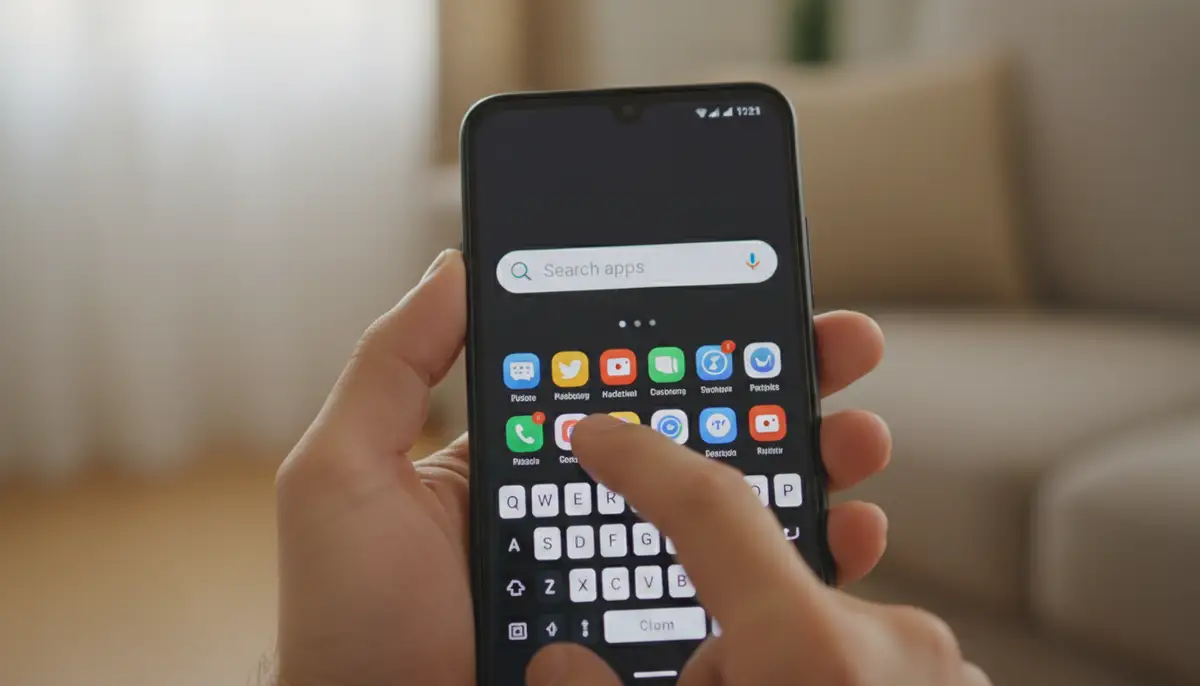
Most Android phones have a search bar in the app drawer or a universal search function. Swipe up to open your app drawer and look for a search bar at the top. Type ‘Camera’ into the search bar. If the app appears, you can usually drag its icon back to your home screen. This is a quick way to confirm if the app is still installed but merely hidden, as discussed in this helpful article on a completely disappeared camera icon.
Step-by-Step Solutions to Recover Your Missing Camera App
If the quick fixes didn’t work, it’s time to dig a bit deeper. These methods are designed to address the most common reasons why your android camera app missing.
Method 1: Unhiding the App from Home Screen Settings
Many Android launchers and phone manufacturers include an option to hide apps. This is a common culprit when your android camera app missing. The steps can vary slightly by phone brand (e.g., Samsung, Google Pixel, OnePlus). However, the general idea is the same.
- For Samsung Devices:
1. Go to your phone’s ‘Settings’.
2. Tap on ‘Home screen’.
3. Look for an option like ‘Hide apps’ or ‘App hiding’.
4. If ‘Camera’ is listed there, tap the minus sign or deselect it to unhide. This is a common solution found in the Samsung Community for a disappeared camera icon. - For Other Android Phones (General Steps):
1. Long-press on an empty space on your home screen.
2. Tap ‘Home screen settings’ or ‘Launcher settings’.
3. Look for options like ‘Hide apps’, ‘App drawer settings’, or ‘Manage apps’.
4. Navigate through these options to find any hidden apps list. Unhide your camera app if it’s there.
Method 2: Re-enabling a Disabled Camera App
Sometimes, you or another app might have accidentally disabled the camera. A disabled app won’t show up in your app drawer or on your home screen. This often happens when your android camera app missing.
- Via App Info:
1. Go to ‘Settings’ > ‘Apps’ (or ‘Apps & notifications’ > ‘See all apps’).
2. Scroll through the list of apps. Look for ‘Camera’. System apps often appear at the top or are clearly labeled.
3. If you find ‘Camera’, tap on it. If it’s disabled, you’ll see an ‘Enable’ button. Tap it. - Via Settings Search:
1. Open ‘Settings’.
2. Use the search bar within Settings and type ‘Camera’.
3. Look for ‘Camera settings’ or ‘Camera app info’.
4. Once you’re on the Camera app’s info page, ensure it’s not disabled. If it is, enable it.
Method 3: Reinstalling the Camera App (If Uninstalled)
While rare for the default camera, if you’ve been using a third-party camera app and it’s gone, or if your phone allows uninstalling the stock camera, you might need to reinstall it. This is a crucial step if your android camera app missing completely.
- From Google Play Store:
1. Open the ‘Google Play Store’ app.
2. Search for ‘Camera’.
3. Look for your phone’s official camera app (e.g., ‘Google Camera’ for Pixel, ‘Samsung Camera’ for Samsung). You might also find excellent alternatives like Camera ZOOM FX, which offers professional controls and stunning filters.
4. Tap ‘Install’. - From Manufacturer’s App Store (e.g., Samsung Galaxy Store):
1. If your phone has a dedicated app store, open it.
2. Search for ‘Camera’.
3. Install the official camera app from your manufacturer.
Method 4: Clearing Cache and Data for the Camera App
Corrupted cache or data can cause an app to malfunction or disappear. Clearing these can often resolve the issue without affecting your photos. This is a widely recommended step when the android camera app missing. According to Dr. Fone by Wondershare, clearing cache/data can effectively resolve the camera app disappeared Android issue.
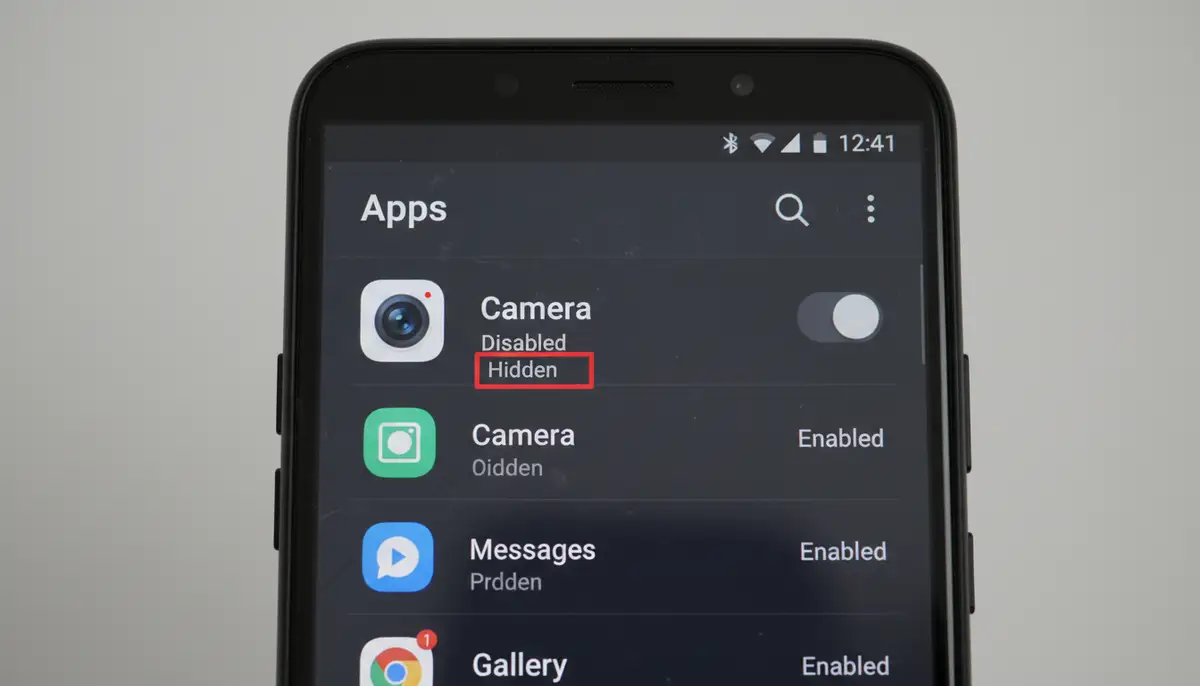
- 1. Go to ‘Settings’ > ‘Apps’ (or ‘Apps & notifications’ > ‘See all apps’).
2. Find and tap on ‘Camera’.
3. Tap ‘Storage & cache’.
4. First, tap ‘Clear cache’. Then, tap ‘Clear storage’ (or ‘Clear data’).
5. Important: Clearing data will reset the camera app’s settings to default. It generally won’t delete your actual photos, but it’s always wise to back up important media first.
Method 5: Checking for Third-Party Interference (Safe Mode)
Sometimes, a recently installed third-party app can cause conflicts. This might be why your android camera app missing. Entering Safe Mode can help you identify if another app is the culprit.
- How to Enter Safe Mode:
1. Press and hold the power button until the power options appear.
2. Long-press the ‘Power off’ option.
3. You’ll usually see a prompt to ‘Reboot to Safe Mode’. Tap ‘OK’.
4. Your phone will restart, and ‘Safe Mode’ will appear at the bottom of the screen. - In Safe Mode:
1. Check if your camera app is visible and working. If it is, a third-party app is causing the problem.
2. Restart your phone normally to exit Safe Mode.
3. Uninstall recently installed apps one by one, starting with any new camera apps, launchers, or system utility apps. Check for your camera app after each uninstallation.
Method 6: System Updates and Rollbacks
A buggy system update can sometimes make your android camera app missing. Conversely, an available update might contain a fix for the problem.
- Check for System Updates:
1. Go to ‘Settings’ > ‘System’ > ‘System update’ (or ‘Software update’).
2. Check for and install any available updates. These often include bug fixes. - Consider a Factory Reset (Last Resort):
1. If none of the above work, a factory reset might be necessary. This will erase all data on your phone, so back up everything important first.
2. Go to ‘Settings’ > ‘System’ > ‘Reset options’ > ‘Erase all data (factory reset)’.
3. Follow the on-screen prompts. This should restore your phone to its original state, including the camera app.
When Your Android Camera App Missing Problem Persists: Advanced Scenarios
You’ve tried everything, and your android camera app missing still? It’s time to consider more advanced or hardware-related issues.
Hardware Issues
In rare cases, the camera module itself might be faulty. If the camera app is present but crashes immediately, or if other camera-dependent apps also fail, it could be a hardware problem. This is less likely if the entire android camera app missing, but still possible.
- Symptoms of Hardware Failure:
* Camera app opens but shows a black screen.
* App crashes instantly upon opening.
* Error messages like ‘Camera failed’ or ‘Can’t connect to camera’.
* The flashlight (often tied to the camera hardware) also doesn’t work. - What to Do:
* If you suspect hardware issues, contact your phone manufacturer’s support or visit an authorized service center. They can diagnose and repair the physical camera module.
Contacting Manufacturer Support
If you’ve exhausted all troubleshooting steps, your phone’s manufacturer support is your next best resource. They can provide device-specific solutions or arrange for repair if needed. Be ready to explain all the steps you’ve already taken when you contact them.
Considering Alternative Camera Apps
While getting your stock camera back is ideal, if the issue is persistent or you’re looking for more features, consider a third-party camera app. Many excellent options are available. Apps like Camera ZOOM FX offer professional controls, stunning filters, and fast shooting performance, often surpassing stock camera capabilities. Other popular choices include camera360.com and zcamera.me, which provide a wide range of effects and editing tools.
If you’re interested in exploring more powerful photography tools, check out our guide on finding the best Android better camera app. You might discover features you never knew you needed! For specialized uses, such as turning an old phone into a security device, you can also explore options like the Alfred Camera App Android.
Preventive Measures: Keep Your Camera App Safe
Once you’ve resolved your android camera app missing issue, you’ll want to take steps to prevent it from happening again. A little prevention goes a long way.
- Be Mindful of App Installations: Only download apps from trusted sources like the Google Play Store. Be cautious with apps that request excessive permissions, especially camera access.
- Regularly Check for Updates: Keep your Android OS and all your apps updated. Updates often include bug fixes and performance improvements that can prevent issues.
- Avoid Third-Party Launchers (Unless You Know Them Well): While many launchers are great, some can complicate app management or hide icons. If you use one, ensure you understand its settings.
- Back Up Your Photos: Regularly back up your photos and videos to cloud services (like Google Photos) or an external drive. This way, even if your camera app acts up, your memories are safe.
- Understand App Permissions: Periodically review app permissions in your settings. Ensure no suspicious apps have unnecessary access to your camera.
Beyond the Stock App: Enhancing Your Mobile Photography Experience
Even after you’ve fixed your android camera app missing problem, you might consider upgrading your mobile photography game. The default camera app is good, but many third-party apps offer advanced features that can truly unlock your phone’s potential. Camera ZOOM FX, for instance, provides manual controls, various shooting modes, and a robust set of filters to elevate your photos. You can even apply photo effects directly within the app for professional-looking results.
Competitors like snapseed.online also offer powerful editing capabilities that can transform your images. Exploring these alternatives can open up a whole new world of creative possibilities, even if your stock camera app is working perfectly.
Watch this video for a visual guide on resolving common camera app disappearance issues:
Summary of Solutions for a Missing Android Camera App
To help you quickly reference the solutions, here’s a table summarizing the common problems and their respective fixes when your android camera app missing.
| Problem/Symptom | Likely Cause | Quick Fixes | Detailed Solutions |
|---|---|---|---|
| App icon vanished from home screen/app drawer | Accidentally hidden or moved | Restart phone, Check all screens/folders, Search app drawer | Unhide app via Home screen settings (Method 1) |
| Camera app doesn’t open or crashes | Disabled app, software glitch, corrupted data | Restart phone | Re-enable app (Method 2), Clear cache/data (Method 4) |
| Camera app completely gone, not found by search | Uninstalled, major software bug | Check Play Store for reinstall | Reinstall app (Method 3), Factory Reset (Method 6) |
| Camera works in Safe Mode but not normally | Third-party app interference | Restart phone normally | Identify and uninstall conflicting apps (Method 5) |
| Persistent issues after all steps | Hardware failure, deep software corruption | Contact support | Contact Manufacturer Support, Consider professional repair |
Conclusion: Get Your Camera Back and Keep It There
Having your android camera app missing can be a major inconvenience. However, as we’ve seen, most issues are resolvable with a few straightforward troubleshooting steps. From simply restarting your phone to diving into app settings or even considering a factory reset, there’s a solution for almost every scenario. Remember to back up your data, keep your software updated, and be mindful of the apps you install.
Don’t let a missing camera app stop you from capturing life’s moments. With this guide, you’re now equipped to tackle the problem head-on and ensure your Android camera is always ready when you are. Happy snapping!