Instagram continues to evolve as a powerhouse for visual content. In 2025, stickers are more than just decorative elements; they are essential tools for engagement, personalization, and brand expression. If you’ve ever wondered how to create stickers in Instagram that truly stand out, you’re in the right place. This comprehensive guide will walk you through every step, from using Instagram’s built-in features to leveraging powerful third-party apps. You will learn to transform your photos, videos, and even custom artwork into captivating stickers.
Creating unique stickers can significantly boost your content’s appeal. Whether you’re a casual user, an aspiring influencer, or a business aiming to connect with your audience, mastering this skill is crucial. Let’s dive deep into the world of Instagram stickers and discover how to create stickers in Instagram that captivate and convert.
Why Custom Stickers Are Essential on Instagram in 2025
In today’s crowded digital landscape, standing out is key. Custom Instagram stickers offer a unique way to inject personality and professionalism into your Stories and Reels. They move beyond generic emojis and add a bespoke touch that resonates with your followers. Think of them as tiny billboards for your brand or personal style.
- Boost Engagement: Interactive stickers like polls and quizzes increase viewer participation.
- Enhance Branding: Custom stickers reinforce your visual identity and messaging.
- Drive Traffic: Link stickers can guide users to your website or products.
- Showcase Creativity: Express your unique artistic flair.
- Personalize Content: Make your Stories and Reels feel more intimate and relatable.
By understanding how to create stickers in Instagram, you gain a powerful tool for your content strategy. These small visual elements can make a big impact on how your audience perceives and interacts with your content. They are a versatile asset for any digital creator.
Understanding Instagram’s Native Sticker Tools
Before diving into advanced techniques, it’s important to be familiar with Instagram’s native sticker options. These built-in tools provide a solid foundation for adding interactive and decorative elements to your content. You can find them by tapping the sticker icon (a square smiley face) after taking or uploading a photo or video to your Story or Reel.
- Location Sticker: Tag your current location.
- Mention Sticker: Tag other Instagram accounts.
- Hashtag Sticker: Make your content discoverable through hashtags.
- Poll Sticker: Ask your audience a question with two answer options.
- Quiz Sticker: Test your audience’s knowledge with multiple-choice questions.
- Question Sticker: Allow followers to ask you questions.
- Link Sticker: Add a clickable URL to your Story (available to all users).
While these native stickers are incredibly useful, they don’t offer the same level of customization as creating your own. However, they are a great starting point for understanding sticker functionality. Now, let’s explore how to create stickers in Instagram that are truly unique to you.
The Core Process: How to Create Stickers in Instagram Using Your Own Photos
Instagram has made it increasingly easy to turn your own images into custom stickers directly within the app. This feature is a game-changer for personalizing your content quickly and efficiently. You no longer need complex software for basic cutouts. Here’s a detailed guide on how to create stickers in Instagram using your camera roll.
Step-by-Step: Turning a Photo into a Sticker
This method is fantastic for quickly grabbing an object or person from a photo. It works by using AI to detect subjects, but you can also refine the selection. Follow these steps to learn how to create stickers in Instagram directly from your gallery.
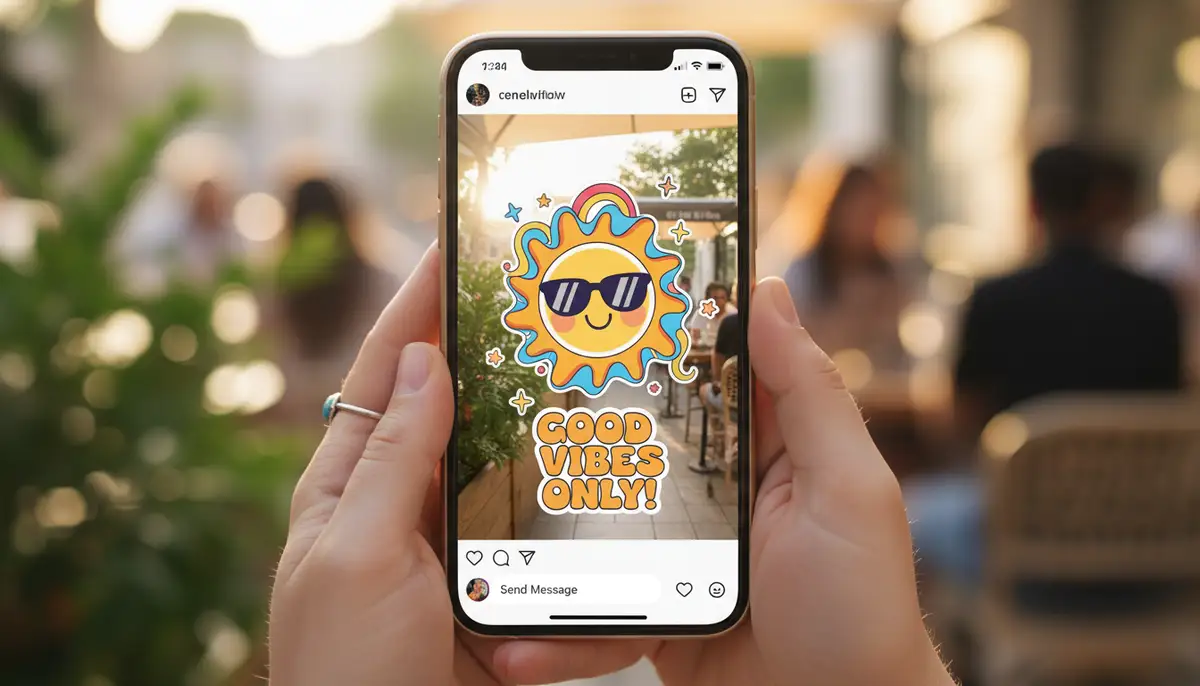
- Open Instagram: Start a new Story or Reel by tapping the ‘+’ icon and selecting ‘Story’ or ‘Reel’.
- Select Media: Choose a photo or video from your camera roll that you want to use as the background for your Story/Reel.
- Tap the Sticker Icon: Once your media is loaded, tap the sticker icon (the square smiley face) at the top of the screen.
- Find the ‘Cut Out’ Sticker: Look for the ‘Cut Out’ or ‘Create Sticker’ option. It often looks like a photo with a dashed outline.
- Choose Your Image: Instagram will prompt you to select an image from your camera roll to turn into a sticker. Select the desired photo.
- Automatic Cutout: Instagram’s AI will automatically detect the main subject in your chosen photo and create a cutout. You’ll see a preview.
- Refine (if needed): If the cutout isn’t perfect, you might have options to adjust the selection manually by dragging your finger.
- Use Your Sticker: Once satisfied, tap ‘Use Sticker’. Your new sticker will appear on your Story/Reel. You can resize, rotate, and reposition it.
- Save for Future Use: Instagram automatically saves these custom stickers to a dedicated section within your sticker tray for easy reuse. This is a huge time-saver when you frequently need how to create stickers in Instagram for specific themes.
This native feature is incredibly convenient. It saves you the hassle of switching between apps for simple cutouts. You can quickly add a personal touch to any Story or Reel. Remember, the quality of your original photo will greatly impact the final sticker’s appearance. Clear, well-lit photos with distinct subjects work best.
Advanced Techniques: How to Create Custom Stickers for Instagram Stories and Reels
While Instagram’s native tools are great for quick cutouts, third-party apps offer unparalleled creative freedom. These applications allow you to design more intricate, transparent, and even animated stickers. If you’re serious about your Instagram game, exploring these options is a must. Many platforms, like Minter.io, provide excellent guides on transforming various media into stickers.
Using Third-Party Apps for Sticker Creation
Several apps excel at creating custom stickers. These tools often provide more precise editing capabilities, background removal, and creative effects than Instagram’s built-in features. Popular choices include PicsArt, Snapseed, and VSCO. Each offers a slightly different workflow, but the core idea remains the same: create an image with a transparent background.
Here’s a general workflow for how to create stickers in Instagram using an external app:
- Choose Your App: Select an app like PicsArt, Snapseed, or VSCO. These offer robust editing features.
- Select Your Image: Open the photo you want to turn into a sticker within the app.
- Remove Background: Use the app’s background removal tool. This is often an ‘Eraser’, ‘Cutout’, or ‘Magic Wand’ feature. Be precise to ensure a clean edge.
- Add Effects/Text (Optional): Enhance your sticker with filters, text, or graphic elements available in the app.
- Save with Transparency: This is crucial. Save your image as a PNG file with a transparent background. Most apps will offer this option.
- Transfer to Instagram: Once saved, you’ll typically save the PNG to your camera roll. Then, open Instagram, start a Story/Reel, and use the ‘Add from Camera Roll’ sticker (the photo icon) to overlay your custom PNG.
Apps like PicsArt are particularly popular for their comprehensive editing suites, allowing you to not only remove backgrounds but also add artistic touches, text, and effects. This gives you much more control over the final look of your custom sticker. Experiment with different apps to find one that best suits your creative style and workflow. Knowing how to create stickers in Instagram with these advanced tools unlocks incredible possibilities.
Designing Stickers with Procreate or Similar Tools
For artists and designers, tools like Procreate on an iPad offer the ultimate control over custom sticker creation. This method allows you to draw, paint, and design stickers from scratch, or intricately edit existing images. It’s perfect for creating branded elements, unique illustrations, or stylized text stickers. Laura Jane Illustrations provides a fantastic resource on how to create custom Instagram stickers using Procreate artwork.
Here’s a general approach using Procreate, which can be adapted for other digital art software:
- Create New Canvas: Open Procreate and create a new canvas. A square canvas (e.g., 2048×2048 pixels) is often a good starting point.
- Design Your Sticker: Draw, paint, or import elements to create your sticker design. Pay attention to resolution and clarity.
- Ensure Transparency: Crucially, make sure the background layer is turned off, so your design has a transparent background. This is what makes it a sticker.
- Export as PNG: Go to the ‘Share’ menu and export your artwork as a PNG file. PNG supports transparency, which is vital for stickers.
- Transfer to Device: Send the PNG file to your phone. You can use AirDrop (for Apple users), email, or cloud storage.
- Add to Instagram: On your phone, open Instagram, start a Story/Reel, and use the ‘Add from Camera Roll’ sticker to place your custom Procreate sticker. This is the ultimate way to learn how to create stickers in Instagram with a truly professional touch.
This method offers the highest degree of customization and artistic expression. You can create anything from intricate logos to playful characters. If you’re looking for a visual guide, this
video offers excellent insights into the process. It is an invaluable resource for anyone wanting to elevate their sticker game.
Animated Stickers: Adding Movement to Your Instagram Content
Static stickers are great, but animated stickers bring your Stories and Reels to life. Instagram integrates seamlessly with Giphy, allowing you to add a vast library of animated GIFs. But did you know you can also create your own custom animated stickers? This adds another layer of dynamic engagement to your content. Many guides, like the one on Stickeryou.com, offer comprehensive tutorials on creating animated stickers from existing GIFs.
Creating Giphy Stickers for Instagram
To create your own animated stickers for Instagram via Giphy, you’ll need a Giphy account and a GIF or short video clip. This is how you learn how to create stickers in Instagram that move.
- Prepare Your GIF/Video: Create a short, looping GIF or video clip. Keep it under 6 seconds for best results. Ensure it has a transparent background if you want it to act like a true sticker.
- Upload to Giphy: Go to Giphy.com and log in. Click ‘Upload’ and select your GIF or video file.
- Add Tags: This is crucial for discoverability. Add relevant tags to your GIF, including your brand name or specific keywords. This is how others (and you) will find it on Instagram.
- Make it Public (or Private): For your sticker to be searchable on Instagram, it generally needs to be a public GIF. If you want it only for yourself, you can keep it private but it won’t appear in Instagram’s search.
- Apply for a Brand Channel (Optional but Recommended): For consistent branding and guaranteed searchability, apply for a Giphy Brand Channel. This verifies your account and makes your GIFs easily accessible.
- Search on Instagram: Once uploaded and processed (this can take a few hours), open Instagram. Start a Story/Reel, tap the sticker icon, and search for your GIF using the tags you added. If you have a brand channel, search for your brand name.
Animated stickers are incredibly effective for grabbing attention. They add a dynamic element that static images can’t match. Remember to create high-quality, relevant GIFs that align with your content and brand. This is a powerful way to truly master how to create stickers in Instagram that are engaging.
Optimizing Your Custom Stickers for Maximum Impact
Creating stickers is only half the battle. To truly make them effective, you need to optimize their design and usage. This ensures they look good, convey your message clearly, and contribute positively to your overall content strategy. Thinking about how to create stickers in Instagram also means thinking about how to use them effectively.
Best Practices for Sticker Design
Good design principles apply to stickers just as they do to any visual content. Keep these tips in mind:
- High Resolution: Always start with high-resolution images or designs to avoid pixelation.
- Clear Edges: Ensure clean, crisp cutouts, especially for transparent stickers.
- Legibility: If your sticker includes text, make sure it’s easy to read against various backgrounds.
- Brand Consistency: Use your brand colors, fonts, and logos to maintain a cohesive look.
- Simplicity: Overly complex stickers can look cluttered. Often, less is more.
- Appropriate Size: Design stickers that can be scaled up or down without losing quality or becoming illegible.
| Sticker Type | Recommended File Format | Key Benefit |
|---|---|---|
| Static Cutout | PNG (with transparency) | Sharp edges, transparent background |
| Illustrated/Graphic | PNG (with transparency) | High quality, custom design |
| Animated GIF | GIF (with transparency) | Dynamic, eye-catching movement |
Integrating Stickers into Your Content Strategy
Don’t just create stickers; integrate them thoughtfully. Use them to enhance your storytelling, promote products, or simply add a touch of fun. For instance, consider creating custom stickers for your Instagram Story Highlights. This can give your profile a professional and branded look. Similarly, explore how to get the new fonts on Instagram to complement your custom stickers and elevate your text overlays.
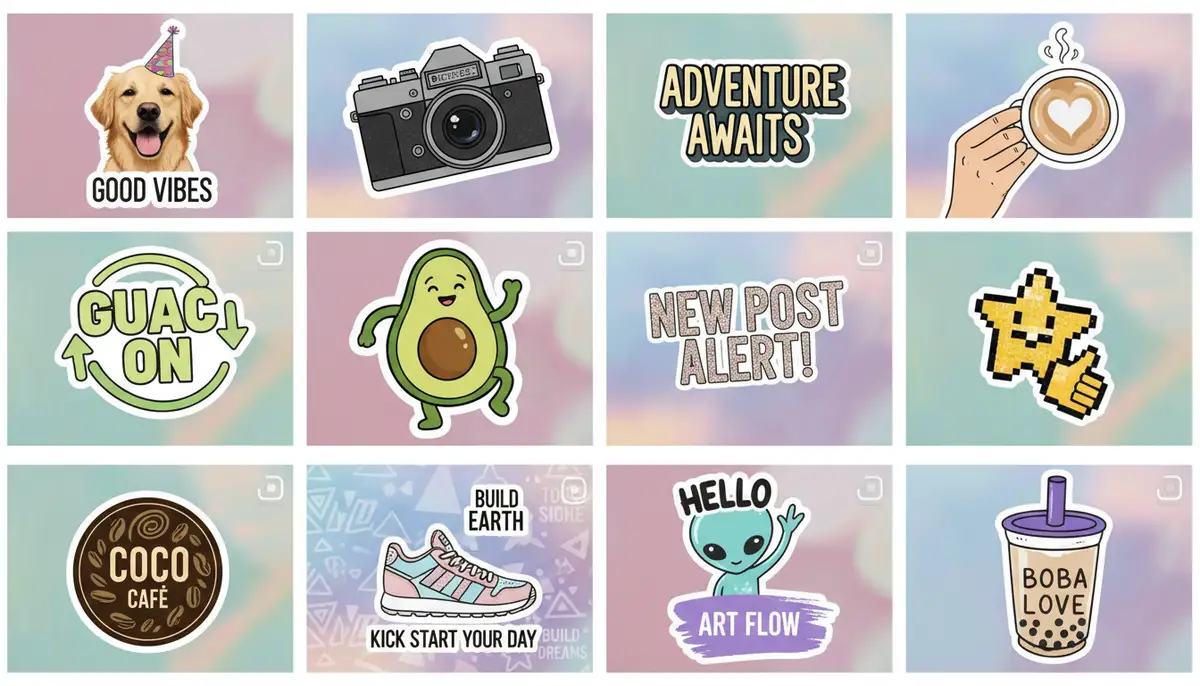
Think about how your stickers can complement other elements of your content. If you’re using a specific font for your brand, ensure your text stickers match. If you’re promoting a new product, create a sticker with its logo or a call-to-action. The goal is to create a cohesive and engaging experience for your viewers. This strategy helps you maximize the effort you put into how to create stickers in Instagram.
Troubleshooting Common Sticker Creation Issues
Even with the best tools, you might encounter a few hiccups when learning how to create stickers in Instagram. Here are some common problems and their solutions:
- Sticker has a white/black background instead of transparent: Ensure you saved your image as a PNG file and confirmed the transparency option in your editing app. JPEGs do not support transparency.
- Sticker appears pixelated or blurry: Start with a higher-resolution source image. Instagram compresses images, so a sharp original is key. Design your sticker at a slightly larger size than you expect to use it.
- Can’t find my custom Giphy sticker: Double-check your tags on Giphy. Ensure your GIF is public and has been processed. It can sometimes take a few hours for new GIFs to appear in Instagram’s search.
- Instagram’s automatic cutout isn’t perfect: For complex shapes or busy backgrounds, the in-app cutout tool might struggle. Use a third-party app like PicsArt or Procreate for more precise background removal.
- Sticker doesn’t fit well on my Story/Reel: Experiment with different sticker sizes and placements. Sometimes a simpler sticker design works better for small spaces.
Patience and practice are key when troubleshooting. Most issues can be resolved by reviewing your export settings or refining your selection process. Learning how to create stickers in Instagram effectively involves understanding these small details.
Beyond Stories: Stickers in Reels and DMs
While Instagram Stories are the most common place for stickers, their utility extends far beyond. You can use many of the same custom stickers in your Instagram Reels, adding visual interest and interactive elements to your short-form video content. This makes your Reels more dynamic and engaging, helping them stand out in the explore feed. Knowing how to create stickers in Instagram is beneficial for your entire content strategy.
Furthermore, custom stickers can even be used in direct messages (DMs). This adds a fun, personal touch to your conversations with friends, family, or even customers. Imagine sending a branded sticker in response to a customer inquiry – it’s a small detail that can leave a lasting impression. The versatility of custom stickers is a powerful asset.
Leveraging Stickers for Business and Personal Branding
For businesses and personal brands, custom stickers are more than just a creative outlet; they are a strategic marketing tool. They offer a subtle yet effective way to reinforce your brand identity, promote products or services, and engage with your audience. When you learn how to create stickers in Instagram, you’re also learning a new form of digital marketing.
- Brand Logos: Create stickers of your logo for consistent branding on all your content.
- Call-to-Action: Design stickers with phrases like ‘Shop Now’, ‘Link in Bio’, or ‘New Post’.
- Event Promotion: Make custom stickers for upcoming events, webinars, or product launches.
- Product Showcases: Turn product images into stickers for interactive shopping experiences.
- Community Building: Create stickers with inside jokes or slogans unique to your community.
Consider how your visual content can be enhanced. For instance, if you’re showcasing high-quality photography, a powerful app like Camera ZOOM FX can help you capture stunning images. You can then use these professional photos to create incredible custom stickers, truly elevating your Instagram presence. A stable shot camera is crucial for capturing the crisp images needed for high-quality stickers.
The possibilities are endless. By consistently using well-designed custom stickers, you build brand recognition and create a more immersive experience for your followers. This is a crucial aspect of mastering how to create stickers in Instagram for impact.
Conclusion: Your Creative Journey with Instagram Stickers
You now have a comprehensive understanding of how to create stickers in Instagram, from using the platform’s native tools to leveraging advanced third-party apps and even creating animated GIFs. Stickers are a dynamic and engaging feature that can transform your Instagram content, whether for personal expression or professional branding. They offer a simple yet powerful way to customize your Stories and Reels, making them more interactive and memorable.
Experiment with different methods, explore various design tools, and don’t be afraid to get creative. The more you practice, the more proficient you’ll become at designing stickers that truly resonate with your audience. So go ahead, start creating, and watch your Instagram content come alive with unique, personalized stickers. Mastering how to create stickers in Instagram is a skill that will continue to pay dividends in your digital journey.