Introduction: Bringing Your Creations to Life on Instagram
Instagram remains a powerhouse for visual content. You probably spend hours scrolling through captivating photos and videos. But what about GIFs? These short, looping animations add personality and fun to any post. Many people wonder how to post your own GIFs on Instagram. The good news is, it’s totally possible in 2025. You just need to know the right steps.
This guide will walk you through everything. We’ll cover the tools and techniques you need. By the end, you’ll be a pro at sharing your unique animated creations. Get ready to boost your Instagram game!
Why GIFs are Essential for Your Instagram Strategy
GIFs are more than just funny memes. They are powerful communication tools. They grab attention quickly. A well-placed GIF can convey emotion or a message faster than text or even a static image. They increase engagement on your posts. This is crucial for personal brands and businesses alike.
- Boost Engagement: Animated content stands out in a crowded feed.
- Express Personality: Show off your unique style or brand voice.
- Simplify Complex Ideas: Explain concepts visually in a digestible loop.
- Create Shareable Content: GIFs are highly shareable, increasing your reach.
- Add Humor and Relatability: Connect with your audience on a deeper level.
Understanding their impact is the first step. Now, let’s dive into the technical side of how to post your own GIFs on Instagram.
The Core Challenge: Instagram’s Native Format
Here’s the key thing to remember: Instagram doesn’t natively support GIF files (.gif) for feed posts. It’s built for images (.jpg, .png) and videos (.mp4, .mov). This means you can’t just upload a .gif file directly to your feed and expect it to play. This is the main hurdle when you want to know how to post your own GIFs on Instagram.
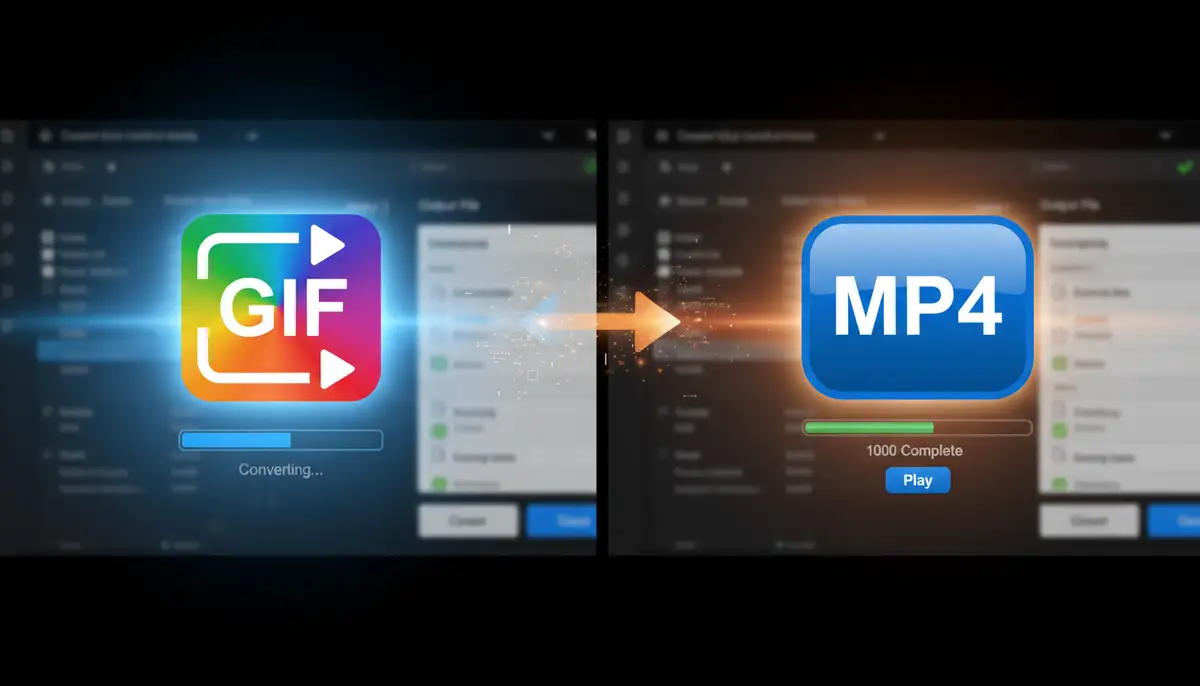
However, this limitation is easy to overcome. The most common solution involves converting your GIF into a video format. Specifically, an MP4 file. Instagram treats these converted GIFs just like any other video. They loop seamlessly, giving the impression of a native GIF.
Method 1: Converting Your GIF to MP4 for Instagram Feed Posts
This is the most reliable method for how to post your own GIFs on Instagram to your main feed. You’ll need a GIF-to-MP4 converter. Many free online tools and apps are available. They make the process quick and simple. Let’s explore some popular options.
Step-by-Step Guide: Using Online Converters
Online converters are incredibly user-friendly. You don’t need to download any software. Just visit a website, upload your GIF, and download the MP4. Here’s a general workflow:
- Find a Reliable Converter: Search for ‘GIF to MP4 converter’ online. Popular choices include Adobe Express, Ezgif.com, or CloudConvert.
- Upload Your GIF: On the converter website, you’ll see an ‘Upload’ or ‘Choose File’ button. Select the GIF from your device.
- Adjust Settings (Optional): Some converters let you tweak video settings like resolution, frame rate, or loop count. For Instagram, a good rule of thumb is to keep the resolution high (e.g., 1080×1080 for square, 1080×1350 for portrait) and ensure it loops at least once.
- Convert: Click the ‘Convert’ or ‘Generate MP4’ button. The process usually takes a few seconds to a minute, depending on your GIF’s size and the converter’s speed.
- Download the MP4: Once converted, download the MP4 file to your computer or phone.
- Transfer to Phone (if needed): If you converted on a computer, transfer the MP4 to your phone. You can use email, cloud storage, or a direct cable connection.

Once you have the MP4 on your phone, you can upload it to Instagram like any other video. This is the fundamental step for how to post your own GIFs on Instagram effectively.
Recommended Tools for GIF to MP4 Conversion
Many tools can help you convert your GIFs. Some are online, others are apps. For a detailed look at conversion methods, you can refer to resources like how to upload a GIF to Instagram on wikiHow. Here are a few options that work well:
| Tool Name | Type | Key Features | Best For |
|---|---|---|---|
| Adobe Express | Online/App | Easy conversion, basic editing, free tier | Quick, high-quality conversions for social media |
| Ezgif.com | Online | Comprehensive GIF tools, resizing, optimization | Advanced GIF editing and conversion |
| CloudConvert | Online | Supports many formats, reliable | Batch conversions and various file types |
| GIPHY (Download as MP4) | Online/App | Large GIF library, easy sharing | Sharing GIPHY content or your own uploaded GIFs |
When choosing a tool, consider its ease of use and any additional features it offers. Some tools, like those from companies such as Canva.com or PicsArt.com, also offer robust editing suites where you can create and then convert your animations.
Optimizing Your Converted GIF for Instagram
After conversion, a few tweaks can make your GIF look even better on Instagram. These tips ensure your content is professional and engaging. This is part of the art of how to post your own GIFs on Instagram effectively.
- Aspect Ratio: Instagram supports various aspect ratios. Square (1:1), portrait (4:5), and landscape (1.91:1) are common. Choose one that best suits your GIF.
- Loop Duration: Instagram videos must be at least 3 seconds long. If your GIF is shorter, loop it multiple times during conversion to meet this minimum. Most converters handle this automatically.
- File Size: Keep your MP4 file size reasonable. Larger files can take longer to upload and might buffer for viewers with slower internet. Aim for under 50MB for feed posts.
- Resolution: Use a high resolution (e.g., 1080p) for crisp visuals. Instagram compresses videos, so starting with a high-quality source is essential.
- Sound (or lack thereof): GIFs are silent. Ensure your converted MP4 also has no audio or muted audio. Unexpected sound can be jarring.
Paying attention to these details will ensure your GIF looks fantastic. It will also perform well on Instagram. This attention to detail is key when learning how to post your own GIFs on Instagram.
Method 2: Leveraging GIPHY for Stories and Reels
While converting to MP4 is best for feed posts, GIPHY offers a direct way to share GIFs on Instagram Stories and Reels. GIPHY is the world’s largest library of animated GIFs. It also allows you to upload your own creations. This is another fantastic approach to how to post your own GIFs on Instagram.
Uploading Your GIF to GIPHY
To share your own GIFs via GIPHY, you first need a GIPHY account. Then, you can upload your custom animations:
- Create a GIPHY Account: Go to GIPHY.com and sign up for a free account.
- Upload Your GIF: Click the ‘Upload’ button on the GIPHY website. Choose your GIF file from your computer or phone.
- Add Tags and Source: Add relevant tags to help others find your GIF. You can also add a source URL if it’s from another site. This is important for visibility.
- Make it Public (or Private): Decide if you want your GIF to be publicly searchable. For personal use, you might keep it private. For brand promotion, make it public.
- Submit: Click ‘Upload to GIPHY’. Your GIF will be processed and added to your GIPHY channel.
Once your GIF is on GIPHY, it’s ready for sharing. This platform simplifies how to post your own GIFs on Instagram Stories and Reels.
Sharing GIPHY GIFs to Instagram Stories and Reels
Instagram has a direct integration with GIPHY for Stories and Reels. This means you don’t need to convert anything. It’s incredibly convenient. For more detailed instructions, GIPHY’s own support page offers guidance on how to post GIFs on Instagram.
- Open Instagram: Go to the Instagram app on your phone.
- Create a Story or Reel: Tap the ‘+’ icon and select ‘Story’ or ‘Reel’. Record a video or take a photo as your background.
- Add a GIF Sticker: For Stories, tap the sticker icon (the square smiley face). For Reels, you can add GIF stickers after recording or uploading your video. Search for ‘GIF’.
- Search for Your GIF: In the GIF search bar, type keywords related to your uploaded GIF. If you made it public and tagged it well, it should appear. You can also search for your GIPHY username.
- Place and Resize: Select your GIF. Drag it to position and pinch to resize. You can even layer multiple GIFs.
- Share: Once satisfied, post your Story or Reel.
This method is fantastic for dynamic, interactive content. It’s a quick way to add flair. It also helps you understand how to post your own GIFs on Instagram using integrated features.
Creating Your Own GIFs: From Video to Animation
Want to go beyond existing GIFs? You can create your own! This gives you complete creative control. You can turn short video clips or a series of photos into unique animations. This is the ultimate skill in how to post your own GIFs on Instagram.
Using Video Clips to Make GIFs
Your phone’s camera is a powerful tool. You can capture short videos and convert them into GIFs. Consider using a high-quality camera app like Camera ZOOM FX. It offers professional controls for stunning video capture. This ensures your source material is top-notch. Then, you can use these steps:
- Record a Short Video: Keep it brief, 3-6 seconds is ideal. Focus on a specific action or reaction.
- Choose a GIF Maker App/Website: Apps like GIF Maker, ImgPlay, or online tools like Ezgif.com allow you to upload video and convert it to GIF.
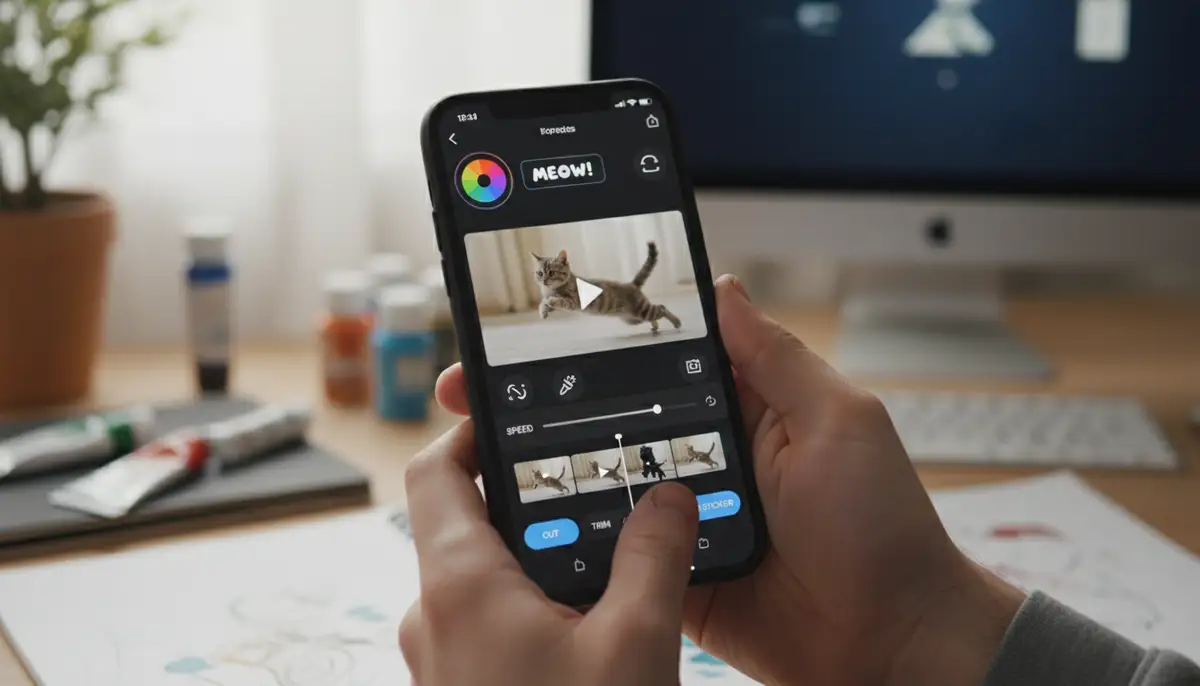
- Trim and Edit: Most tools let you trim the video to the perfect segment. You can also adjust speed, add text, or apply filters.
- Generate GIF: Click to create the GIF. Preview it to ensure it loops smoothly.
- Save: Download your new GIF. Then, follow the MP4 conversion steps if posting to your feed, or upload to GIPHY for Stories/Reels. This completes the loop on how to post your own GIFs on Instagram from scratch.
Turning Photos into Stop-Motion GIFs
Another creative option is stop-motion animation. You take a series of photos, each with a slight change. Then, you stitch them together into a GIF. This method is great for showing product transformations or artistic sequences.
- Take Sequential Photos: Set up your scene. Take many photos, moving your subject slightly between each shot. A tripod helps maintain consistency.
- Use a GIF Maker: Upload your sequence of photos to a GIF maker app or website.
- Adjust Frame Rate: Experiment with the frame rate (how fast the images change). This controls the animation’s speed.
- Add Effects (Optional): Some tools let you add text, stickers, or filters to your photo-based GIF.
- Export and Share: Save your GIF and prepare it for Instagram using the methods we’ve discussed.
Creating your own GIFs adds a unique touch to your content. It shows effort and creativity. This helps you stand out in the busy Instagram landscape. It truly masters how to post your own GIFs on Instagram.
Best Practices for Engaging GIF Content on Instagram
Knowing how to post your own GIFs on Instagram is one thing. Creating good GIFs is another. Here are some tips to make your animated content shine:
- Keep it Short and Sweet: GIFs are meant to be quick. Aim for 3-6 seconds.
- Focus on a Clear Message: What do you want your GIF to convey? Make it obvious.
- High Quality Visuals: Blurry or pixelated GIFs look unprofessional. Use high-resolution source material.
- Loop Seamlessly: A good GIF should loop smoothly. The beginning and end should blend naturally.
- Add Context in Captions: Explain your GIF or ask a question in your caption to encourage interaction.
- Use Relevant Hashtags: Help people discover your GIF content with appropriate hashtags.
Remember, the goal is to entertain and inform. Engaging GIFs keep your audience coming back. They are a powerful tool in your content arsenal. Learning how to post your own GIFs on Instagram is just the beginning.
Integrating GIFs with Other Instagram Features
GIFs don’t live in isolation. They can enhance other Instagram features. For instance, you might want to learn how to create a story highlight on Instagram to showcase your best GIF Stories. Or perhaps you’re interested in making your text pop. You can discover how to get the new fonts on Instagram to pair with your animated content.
Think about how GIFs can complement your overall content strategy. They can be part of a larger campaign. They can also simply add a touch of fun to your daily posts. The versatility of GIFs is truly remarkable.
Troubleshooting Common Issues When Posting GIFs
Sometimes, things don’t go as planned. Here are a few common problems you might encounter when learning how to post your own GIFs on Instagram, along with their solutions:
- GIF Not Playing on Feed: This is almost always because you tried to upload a .gif file directly. Remember to convert it to MP4 first.
- Poor Quality/Pixelation: Your original GIF or video might be low resolution. Always start with the highest quality source material possible. Also, check converter settings for resolution options.
- Looping Issues: Ensure your MP4 conversion settings correctly loop the video. If your GIF is too short, extend its duration by looping it multiple times.
- File Too Large: Instagram has file size limits. If your MP4 is too big, try compressing it with a video compression tool before uploading.
- GIF Not Appearing in GIPHY Search: If you uploaded to GIPHY, ensure it’s public and you’ve used relevant, unique tags. Sometimes it takes a little while for new GIFs to become searchable.
Don’t get discouraged if you hit a snag. Most issues are easily fixable. Just revisit the steps and check your file formats and settings. Practice makes perfect when it comes to how to post your own GIFs on Instagram.
The Future of GIFs and Instagram in 2025 and Beyond
As we look to 2025 and beyond, visual content will only become more dynamic. Instagram is constantly evolving. It adds new features to enhance user experience. While direct GIF uploads to the feed aren’t here yet, the existing methods are robust. They allow for incredible creativity. Knowing how to post your own GIFs on Instagram will remain a valuable skill.
We might see Instagram introduce more native GIF support in the future. Perhaps dedicated GIF sections in profiles or new interactive sticker options. Until then, mastering the current techniques keeps you ahead of the curve. Companies like VSCO.co continue to innovate in visual editing. This gives creators even more tools to craft stunning content. The possibilities for animated expression are endless.
Conclusion: Unlock Your Creative Potential with GIFs on Instagram
You now have the knowledge and tools to confidently answer the question: how to post your own GIFs on Instagram. Whether you’re converting them to MP4 for your main feed or leveraging GIPHY for engaging Stories and Reels, the power is in your hands. GIFs are a fantastic way to add personality, humor, and crucial information to your Instagram presence. They boost your engagement and make your content unforgettable.
Start experimenting today. Create your own unique animations. Watch your Instagram engagement soar. Remember, great content starts with great capture. For high-quality video and photo resources for your GIFs, consider using our ultra fast capture photography app. It provides professional controls and stunning filters. This ensures your source material is always exceptional. Go forth and animate!