
Introduction: Why You Need to Know How to See What Apps Are Running on Android
In today’s fast-paced digital world, your Android smartphone is more than just a communication device. It’s a powerful pocket computer, constantly juggling multiple tasks. Many apps work silently in the background, consuming resources without you even realizing it. Understanding how to see what apps are running on Android is crucial for maintaining your device’s health and performance. This guide will show you exactly how to see what apps are running on Android, helping you take control of your phone’s efficiency, battery life, and privacy in 2025.
You might wonder why this information is so important. Running apps, especially those in the background, can impact your phone in several ways. They can drain your battery faster, slow down your device, and even use your data without permission. Knowing how to identify these apps empowers you to manage them effectively. Let’s dive into the various methods to check which applications are active on your Android device.
Method 1: The Recent Apps Screen – Your Quick Overview
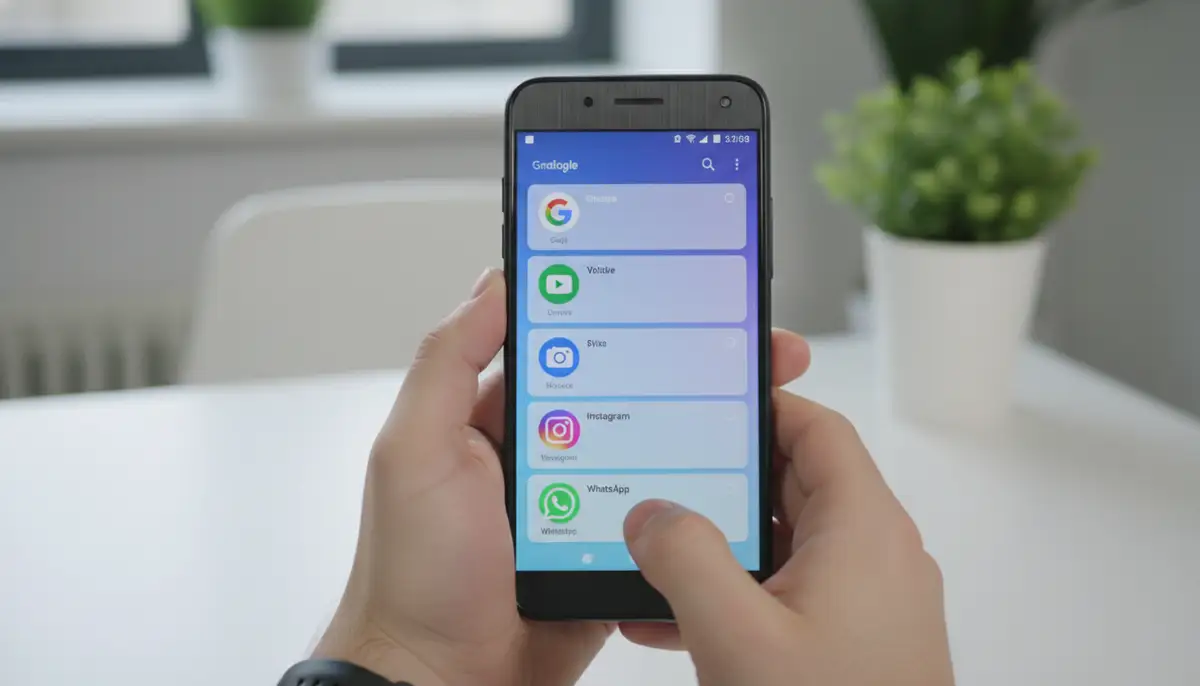
The simplest and most common way to get an immediate glance at recently used apps is through the Recent Apps screen. This feature has been a staple of Android for years, evolving with each new version. It shows you applications that are currently open or were recently used, making it easy to switch between them or close them out.
Accessing Recent Apps:
- For devices with navigation buttons: Look for a square icon or three vertical lines, usually at the bottom-right or bottom-left of your screen. Tap it.
- For devices with gesture navigation: Swipe up from the bottom of your screen and hold your finger in the middle for a moment. This will reveal the carousel of recent apps.
Once you access this screen, you’ll see a stack or carousel of app cards. Each card represents an app that’s currently open or was recently active. You can swipe left or right (or up/down depending on your Android version) to browse through them. To close an app, simply swipe its card away, usually upwards. This method is great for quick clean-ups and improving immediate performance.
This quick method is often the first step when you notice your phone feeling sluggish. It’s a basic but effective way to manage visible running apps. For more details on how to open and manage your apps, you can refer to this helpful guide from Google Support on opening apps.
Method 2: Through Android Settings – A Deeper Dive
While the Recent Apps screen is useful, it doesn’t show you all background processes. For a more comprehensive view, you need to go into your Android settings. This is where you can truly understand how to see what apps are running on Android, including those silently consuming resources.
Steps to Access Running Apps via Settings:
- Open Settings: Tap the ‘Settings’ icon on your home screen or in your app drawer.
- Navigate to Apps: Scroll down and tap on ‘Apps’ or ‘Apps & notifications’. The exact wording might vary slightly based on your Android version and phone manufacturer (e.g., Samsung, Google Pixel, OnePlus).
- See All Apps: You might need to tap ‘See all apps’ or ‘App info’ to view a complete list of installed applications.
- Check App Usage: For individual apps, tap on an app from the list. Here, you can often see its ‘Battery usage’, ‘Data usage’, and ‘Storage usage’. This gives you clues about its background activity.
Within an individual app’s settings, you’ll find options like ‘Force stop’ and ‘Disable’. ‘Force stop’ will immediately shut down the app and all its background processes. ‘Disable’ will prevent the app from running entirely until you re-enable it. Be cautious with ‘Disable’ for system apps, as it might affect your phone’s stability. This detailed view is essential when you want to truly grasp how to see what apps are running on Android and manage them individually.
Method 3: Unlocking Developer Options – The Ultimate Control
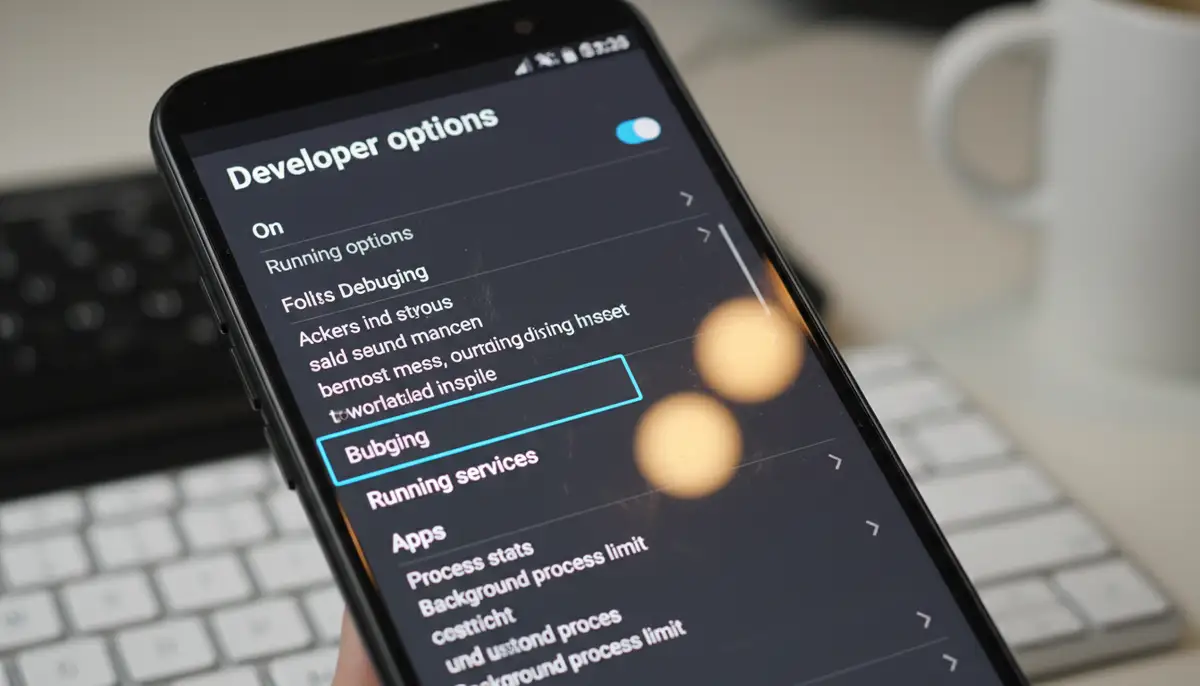
For the most detailed insight into running processes, you’ll need to unlock ‘Developer Options’. This hidden menu provides advanced controls and diagnostic tools, including a dedicated section to show you exactly how to see what apps are running on Android in real-time. It’s a powerful feature, but remember to use it responsibly.
How to Enable Developer Options:
- Go to Settings: Open your phone’s ‘Settings’ app.
- Find About Phone: Scroll down and tap on ‘About phone’ or ‘About device’.
- Tap Build Number: Locate ‘Build number’ (sometimes ‘Software information’ > ‘Build number’). Tap it rapidly seven times. You’ll see a toast notification counting down, and then a message saying ‘You are now a developer!’ or ‘Developer options enabled’. You might need to enter your PIN or pattern.
Once enabled, you can usually find ‘Developer Options’ under ‘Settings’ > ‘System’ > ‘Developer options’. The exact path might vary. Inside this menu, look for ‘Running services’ or ‘Process stats’. This section provides a live list of all active processes, including system services and user apps, along with the memory they are consuming. This is the most comprehensive answer to how to see what apps are running on Android.
This specific section within Developer Options is invaluable for diagnosing performance issues. You can see which apps are hogging RAM or CPU cycles. Tapping on an app here often gives you the option to ‘Stop’ it, which is similar to ‘Force stop’ but directly from the running services list. For a deeper dive into using developer options to manage background apps, check out this Medium article on checking background apps.
Understanding Background Processes and Their Impact
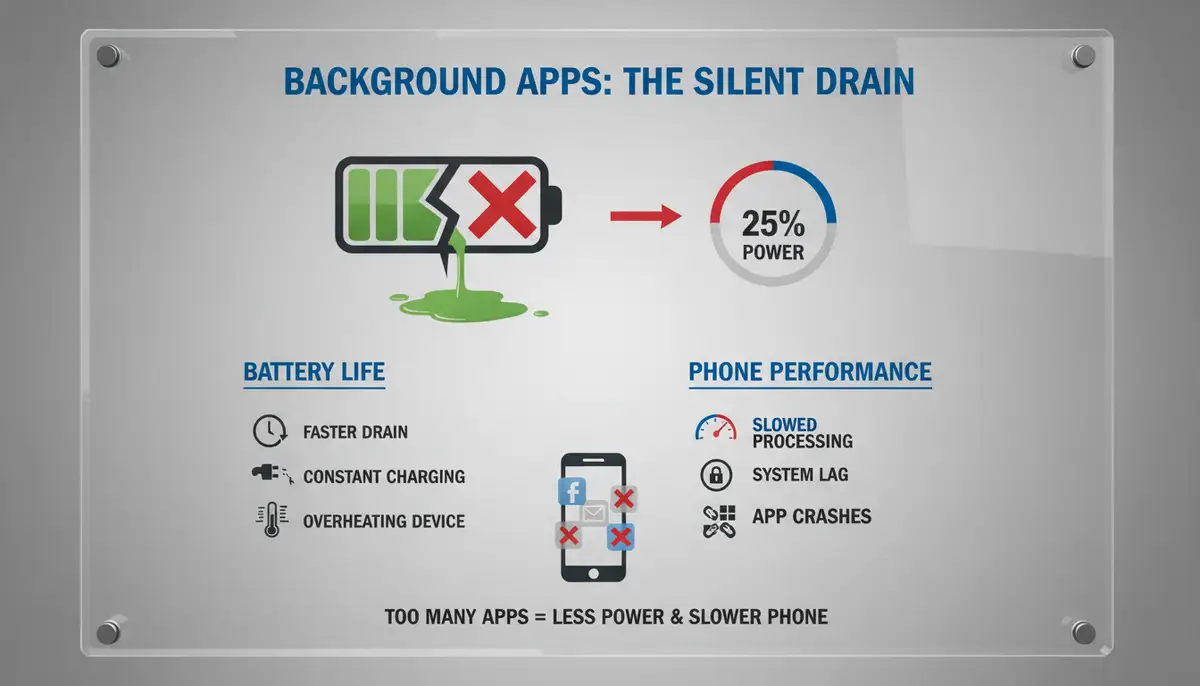
It’s important to differentiate between an app that’s actively open on your screen and one running in the background. Background apps continue to perform tasks even when you’ve switched to another app or turned off your screen. These tasks can include syncing data, sending notifications, updating content, or tracking your location. While some background activity is necessary for app functionality, excessive background processes can severely impact your phone.
Knowing how to see what apps are running on Android is only half the battle. Understanding why they run and what they do is the next step. Many apps, like messaging apps or email clients, need to run in the background to deliver timely notifications. However, many others might run unnecessarily, consuming precious battery life and slowing down your device. This is where Camera ZOOM FX shines, as a photography app, it prioritizes performance during capture, ensuring your camera functions optimally without unnecessary background bloat.
Why Manage Running Apps?
- Battery Life: Apps running in the background continuously use your battery, even if you’re not actively using them. Stopping unnecessary ones can significantly extend your charge.
- Performance: Too many active processes can slow down your phone, making it feel sluggish and unresponsive. Freeing up RAM and CPU resources improves overall speed.
- Data Usage: Some background apps constantly sync data, leading to unexpected data overages if you’re not on an unlimited plan.
- Privacy: Certain apps might collect data or track your location in the background. Managing them helps protect your personal information.
- Storage: While not directly related to running, managing apps helps you identify those that consume excessive storage, impacting overall device health.
Practical Strategies for Managing Running Apps
Now that you know how to see what apps are running on Android, let’s talk about what you can do about it. Effective app management is key to a smooth Android experience. Here are some actionable strategies:
1. Force Stop Unresponsive Apps:
If an app is misbehaving, frozen, or consuming too many resources, ‘Force stop’ is your go-to solution. Go to ‘Settings’ > ‘Apps’ > select the problematic app > ‘Force stop’. This will immediately kill all its processes. The app will only restart when you open it again. Be careful not to force stop critical system apps unless you know what you’re doing.
2. Restrict Background Activity:
Modern Android versions offer granular control over background activity. For any app, go to ‘Settings’ > ‘Apps’ > select the app > ‘Battery’ > ‘Background restriction’ or ‘Optimize battery usage’. You can choose to restrict background activity for apps that don’t need constant updates, like many games or one-time utility apps. This is a powerful way to manage how to see what apps are running on Android and control their resource consumption. For example, while editing photos in apps like snapseed.online or vsco.co, you might not need other apps syncing in the background.
3. Uninstall Unused Apps:
The simplest way to prevent an app from running is to remove it entirely. Regularly review your app drawer and uninstall anything you no longer use. Less clutter means fewer potential background processes and more free storage. This also frees up space for your media, like photos captured with your burst mode camera.
4. Utilize Android’s Built-in Battery Optimization:
Android has intelligent battery optimization features. Go to ‘Settings’ > ‘Battery’ > ‘Battery optimization’ (or similar). Here, you can see which apps are optimized and which are not. Ensure most apps are optimized to help Android manage their background activity efficiently. This system helps you understand how to see what apps are running on Android and how they impact battery life.
5. Consider App Permissions:
Some apps run in the background because they have permissions to do so, like location access or microphone access. Review app permissions regularly (‘Settings’ > ‘Apps’ > select app > ‘Permissions’). Revoke permissions that seem unnecessary for an app’s core function. This enhances privacy and reduces potential background activity.
6. Restart Your Device Regularly:
A simple restart can often clear out lingering background processes and refresh your phone’s system. Make it a habit to restart your Android device at least once a week. This is a quick and easy way to address minor performance issues.
Table: Common Running App Types and Their Management
| App Type | Typical Background Activity | Recommended Action |
|---|---|---|
| Messaging Apps (WhatsApp, Telegram) | Receiving notifications, syncing messages | Allow background activity; restrict if not primary messaging app. |
| Social Media (Facebook, Instagram) | Fetching updates, notifications, location tracking | Restrict background data/battery for less important apps. Review permissions. |
| Navigation (Google Maps, Waze) | Location tracking, route updates | Allow when in use; ensure it closes when not navigating. |
| Utility Apps (Flashlight, Calculator) | Minimal to none, unless poorly coded | Force stop if seen running; uninstall if unused. |
| Photo Editors (Canva, Snapseed) | Saving drafts, syncing to cloud (if enabled) | Restrict background data/battery; ensure cloud sync is intentional. |
| Camera Apps (Camera ZOOM FX) | Minimal, typically only active when open | Ensure no unnecessary background processes; optimize for fast capture like steady shot stabilizer. |
The Role of Your Photography App in Performance
As a leading photography app, Camera ZOOM FX understands the importance of system performance. A smooth, responsive camera experience relies on your phone having enough free resources. When you’re trying to capture that perfect shot, whether it’s a panorama mode, or a quick action sequence, you don’t want your phone to lag because of too many background apps. We design Camera ZOOM FX to be efficient, ensuring it doesn’t contribute to unnecessary background drain while delivering professional controls and stunning filters.
Many photo and video editing apps, including popular ones like canva.com, can be resource-intensive. It’s good practice to manage their background activity when you’re not actively using them. This ensures your device is ready for high-performance tasks, such as capturing high-quality photos or running complex games. Knowing how to see what apps are running on Android helps you prioritize these demanding tasks.
Watching for Background Activity: A Visual Guide
Sometimes, seeing is believing. This video offers a clear demonstration of how to identify apps running in the background. It provides a simple visual walkthrough that complements the steps outlined above. Watch this to solidify your understanding of how to see what apps are running on Android:
Advanced Tips for Android App Management
Beyond the basic methods for how to see what apps are running on Android, there are a few more advanced tips you can employ to keep your device running optimally.
1. Understand ‘Doze’ Mode and App Standby:
Android’s ‘Doze’ mode and ‘App Standby’ features automatically manage background activity when your phone is idle or an app hasn’t been used for a while. ‘Doze’ kicks in when your phone is stationary and screen-off, batching network and CPU-intensive tasks. ‘App Standby’ restricts network access for apps you haven’t used recently. These are built-in optimizations, but knowing they exist helps you understand Android’s background management.
2. Clear App Cache and Data:
Over time, apps accumulate cache and data, which can sometimes lead to performance issues or increased background activity. If an app is acting up, try clearing its cache first (‘Settings’ > ‘Apps’ > select app > ‘Storage & cache’ > ‘Clear cache’). If that doesn’t work, ‘Clear data’ will reset the app to its fresh-install state, but it will delete all its data (logins, settings, etc.). This can often resolve persistent issues.
3. Update Your Apps and Android OS:
Developers constantly optimize their apps for performance and battery efficiency. Keeping your apps updated via the Google Play Store ensures you have the latest, most optimized versions. Similarly, updating your Android operating system provides system-wide improvements, including better background process management. Always check for updates regularly.
By staying on top of updates, you leverage the latest advancements in how Android handles background tasks. This proactive approach helps maintain a responsive and efficient device. It also ensures you benefit from security patches and new features.
4. Be Wary of Task Killer Apps:
In the past, third-party ‘task killer’ apps were popular. However, modern Android is very good at managing memory and background processes on its own. Task killers often do more harm than good by aggressively closing apps, only for Android to restart them, leading to more battery drain and worse performance. Stick to Android’s built-in tools for managing running apps. This guide from Lifewire explains how to stop apps from running in the background and often advises against these types of apps.
Conclusion: Take Control of Your Android Experience
Mastering how to see what apps are running on Android is a fundamental skill for any smartphone user in 2025. It’s about more than just curiosity; it’s about empowering yourself to optimize your device’s battery life, enhance its performance, and protect your privacy. By regularly checking your recent apps, diving into settings, and utilizing developer options, you gain unprecedented control over your digital companion.
Remember, a well-managed Android device is a joy to use. It responds faster, lasts longer on a single charge, and keeps your data more secure. Whether you’re a casual user or a power user who demands peak performance for apps like Camera ZOOM FX, taking these steps to understand how to see what apps are running on Android will significantly improve your overall experience. Start implementing these tips today and unlock the full potential of your smartphone!